

Who can see an instance
You can choose one of the following:- Public - everyone with access to this workflow can see its instances
- Only users involved in the process - only people working on an instance, its assignees and their teams, can see it
- Users involved + selected teams - everyone involved can see the instance, plus the teams you select. Use this when an audit team needs oversight without being assigned to a step
- Only selected teams - only the teams you select can see the instance, no matter who is involved. If a step needs someone outside those teams, that person can view and complete their own step, but nothing else
Workspace admins, the workflow lead, and the instance lead can always see instances.
Access to the folder is not enough to see a private instance. Folder members (owner, team, read, or edit) don’t see other people’s work on that instance in instance tables or Actions. If a step is assigned to you, that task still shows. For details, see Workflow visibility.
Set who can see each instance
- Open a workflow in the workflow builder.
- Open Workflow start options and, under Instance visibility, select who can see each instance.
- If you selected Users involved + selected teams or Only selected teams, choose the Teams with access. For Only selected teams with Team selection at start set to Disable, you must select at least one team.
- Set Team selection at start.
- Publish the workflow.
Selecting Only selected teams turns off Enable instance tracking and you can’t turn it back on — those instances don’t get a public tracking link. For details, see Enable instance tracking.
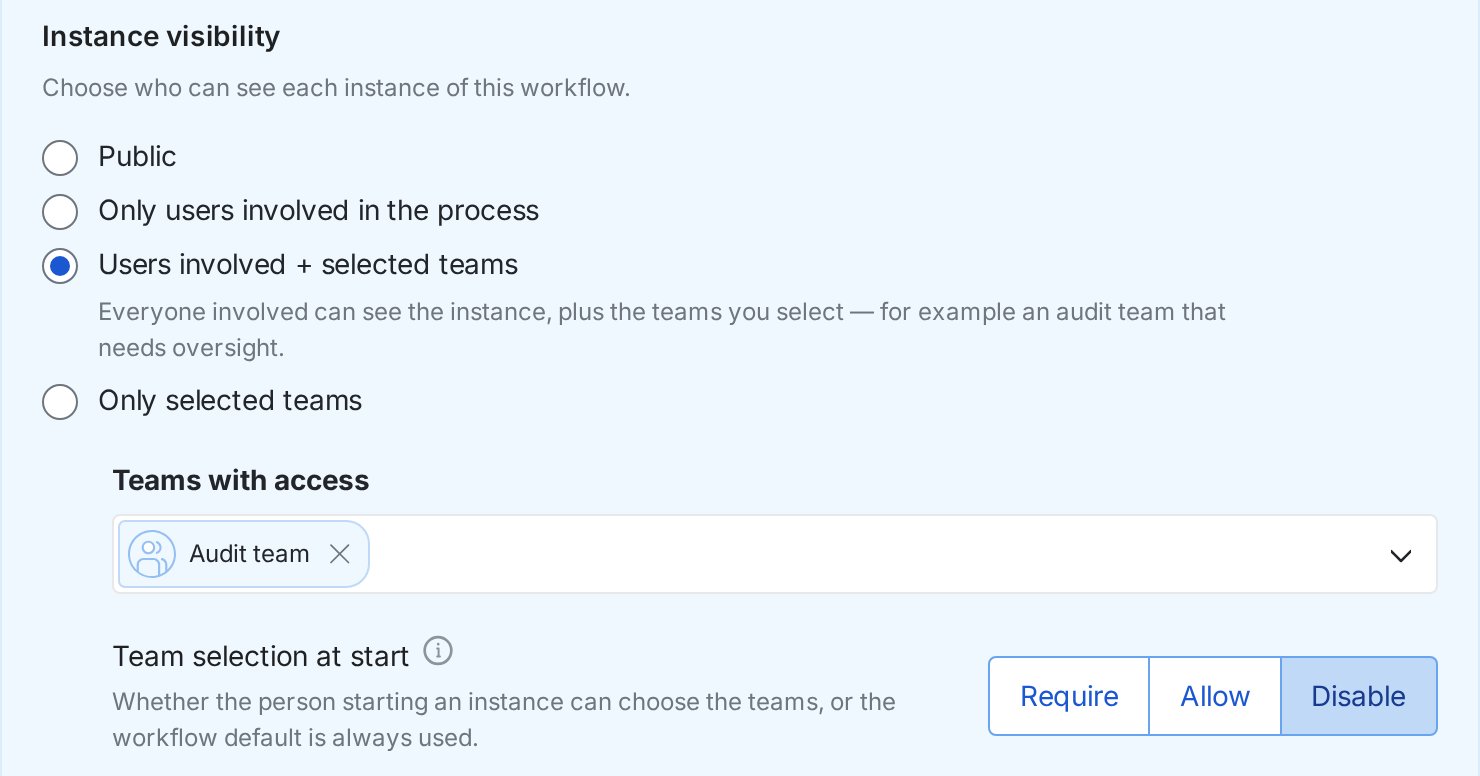
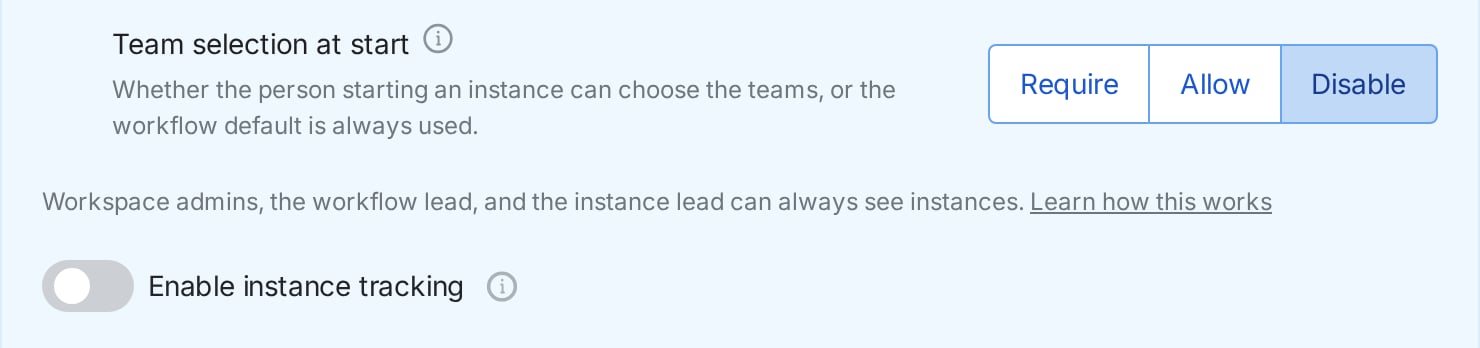
Team selection at start
This setting is available when you use a team-based option. It controls whether the person starting an instance can choose the teams, or the workflow default is always used.- Require - the person starting the instance must select the teams
- Allow - the person starting the instance can change the workflow’s default teams
- Disable - the workflow default teams are always used
If your workspace requires a minimum visibility option, options below that minimum are unavailable. You’ll see Your workspace requires at least [option] visibility. To set a workspace minimum, contact our Support team.
When you can’t publish
You can’t publish if a start that can’t pick teams would have no one who can see the instance.You can still save a draft. Warnings don’t block publish.
Recurring workflows and portals
A recurring start and a portal start can’t choose teams. They use the workflow’s default teams. You can’t publish when either is set and:- Team selection at start is Require, and visibility is Users involved + selected teams or Only selected teams
- Visibility is Only selected teams and no default team is set, no matter what Team selection at start is
Start an instance
When Team selection at start is Allow or Require, the start form shows Teams with access. If the setting is Require on a team-based option, you must select at least one team before you can start the instance. You can also start instances with API and passvisibility_teams (a list of team IDs). For details, see API reference.
Webhook and file-import starts use the workflow default teams. They don’t accept a per-instance team selection.
If the workflow is already published, you can’t start an instance in the same cases:
- Require on Users involved + selected teams or Only selected teams, and no teams were supplied and no default teams exist
- Only selected teams with no team at all
Find the right instances
In Workflows > Overview, you can add the Visibility and Teams with access columns and filter by them.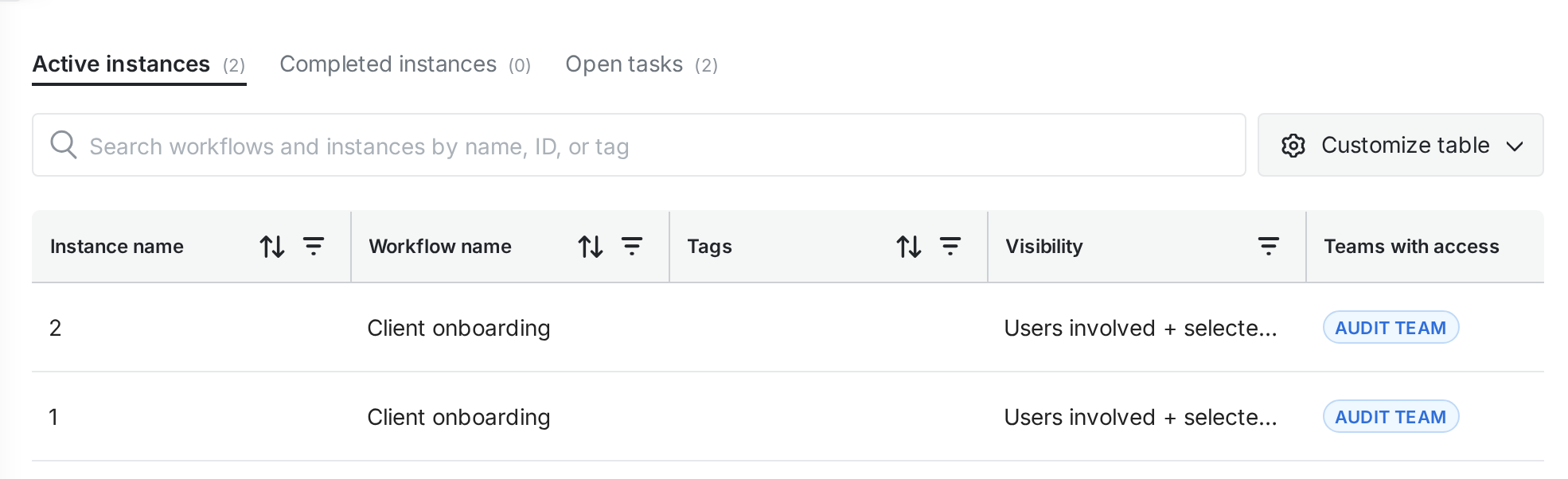
- Visibility - filter by the visibility option used for the instance
- Visible to team - instances whose Teams with access include that team
- Visible to user - instances whose selected teams include that person. This is not a list of every instance the person can open. Public and involved instances they can see as a colleague, assignee, or lead are not included unless they are on a selected team
The Visible to user filter is available to admins.
Need to add a team later?
As an admin, you can add or remove Teams with access after the instance has started. You do this in Edit instance settings, the same place you edit the instance name.- In the workflow overview, click the instance.
- Click Edit instance settings.
- Update Teams with access.
Adding or removing someone from a visibility team changes their access to those instances immediately. And if a step is assigned to someone who can’t see an Only selected teams instance, they still get the task in their inbox and can complete that step, but can’t open the instance, the timeline, other steps, or the instance row in the instance table. Task assignment notifications still go to the step assignee; instance-level notifications go only to people who can see the instance.