> ## Documentation Index
> Fetch the complete documentation index at: https://help.nextmatter.com/llms.txt
> Use this file to discover all available pages before exploring further.
# Templates
> Templates give you a head-start on integration. They create all the necessary steps and fill in the API details you need.
Templates are ready-made integration steps that display in your workflow.
To use a template, in your process click **+ Add step > Templates**. You can select out of the following template options:
* **3rd party templates**: these templates provide you with ready-made steps that use 3-rd party system integrations. Use them to quickly create workflows that send messages to Slack, write things to templates in Google Drive, and so on.
* **Next Matter templates**: these templates provide you with chunks of Next Matter ready-made workflows. Use these templates to quickly create steps for stopping an instance, automatically completing a step, and so on. Several templates provide you with steps that show you an example of a function in use. You can use these when you need to calculate or format a date or put together a URL.
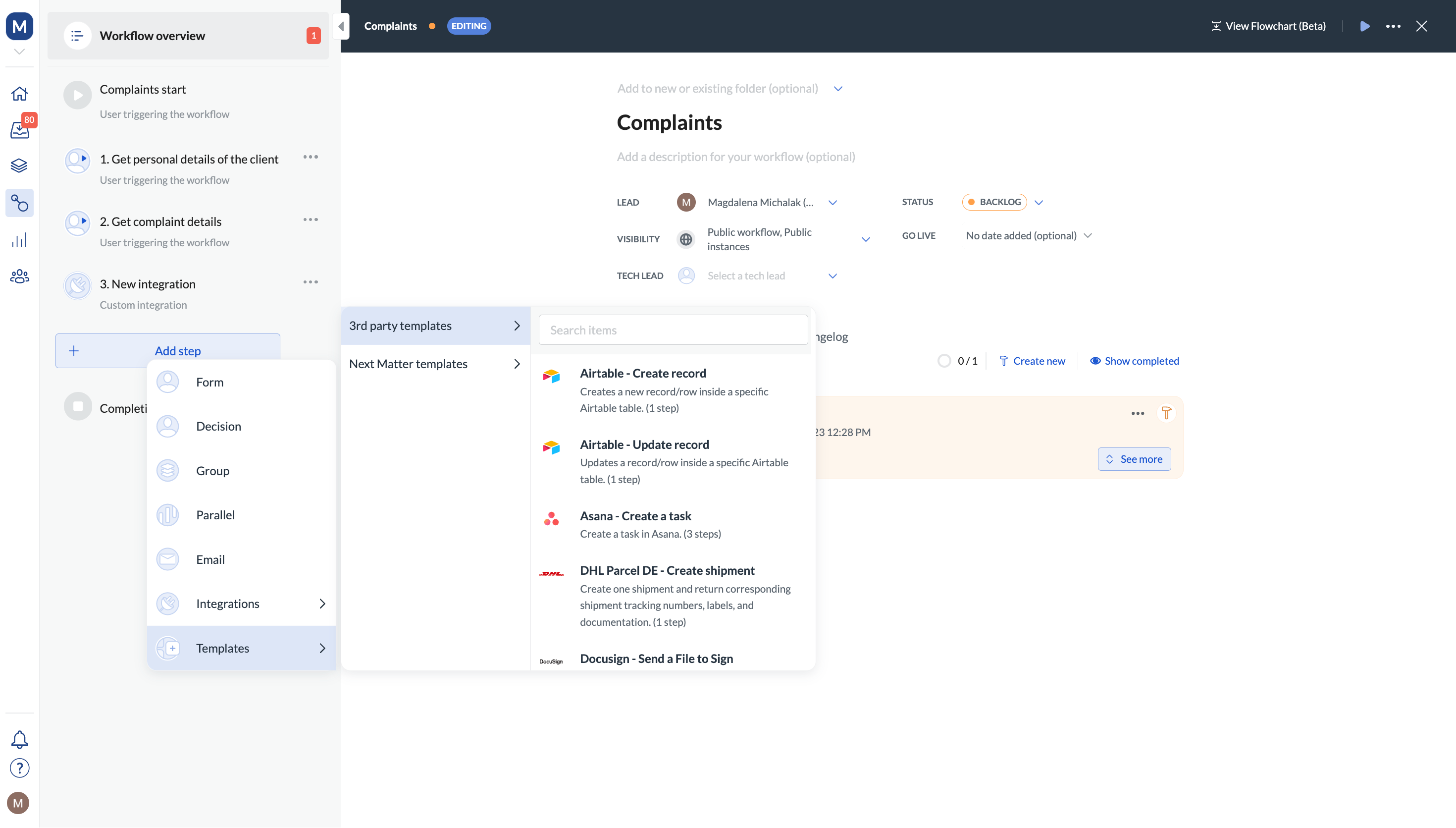 Pick a template you want to use.
When you have the template in your workflow, click **Settings** for every step it created and configure it. In most cases, you'll need to enter the details in the placeholders in the **Body** of the step.
It might also happen that a placeholder can be replaced by a data reference of the data provided in one of the previous steps. To learn more about data references, see [Data references](/docs/use-data-references).
No idea what your workflow should look like? Our AI can help you build it!
1. Log in to Next Matter and click **Roadmap**.
2. Click **+ Create new process with AI**.
3. Describe your workflow and click **Generate workflow**. Don't worry about the **Steps count** for now.
4. If you like the workflow, click **Open in editor**, and tweak the details.
If you can't see the AI template builder in your editor, contact our Support team.
Pick a template you want to use.
When you have the template in your workflow, click **Settings** for every step it created and configure it. In most cases, you'll need to enter the details in the placeholders in the **Body** of the step.
It might also happen that a placeholder can be replaced by a data reference of the data provided in one of the previous steps. To learn more about data references, see [Data references](/docs/use-data-references).
No idea what your workflow should look like? Our AI can help you build it!
1. Log in to Next Matter and click **Roadmap**.
2. Click **+ Create new process with AI**.
3. Describe your workflow and click **Generate workflow**. Don't worry about the **Steps count** for now.
4. If you like the workflow, click **Open in editor**, and tweak the details.
If you can't see the AI template builder in your editor, contact our Support team.