> ## Documentation Index
> Fetch the complete documentation index at: https://help.nextmatter.com/llms.txt
> Use this file to discover all available pages before exploring further.
# Get data from tables
> Work with table data identifying lowest and highest numbers or unique values.
## Find minimum and maximum value in a column
This quick action helps you identify extremes in a column in a numerical table.
1. In your workflow, go to **+ Add step > Integrations > Quick action**.
2. Select the **Find min/max in column** operation.
3. Enter table data or use \{} to refer to a table already used in the workflow. Note that the table data needs to have a 2D array structure.
4. Select the column to analyze - enter 0 for the first column, 1 for column number 2, or 2 for column number 3 (and so on...).
## Find unique values
This quick action helps you list unique values from a column. If the same value has been used 5 times (over 5 rows in a column), it will be listed only once in the output.
1. In your workflow, go to **+ Add step > Integrations > Quick action**.
2. Select the **Find unique values in columns** operation.
3. Enter table data or use \{} to refer to a table already used in the workflow. Note that the table data needs to have a 2D array structure.
4. Select the column to analyze - enter 0 for the first column, 1 for column number 2, or 2 for column number 3 (and so on...).
## 2D array structure
If you manually enter the table, make sure it has the following data structure:
```
[["Row1-Column1-Value","Row1-Column2-Value"],["Row2-Column1-Value","Row2-Column2-Value"]]
```
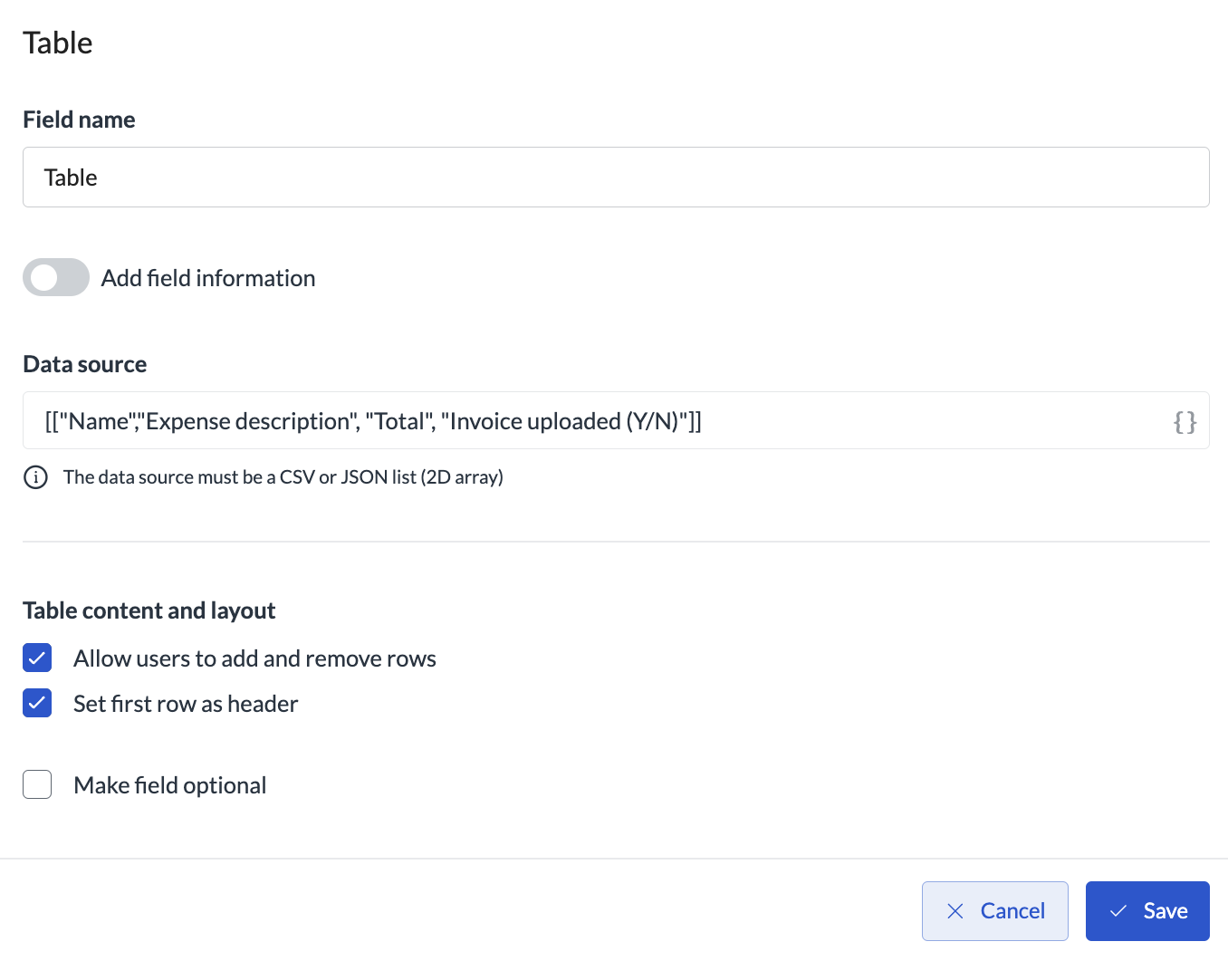
Following the pattern, the header row with four columns will look like the following: