> ## Documentation Index
> Fetch the complete documentation index at: https://help.nextmatter.com/llms.txt
> Use this file to discover all available pages before exploring further.
# Dropdowns, radios and checklists
> You can allow users to select an option from a dropdown list or select a radio button.
Not sure how to configure a form? [Learn more...](/docs/about-actions-and-action-types)
The following options allow users to select an option in a form:
* Single-value dropdown: allows users to select one value from a list of many. You can use data references as options.\
You can also create a dropdown from datasets. [Learn more...](/docs/data-sets)
* Multiple-value dropdown: allows users to select multiple values from a drop-down. You can use data references as options.
* Radio buttons: allow for selecting one value. You can use them in questionnaires or set conditions on the follow-up form fields to show based on the radio selection.
* Checklist: allows users to select multiple values from the list and check off tasks.
## Dynamic dropdowns
Dropdowns (single and multiple-value) can be filled in automatically from Google Sheets or an external database (such as PostgreSQL). Select **Add items dynamically from external source** as **Source** when you create a dropdown. This option enables the dropdown to be automatically adjusted when the source changes.
### JSON format for dynamic dropdowns
The source of a dynamic drop-down needs to be a JSON list.
A JSON list (array) contains zero, one, or more ordered elements, separated by a comma. The JSON array is surrounded by square brackets \[ ]. Each element is in double quotes.
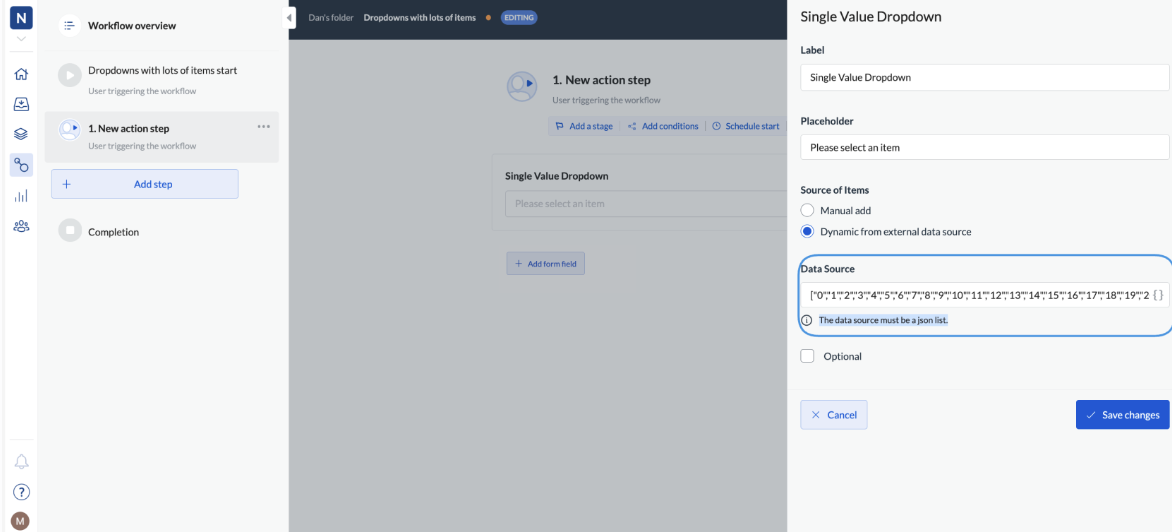 Note that when you have a **key=value** pair (`["name": "John"]`), we'll only display the value in the dropdown. For **dynamic dropdowns**, this looks like the following: `[["key1", "value1"],["key2", "value2"]]`.
When you create a dropdown from, for example, Google Sheets, using a data reference, make sure to select the data reference in (JSON) format.
### Lists for dynamic dropdowns
When you want to create a dynamic dropdown from a JSON list, and you're creating a variable to refer to this list that you later use as a source of the dynamic dropdown, make sure you use `[*]` in the variable value. For example, `$.mylist[*]`. This will ensure the list is parsed correctly.
To make the response of the [**Excel No Code step**](/docs/connect-to-microsoft-excel-no-code) compatible as input for the dynamic dropdown, enter this value in the Variable **value** in the No-code step and use the data reference as the dropdown source:
`$.["Range Values"][*].values[0]`
## Add tooltip to field
You can add extra information to help users provide the right input. The information will show when users hover over the info icon next to the field name.
Note that when you have a **key=value** pair (`["name": "John"]`), we'll only display the value in the dropdown. For **dynamic dropdowns**, this looks like the following: `[["key1", "value1"],["key2", "value2"]]`.
When you create a dropdown from, for example, Google Sheets, using a data reference, make sure to select the data reference in (JSON) format.
### Lists for dynamic dropdowns
When you want to create a dynamic dropdown from a JSON list, and you're creating a variable to refer to this list that you later use as a source of the dynamic dropdown, make sure you use `[*]` in the variable value. For example, `$.mylist[*]`. This will ensure the list is parsed correctly.
To make the response of the [**Excel No Code step**](/docs/connect-to-microsoft-excel-no-code) compatible as input for the dynamic dropdown, enter this value in the Variable **value** in the No-code step and use the data reference as the dropdown source:
`$.["Range Values"][*].values[0]`
## Add tooltip to field
You can add extra information to help users provide the right input. The information will show when users hover over the info icon next to the field name.
 ## Complete a dropdown using API
You can update field data and complete a form using API. To see examples of the JSON body you need for each form field, see [Completing steps](/docs/complete-a-step#completing-steps-using-api).
## Complete a dropdown using API
You can update field data and complete a form using API. To see examples of the JSON body you need for each form field, see [Completing steps](/docs/complete-a-step#completing-steps-using-api).