> ## Documentation Index
> Fetch the complete documentation index at: https://help.nextmatter.com/llms.txt
> Use this file to discover all available pages before exploring further.
# Step visibility
> You can grant permission to your team to view the step otherwise it will remain hidden from the people involved in the workflow.
You need to give your team and colleagues permission to view a step.
If you don't set the permissions, no one besides you will be able to see the step, and administrators will not have permission to see it either.
 If you have a step assigned to you, you become its owner. Your Next Matter inbox will provide an overview of the steps assigned to you or your team. You can also receive email notifications reminding you about open steps.
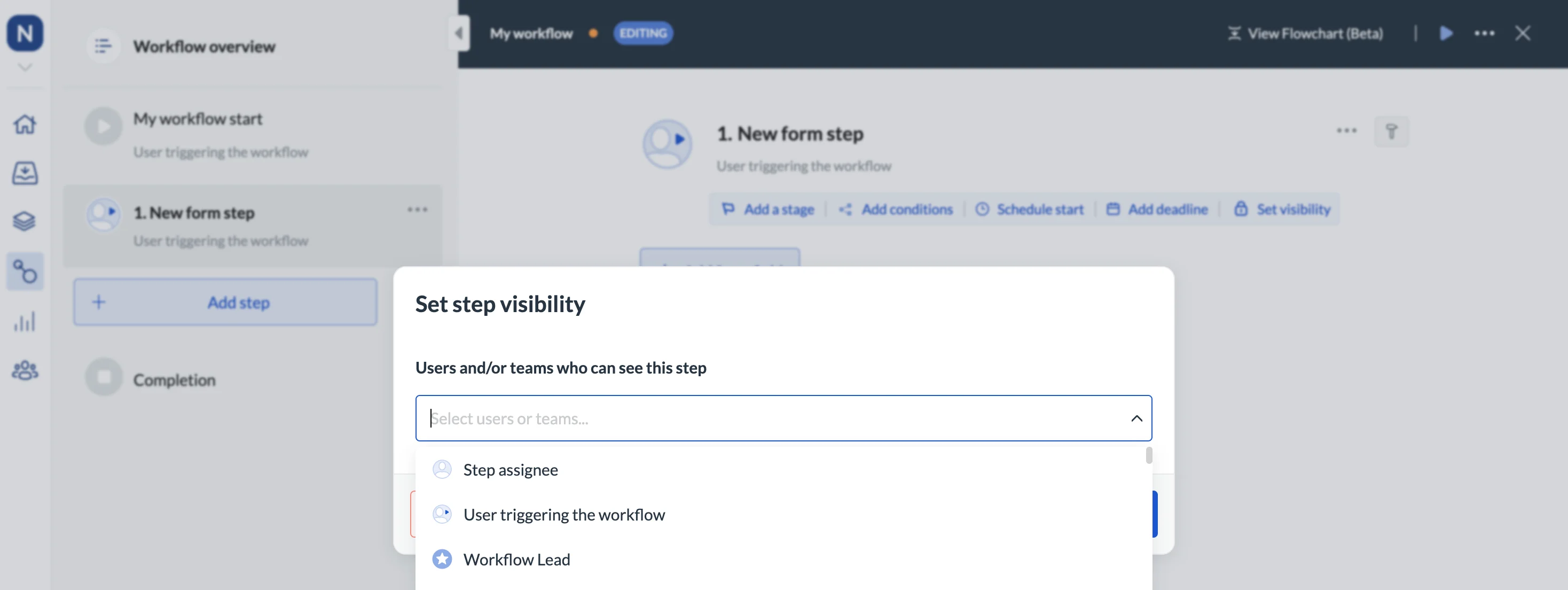
To set the visibility click on a step and click **Set visibility**.
**Tip**: If you add a restricted step to the workflow overview table, the column content will only be visible to the people with the right permissions. For details, see [Restricted content](/docs/work-with-process-overview#restricted-fields).
**Tip**: To learn more on how step visibility affects Out of office settings, see [Out of office considerations](/docs/set-out-of-office#important-considerations)
If you have a step assigned to you, you become its owner. Your Next Matter inbox will provide an overview of the steps assigned to you or your team. You can also receive email notifications reminding you about open steps.
To set the visibility click on a step and click **Set visibility**.
**Tip**: If you add a restricted step to the workflow overview table, the column content will only be visible to the people with the right permissions. For details, see [Restricted content](/docs/work-with-process-overview#restricted-fields).
**Tip**: To learn more on how step visibility affects Out of office settings, see [Out of office considerations](/docs/set-out-of-office#important-considerations)