> ## Documentation Index
> Fetch the complete documentation index at: https://help.nextmatter.com/llms.txt
> Use this file to discover all available pages before exploring further.
# Out of office
> As an admin, you can set the out of office for any team member. You can also easily check who on the team is out of office.
Looking for information on how to set out of office for yourself? See [Personal profile](/docs/personal-profile#set-up-out-of-office-notifications) settings.
To set up out-of-office for a team member, do the following:
1. In the left-hand panel, click **Company**.
2. Click **Out of office**.
3. Click **+ Mark as out of office**.
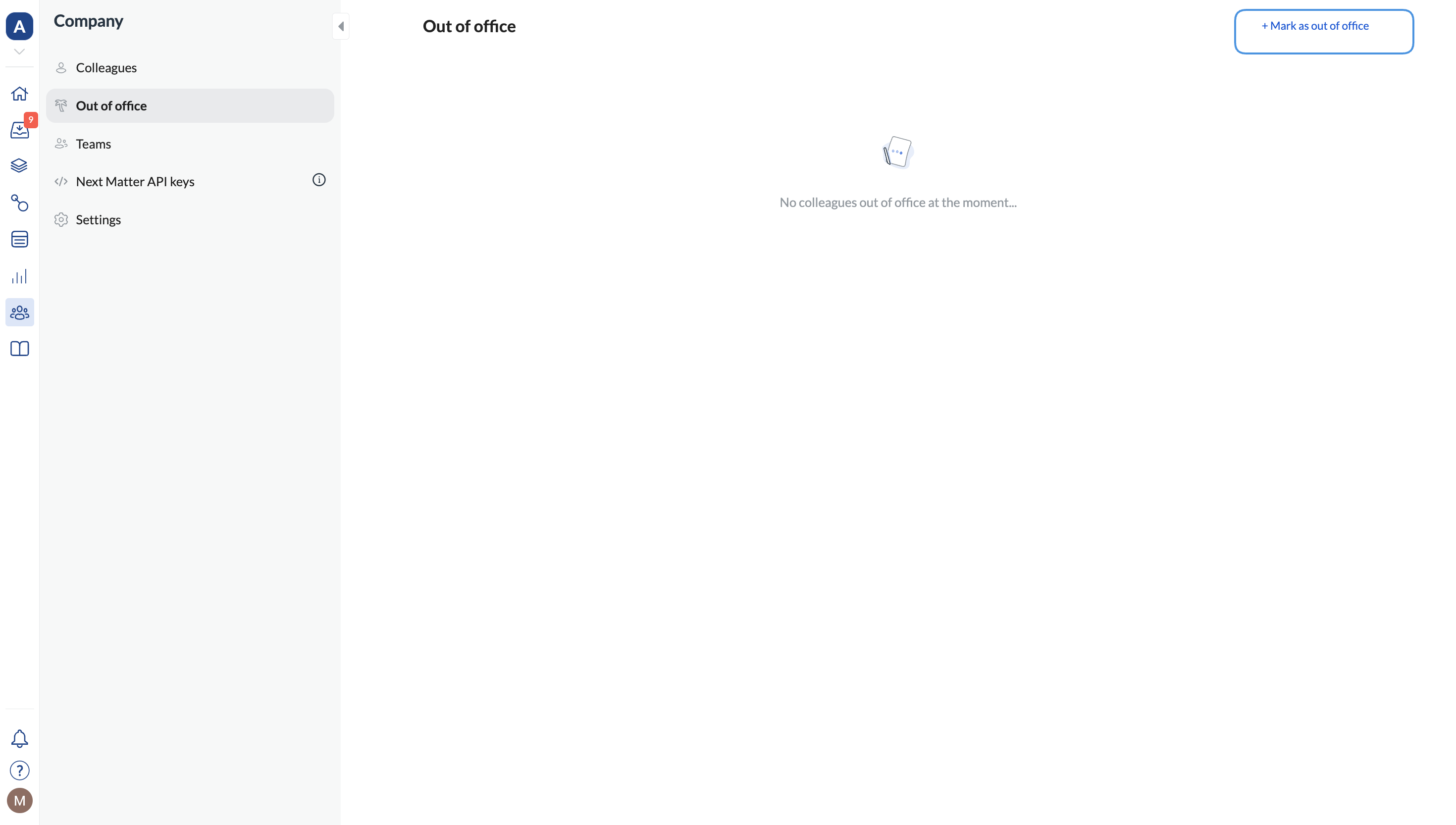 4. Select the team member who's away and set the days when the absence starts and the last out-of-office day.
5. Select the person who should take over the absent team member's tasks.
6. Click **Save**.
### Important considerations
* The Out-of-Office setting doesn't work with [Automated delegation](/docs/automated-delegation). Auto delegation ignores OOO settings intentionally - it assigns work based on past assignments, so respecting OOO would send tasks to the wrong person.
* Delegation **won't work** when the **workflow and the instances are private** or the workflow is public but the **instances are private** - if the stand-in doesn't have access to the workflows and instances, they won't be able to complete the steps. In such cases, the workflow lead or the admin can manually delegate the task to the stand-in.
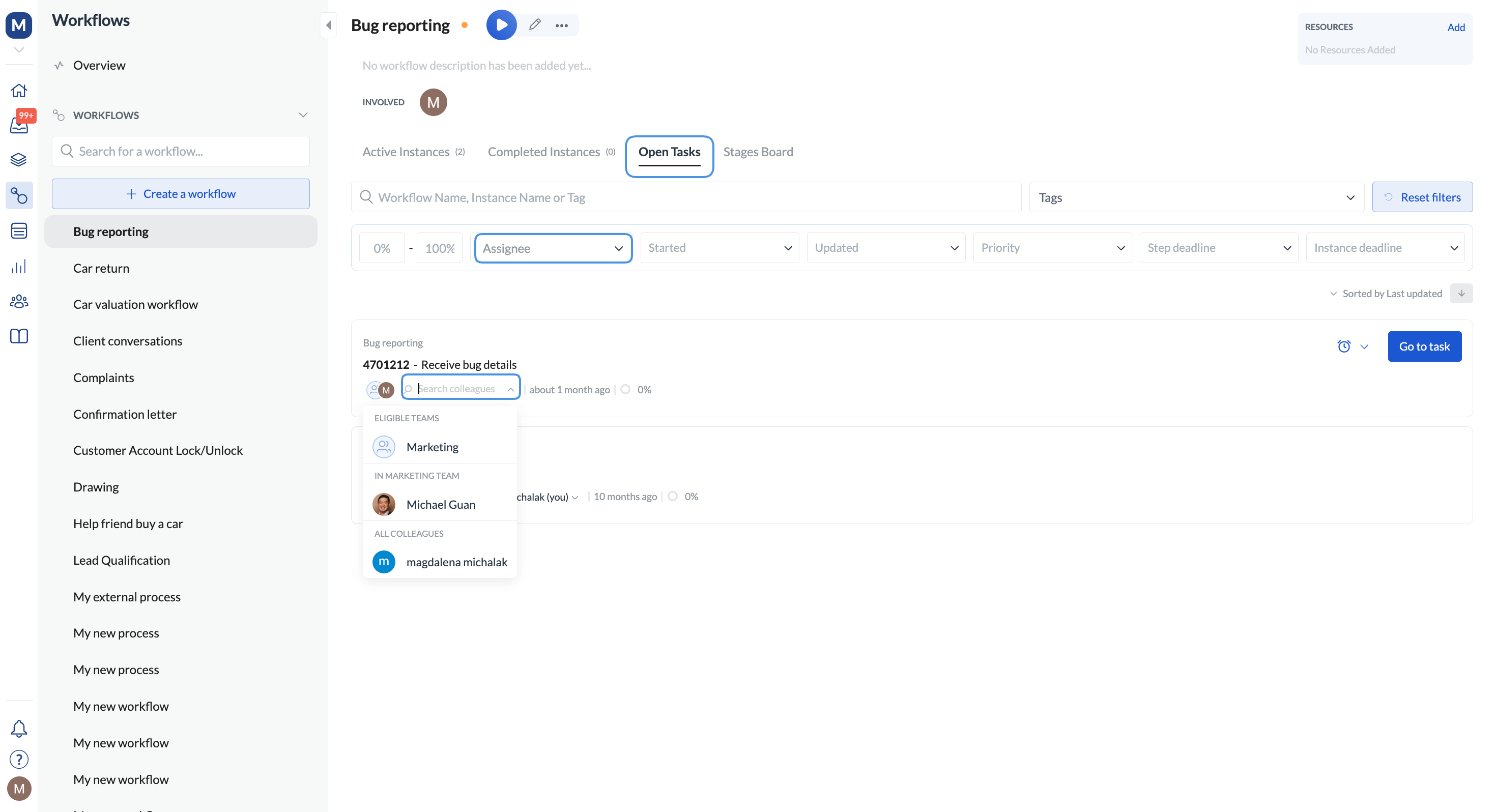
1. Go to **Workflow overview > Open tasks**.
2. Click **Filters** and filter by **Assignee** to find the current assignee.
3. Select the user from the dropdown to delegate the task to.
4. Select the team member who's away and set the days when the absence starts and the last out-of-office day.
5. Select the person who should take over the absent team member's tasks.
6. Click **Save**.
### Important considerations
* The Out-of-Office setting doesn't work with [Automated delegation](/docs/automated-delegation). Auto delegation ignores OOO settings intentionally - it assigns work based on past assignments, so respecting OOO would send tasks to the wrong person.
* Delegation **won't work** when the **workflow and the instances are private** or the workflow is public but the **instances are private** - if the stand-in doesn't have access to the workflows and instances, they won't be able to complete the steps. In such cases, the workflow lead or the admin can manually delegate the task to the stand-in.
1. Go to **Workflow overview > Open tasks**.
2. Click **Filters** and filter by **Assignee** to find the current assignee.
3. Select the user from the dropdown to delegate the task to.
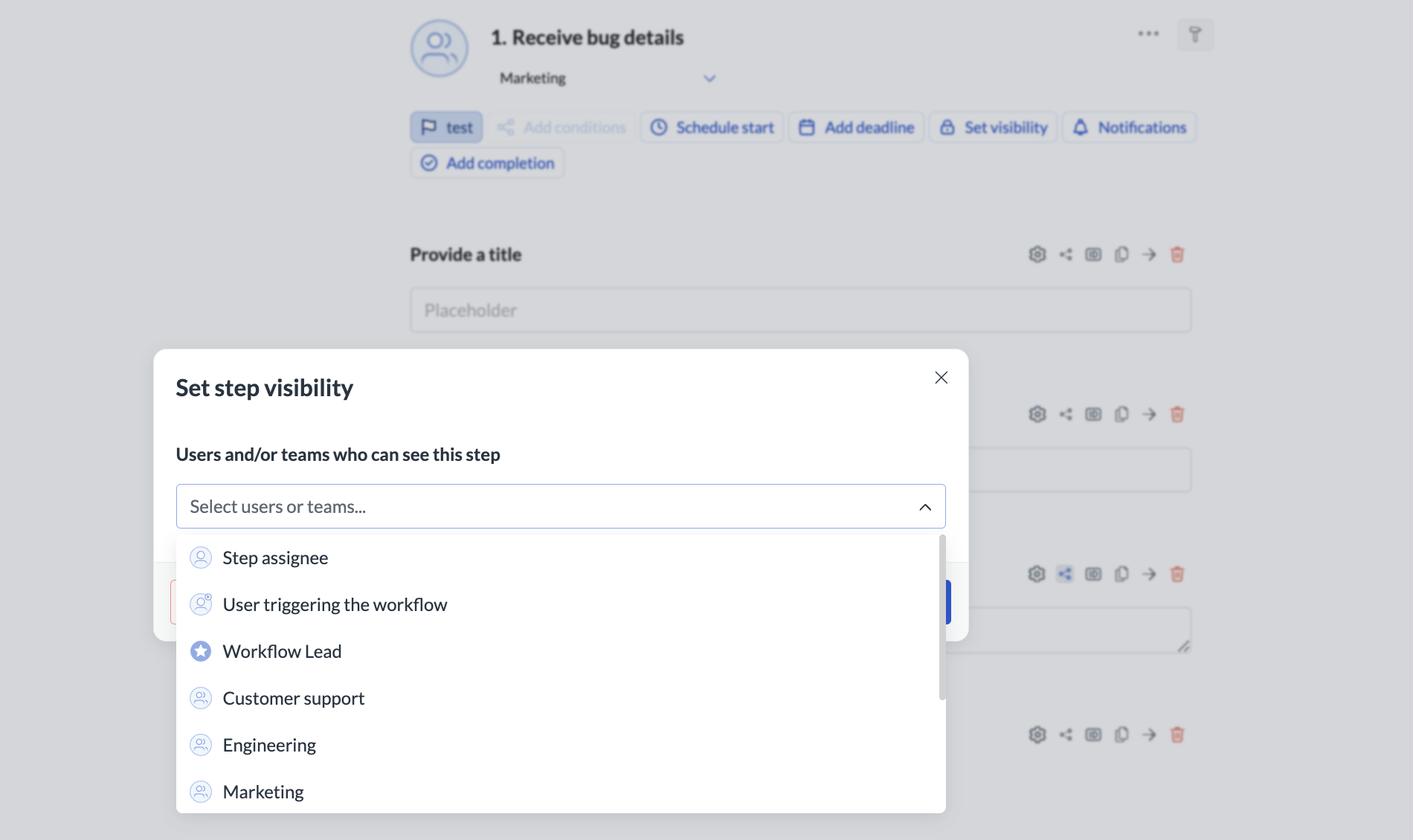
 * If the **step is restricted**, and the stand-in is not included in the visibility settings, they won't be able to access or see the delegated task. To prevent these situations, it's a good idea to restrict visibility to a team rather than individuals. Then anyone from the team can be a stand-in and complete restricted steps if need be. This way, all the people you add to the team will automatically have access, and those that leave the team - won't.
 * Only **new instance steps get delegated**. The existing steps that are already in the assignee's inbox won't be reassigned by the OOO settings.
* You can delegate to all users **irrespective of their roles**. For example, you can delegate to light users.
Out of office settings help reassign tasks of users you want to offboard (because they leave your organization). For details, see [Remove users](/docs/remove-users).
## Disable out of office
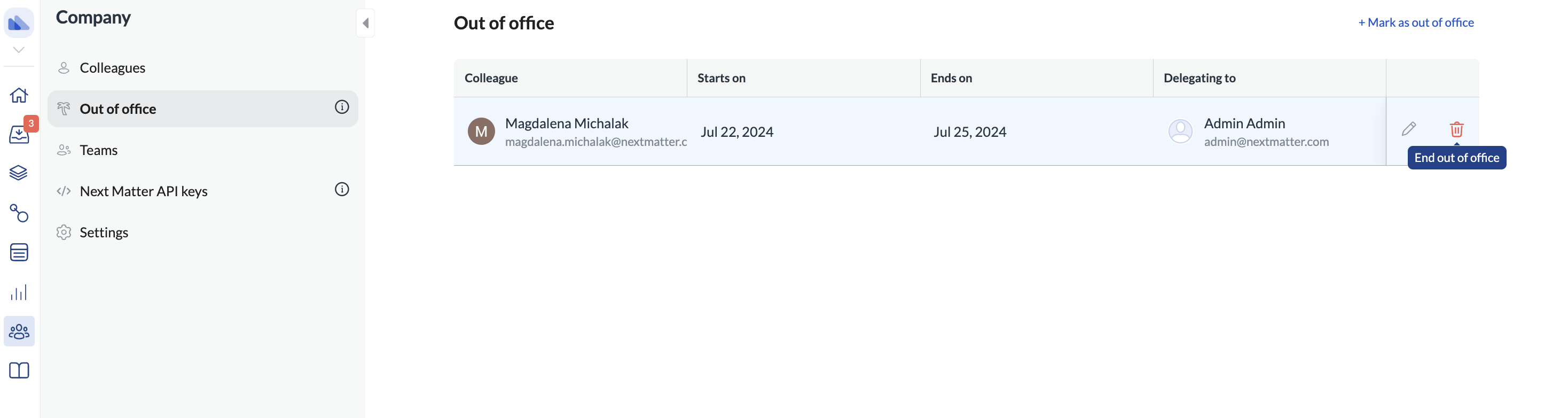
You can quickly disable or edit the setting. You can do it on the **Out of office** page.
* Only **new instance steps get delegated**. The existing steps that are already in the assignee's inbox won't be reassigned by the OOO settings.
* You can delegate to all users **irrespective of their roles**. For example, you can delegate to light users.
Out of office settings help reassign tasks of users you want to offboard (because they leave your organization). For details, see [Remove users](/docs/remove-users).
## Disable out of office
You can quickly disable or edit the setting. You can do it on the **Out of office** page.