> ## Documentation Index
> Fetch the complete documentation index at: https://help.nextmatter.com/llms.txt
> Use this file to discover all available pages before exploring further.
# Prefilling
> Save user time by prefilling values in form fields.
Not sure how to configure a form? [Learn more...](/docs/about-actions-and-action-types)
## Prefilled values
When you configure a form field, you can select the **Prefilled value** checkbox. The checkbox enables you, as a workflow builder, to select or enter a value for this field that the user will see when they run a workflow instance.
This can be helpful if the value is already captured or help elsewhere. In such cases, you can find it as data reference and pre-populate the field for the user. In any case, the value is always editable for the end user, so they can delete it and enter a new one instead.
The solution is also useful for 4-eye checks when system data needs to be checked by a reviewer. With the prefilled data, reviewers can verify all the values when they run a workflow instance and confirm its correctness.
You can add prefilled values for all form field types.
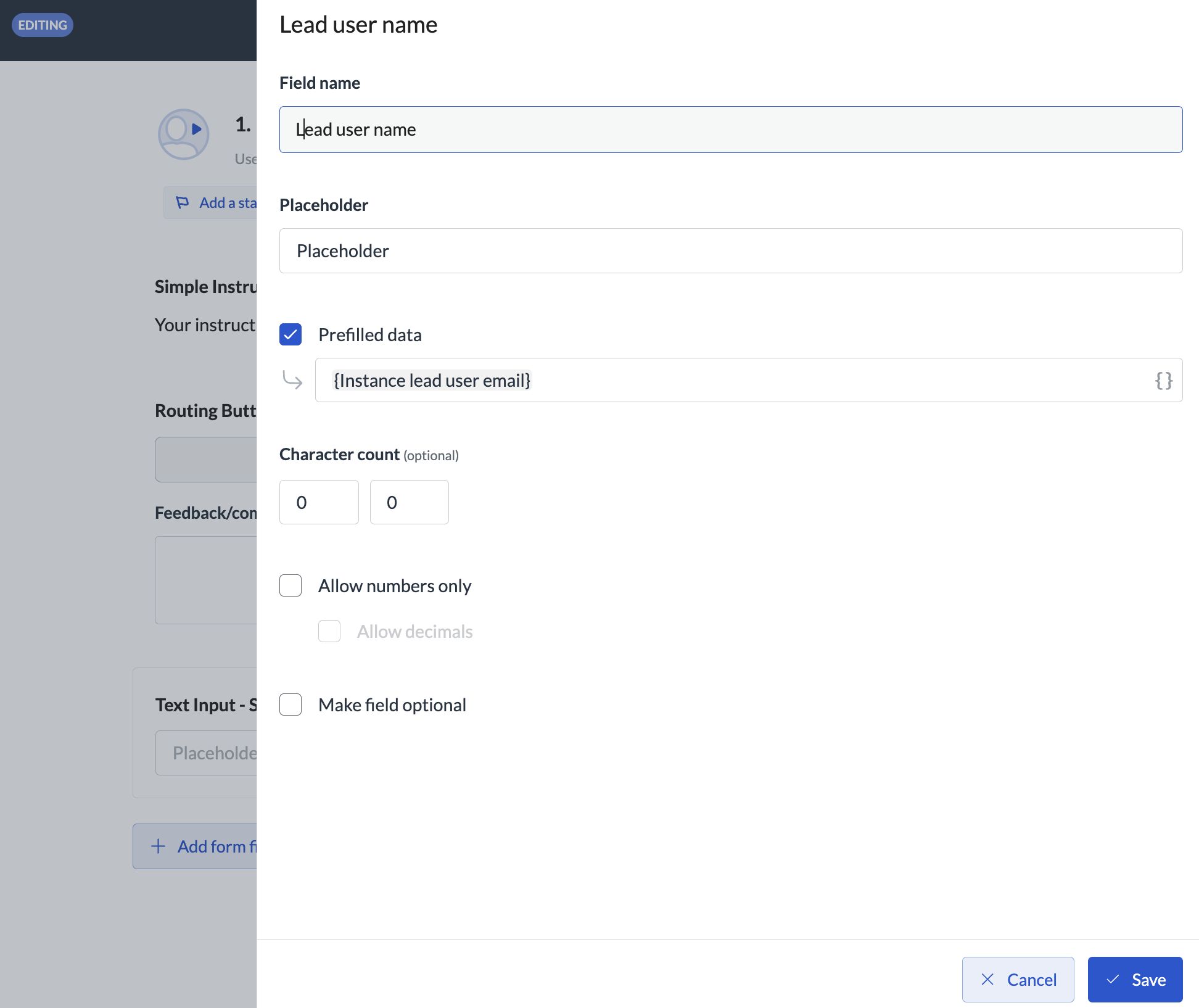 You can only prefill with values added in previous steps, not in the same step.