> ## Documentation Index
> Fetch the complete documentation index at: https://help.nextmatter.com/llms.txt
> Use this file to discover all available pages before exploring further.
# Add metadata
> By adding parameters to the public form URL, you can automatically gather and pass meta information to the workflow and external databases. This way you exchange manual data input for automation.
When you create a public form for users, you can specify that certain parameters are added to the form URL. The parameters are transformed into data references in the launched workflow instance and can be used within Next Matter or passed to an external database such as Redshift.
This way, you don't have to add the references manually but specify which references you want to get, and those are automatically gathered, which saves you time and increases the reliability of data collection. You can also use this feature to connect any in-house-developed system to Next Matter or to automatically gather user data.
For example:
1. You specify that `country` and `time` should be appended to the URL. This will configure the form link to be: `https://app.nextmatter.com/portal/2974dc3c-61fd-40b4-a292-38117cef36e9?country=value&time=value`
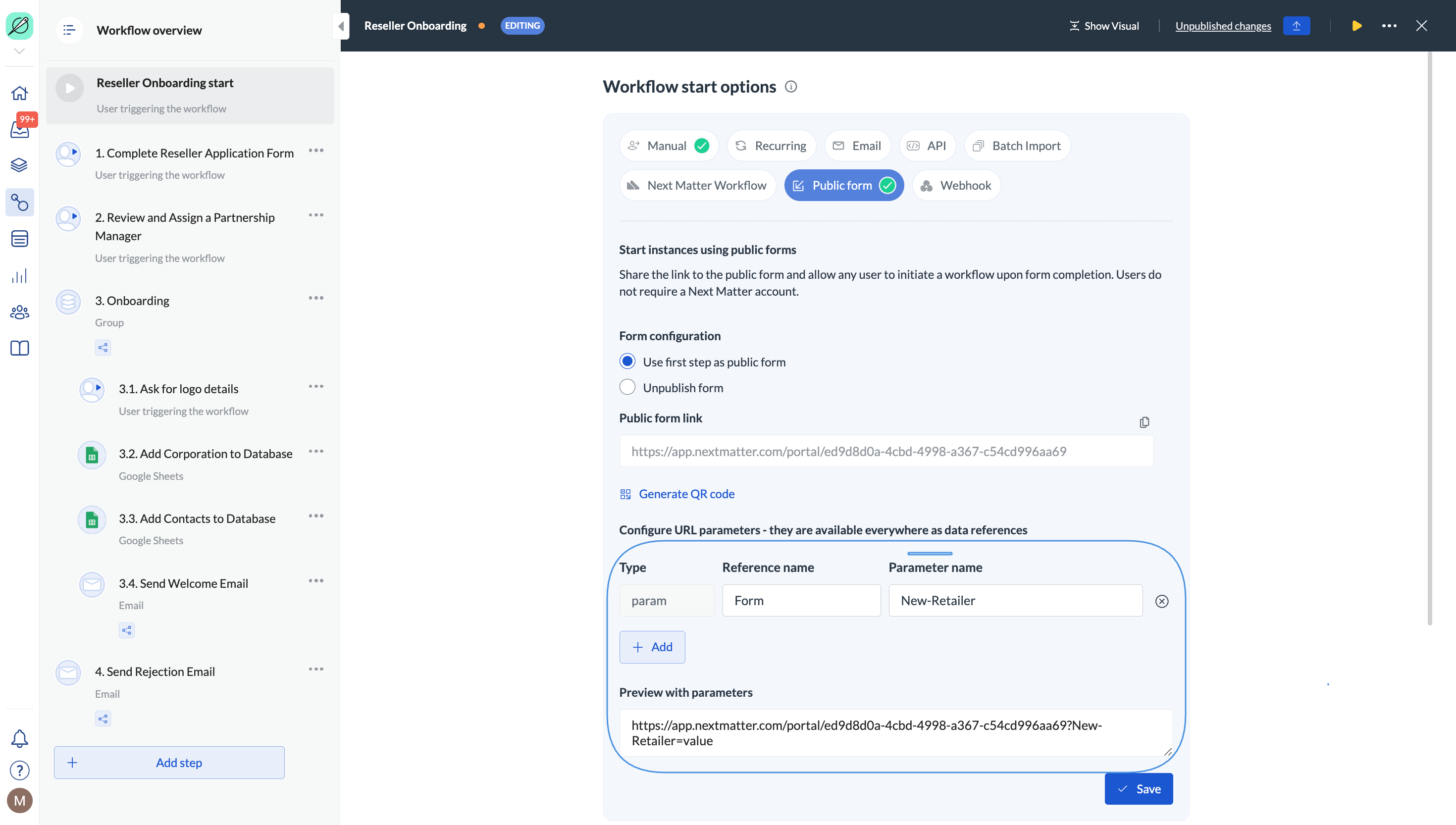 2. The user starts an instance that gets a **dedicated link** assigned. For example: `https://app.nextmatter.com/portal/2974dc3c-61fd-40b4-a292-38117cef36e9?country=Spain&time=Monday`
3. When the user submits the data they entered in the form, the `country` and `time` become variables that can be reused throughout the workflow and are stored in the instance.
2. The user starts an instance that gets a **dedicated link** assigned. For example: `https://app.nextmatter.com/portal/2974dc3c-61fd-40b4-a292-38117cef36e9?country=Spain&time=Monday`
3. When the user submits the data they entered in the form, the `country` and `time` become variables that can be reused throughout the workflow and are stored in the instance.
 Notes:
* The link can be shared with anyone (internal and external users)
* If the parameters are not defined, a regular form link will still work
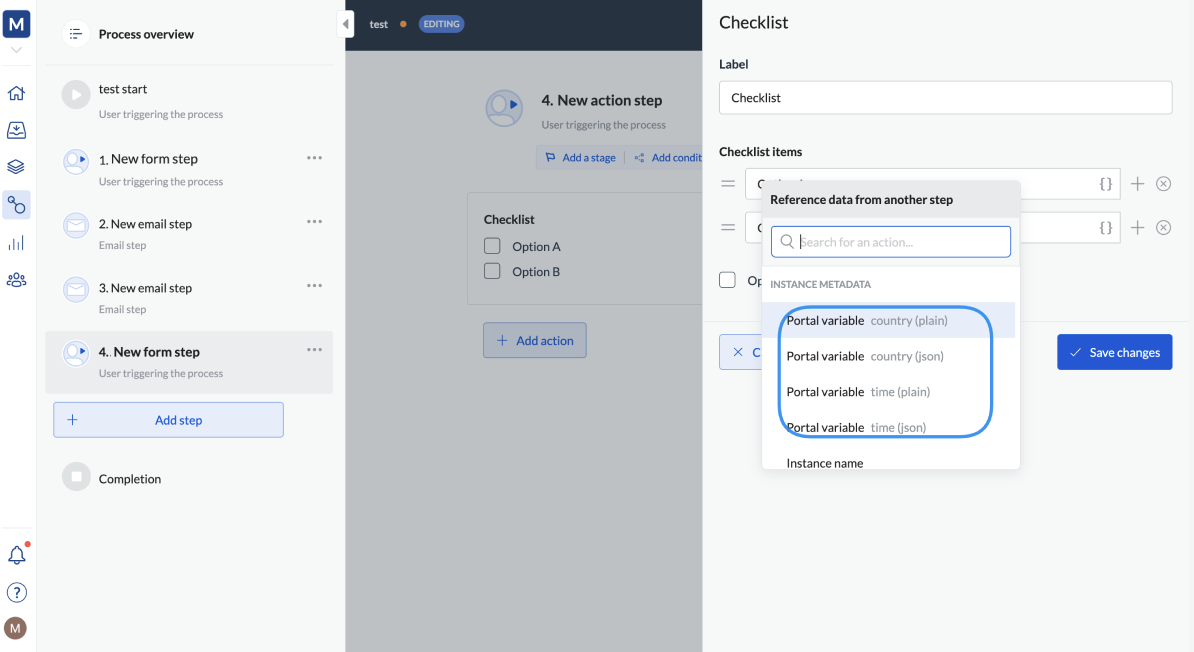
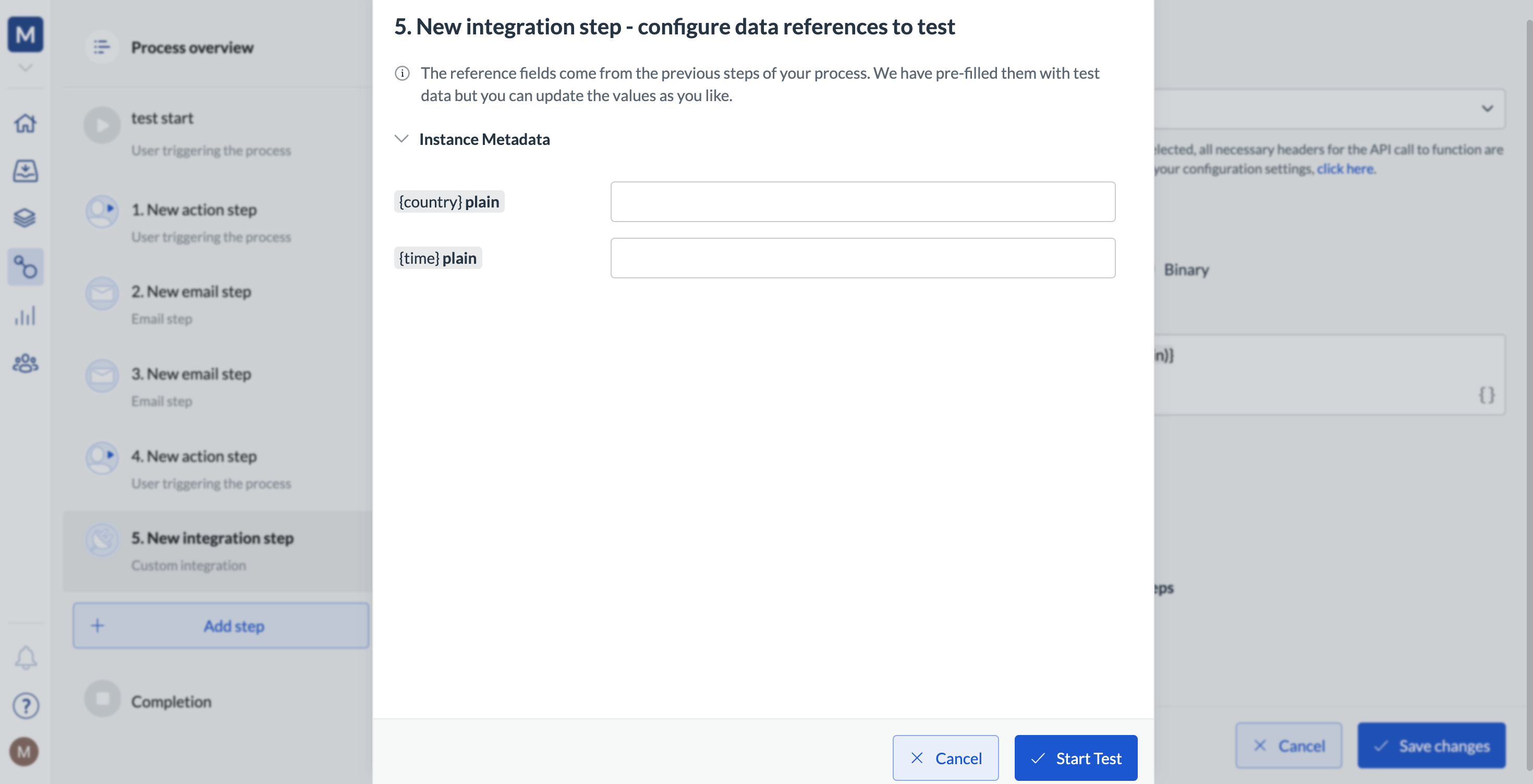
* The data references created from the parameters are available in integration testing as instance metadata
Notes:
* The link can be shared with anyone (internal and external users)
* If the parameters are not defined, a regular form link will still work
* The data references created from the parameters are available in integration testing as instance metadata
 * The parameters don't work with the QR code
* Multiple parameters can be appended to the link
## Add parameters to link
1. Click **Workflows > Create new\... > Create a new workflow**.
2. Give your workflow a name.
3. Add your steps to the workflow.
4. In the left-hand panel, click the start item (under **Overview**).
5. In the **Workflow start options** section, select **Public form**.
6. In the **Form configuration**, select **Use first step as public form**
7. In the **Configure URL parameters,** click **+ Add**.
8. Enter the **Reference name** and **Parameter name**. These can be the same.
9. Copy the URL from the preview. You can insert the URL to your external apps.
10. Click **Save**.
* The parameters don't work with the QR code
* Multiple parameters can be appended to the link
## Add parameters to link
1. Click **Workflows > Create new\... > Create a new workflow**.
2. Give your workflow a name.
3. Add your steps to the workflow.
4. In the left-hand panel, click the start item (under **Overview**).
5. In the **Workflow start options** section, select **Public form**.
6. In the **Form configuration**, select **Use first step as public form**
7. In the **Configure URL parameters,** click **+ Add**.
8. Enter the **Reference name** and **Parameter name**. These can be the same.
9. Copy the URL from the preview. You can insert the URL to your external apps.
10. Click **Save**.