> ## Documentation Index
> Fetch the complete documentation index at: https://help.nextmatter.com/llms.txt
> Use this file to discover all available pages before exploring further.
# Okta authentication
> You can log in to Next Matter using Okta
We support Okta in the Enterprise plan.
1. Ensure each user has an existing Next Matter account associated with the same email they use for authenticating with Okta.
2. Create a new OpenID Connect server-side web app in your Okta workspace. Do the following:
1. Sign in to your Okta Admin Dashboard as an administrator.
2. Go to the **Applications** and click **Create App Integration**.
3. Select **OIDC - OpenID Connect** as the sign-in method.
4. Choose the application type. For a server-side web application, select **Web Application**.
5. Configure the application.
* In the **Grant type**, select **Refresh Token**
* In the **Sign-in redirects URIs**, enter [https://app.nextmatter.com/login](https://app.nextmatter.com/login)
* In the **Sign-out redirects URIs**, enter [https://app.nextmatter.com/login](https://app.nextmatter.com/login)
* In the **Base URIs**, enter [https://app.nextmatter.com](https://app.nextmatter.com)
* Decide on the **Assignments**. We recommend the following settings:
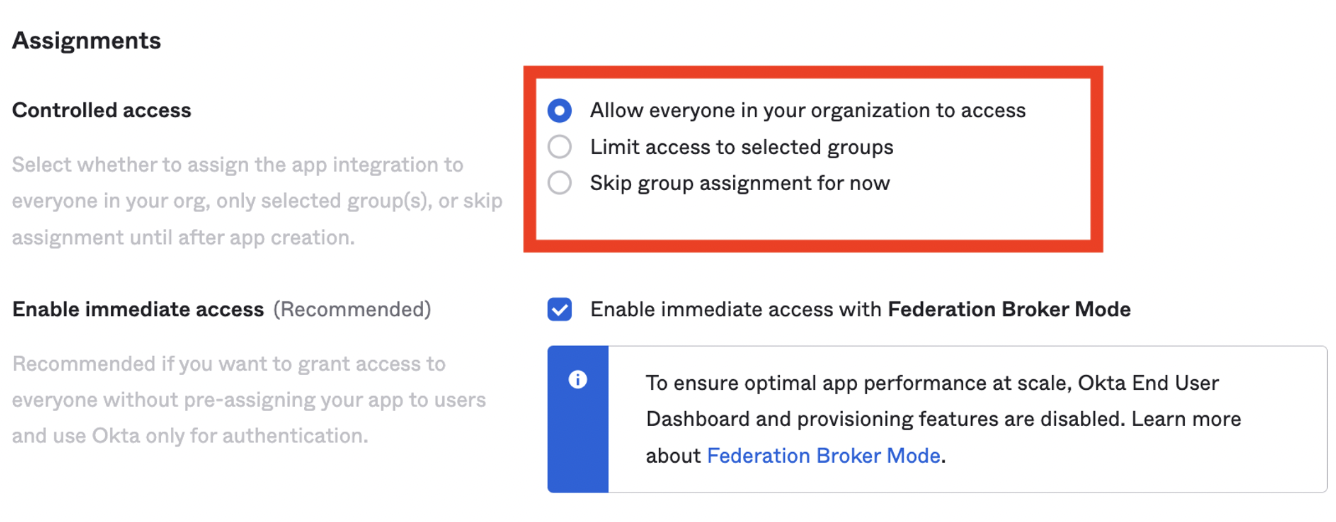 3. Reach out to our Customer Success team (use the Contact us button in the top-right of this page) with the following details, so that we can complete our end of the configuration:
* **Okta authentication domain** - you can find it in your Okta Admin Console by navigating to `https://.okta.com/admin`, where `` is your organization's custom Okta domain.
* App integration **client ID** and **client secret** - you receive them from Okta when you've created your application.
We will reach out to you when the set-up is completed on our side and you can use Okta to log in to Next Matter.
We can't enforce specific login methods for users.
3. Reach out to our Customer Success team (use the Contact us button in the top-right of this page) with the following details, so that we can complete our end of the configuration:
* **Okta authentication domain** - you can find it in your Okta Admin Console by navigating to `https://.okta.com/admin`, where `` is your organization's custom Okta domain.
* App integration **client ID** and **client secret** - you receive them from Okta when you've created your application.
We will reach out to you when the set-up is completed on our side and you can use Okta to log in to Next Matter.
We can't enforce specific login methods for users.