> ## Documentation Index
> Fetch the complete documentation index at: https://help.nextmatter.com/llms.txt
> Use this file to discover all available pages before exploring further.
# No-code automations
> No-code integrations enable you to create code-free steps or perform a no-code action on data
## No-code integrations
No-code integrations only require you to [connect the app](https://app.nextmatter.com/app/workspace/integrations) in Next Matter and configure the step.
1. Connect the app in Next Matter. You can do it in **Automations library**.
2. When creating a workflow, click **Add step > Integrations** and select any available integration. All of the integrations there are no-code integrations.
3. Configure the step by providing the required values.
Connect to Gmail with no-code automation
Analyze text code-free with AI
Connect to SharePoint without code
Send DocuSign envelopes with no code
Connect to Google Sheets without code
Connect to Front app no-code
Connect to Freshdesk no-code
Connect to Microsoft Excel with no code
Create PDF, text, or JPG files
Connect to Microsoft Outlook code-free
Send no-code Slack notifications
Connect to Zendesk code-free
## Next Matter actions
Next Matter actions are no-code steps that create an action in Next Matter. For example, you can use it to stop an instance of a workflow.
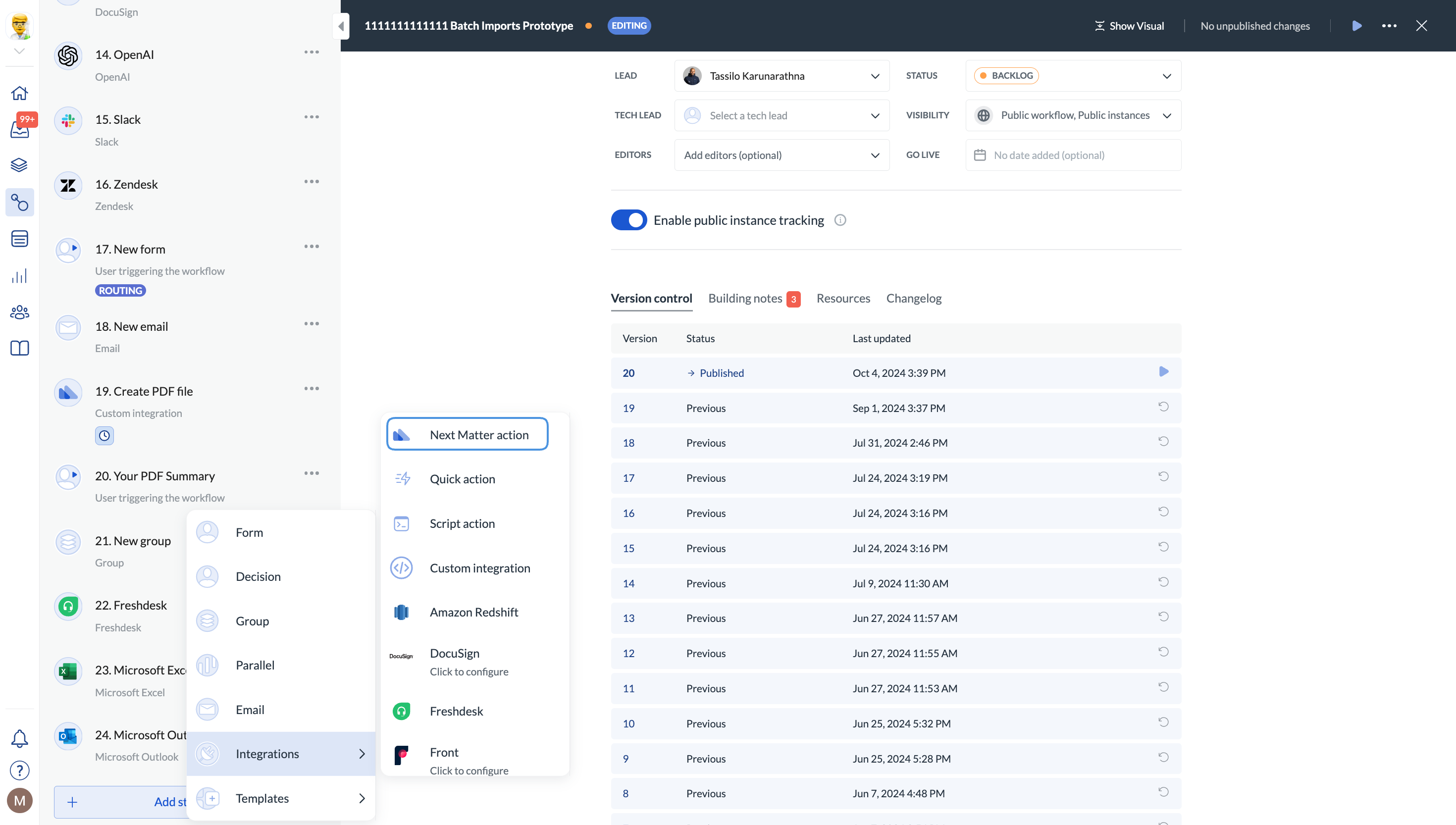 For details, see [Next Matter actions](/docs/next-matter-actions)
## Quick actions
Quick actions enable you to perform a code-free action on a set of data. For example, you can format a date, compare values, or complete a calculation.
For details, see [Next Matter actions](/docs/next-matter-actions)
## Quick actions
Quick actions enable you to perform a code-free action on a set of data. For example, you can format a date, compare values, or complete a calculation.
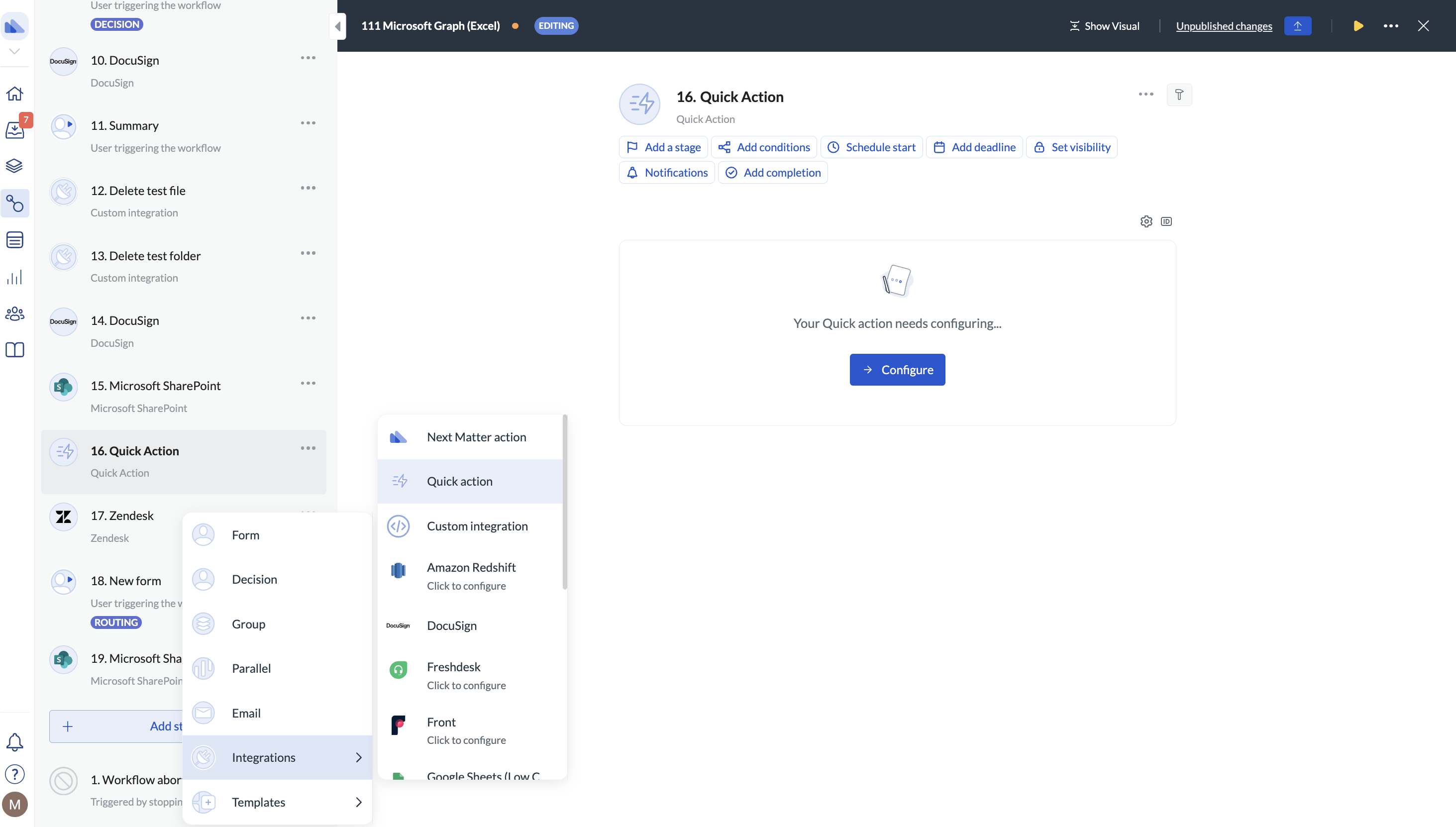 For details, see **Quick actions** articles in the left-hand table of contents.
## Script actions
We want this feature to be perfect and we're rolling it out step by step.
If you want to try it out, contact us using our chat widget.
Script action enables you to add custom code (currently: Node.js) to your workflow.
For details, see **Quick actions** articles in the left-hand table of contents.
## Script actions
We want this feature to be perfect and we're rolling it out step by step.
If you want to try it out, contact us using our chat widget.
Script action enables you to add custom code (currently: Node.js) to your workflow.
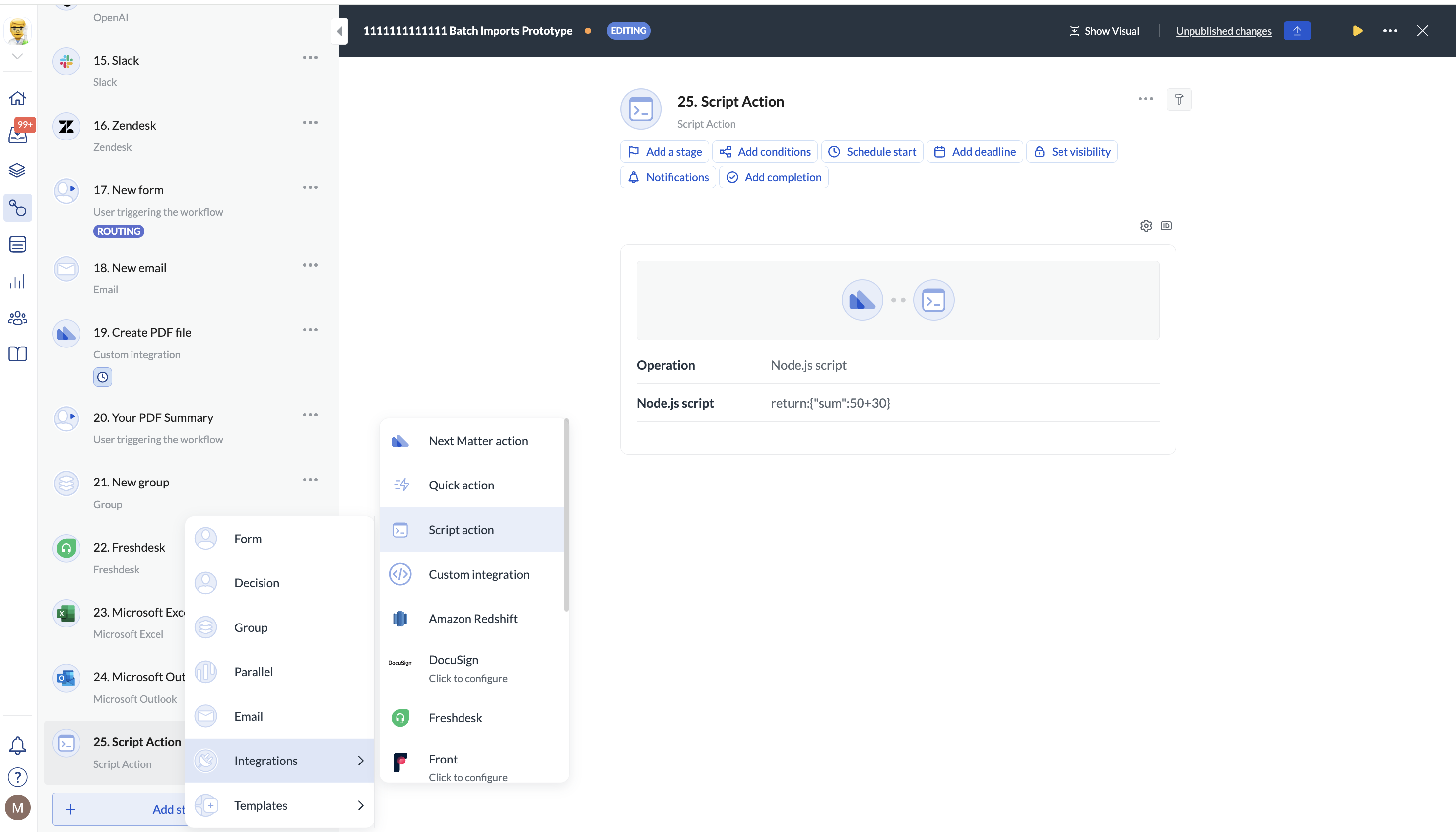 For details, see [Add and run custom code](/docs/add-code)