> ## Documentation Index
> Fetch the complete documentation index at: https://help.nextmatter.com/llms.txt
> Use this file to discover all available pages before exploring further.
# Launch instances automatically
> You can automatically start instances when another workflow completes and send data from one workflow to a step in another one.
## Automatically launch a new instance
1. Click **+ Add step** and create a form with the form fields the external user needs to fill in.
2. Create a new **Integrations > Custom integrations** step. It will be used to automatically launch the workflow.
3. Click **Settings** on the step, and enter the following details:
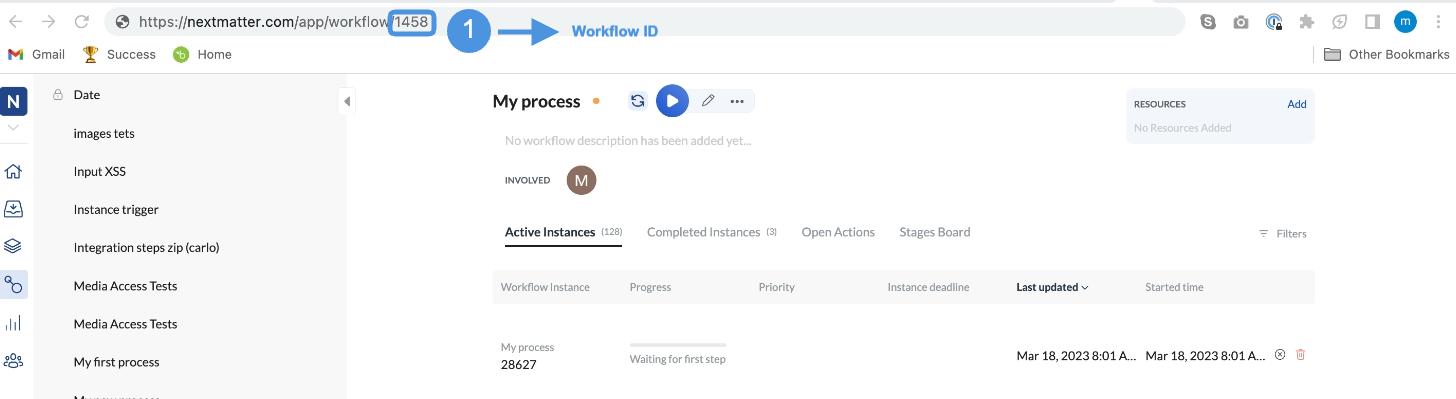
You can get the ID by clicking the follow-up workflow and copying the number from the URL in your browser.
 * Click **+ Create variable** and create an `ID` reference of the value `$.id` and the `URL` reference of the value `$.url`.
* **Method**: POST
* **URL**:
* **Headers**: Content-Type: `application/json`
* **Headers**: Authorization: `Your_NextMatter_API_key`
* In the **Body** enter the following:
```json JSON theme={null}
{
"process": "https://core.nextmatter.com/api/processes/WORKFLOW_ID/",
"name": "{Instance ID} - Sub-workflow"
}
```
4. Save your changes.
## Send data to the instance step
1. Create a new **Integrations > Custom integrations** step. It will be used to send data to the new instance and automatically complete the first step of the instance.
2. Click **Settings** on the step, and enter the following details:
* **Method**: POST
* **URL**: `https://core.nextmatter.com/api/instances/{3.Launch - Launch workflow automatically - ID (plain)}/complete_step/`
* **Headers**: Content-Type: `application/json`
* **Headers**: Authorization: `Your_NextMatter_API_key`
* In the **Body** enter the following:
```json JSON theme={null}
{
"step_id": "STEP_ID",
"actions":[
{
"action_id": "ACTION_ID",
"input_object":{"inputValue":"TEXT"}
}
]
}
```
1. In your left-hand navigation, click the **Workflows** icon.
2. Hover over the follow-up workflow and click on the menu icon.
3. Click **Edit workflow**.
4. Click the step to which you'd like to send data.
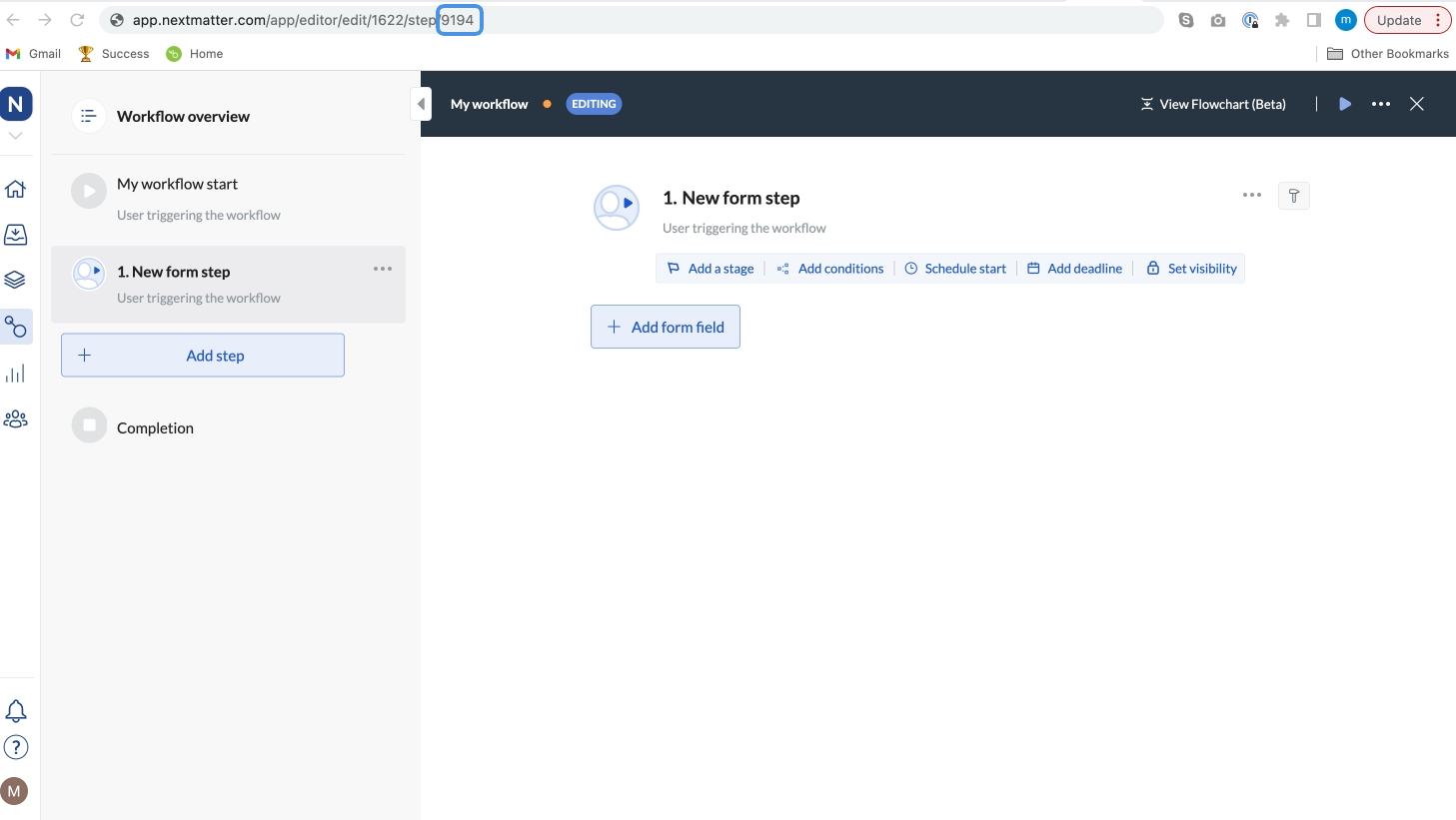
5. Copy the step ID. It's the last number in the URL you see in your browser.
* Click **+ Create variable** and create an `ID` reference of the value `$.id` and the `URL` reference of the value `$.url`.
* **Method**: POST
* **URL**:
* **Headers**: Content-Type: `application/json`
* **Headers**: Authorization: `Your_NextMatter_API_key`
* In the **Body** enter the following:
```json JSON theme={null}
{
"process": "https://core.nextmatter.com/api/processes/WORKFLOW_ID/",
"name": "{Instance ID} - Sub-workflow"
}
```
4. Save your changes.
## Send data to the instance step
1. Create a new **Integrations > Custom integrations** step. It will be used to send data to the new instance and automatically complete the first step of the instance.
2. Click **Settings** on the step, and enter the following details:
* **Method**: POST
* **URL**: `https://core.nextmatter.com/api/instances/{3.Launch - Launch workflow automatically - ID (plain)}/complete_step/`
* **Headers**: Content-Type: `application/json`
* **Headers**: Authorization: `Your_NextMatter_API_key`
* In the **Body** enter the following:
```json JSON theme={null}
{
"step_id": "STEP_ID",
"actions":[
{
"action_id": "ACTION_ID",
"input_object":{"inputValue":"TEXT"}
}
]
}
```
1. In your left-hand navigation, click the **Workflows** icon.
2. Hover over the follow-up workflow and click on the menu icon.
3. Click **Edit workflow**.
4. Click the step to which you'd like to send data.
5. Copy the step ID. It's the last number in the URL you see in your browser.
 1. In your left-hand navigation, click the **Workflows** icon.
2. Hover over the follow-up workflow and click on the menu icon.
3. Click **Edit workflow**.
4. Click the step to which you'd like to send data.
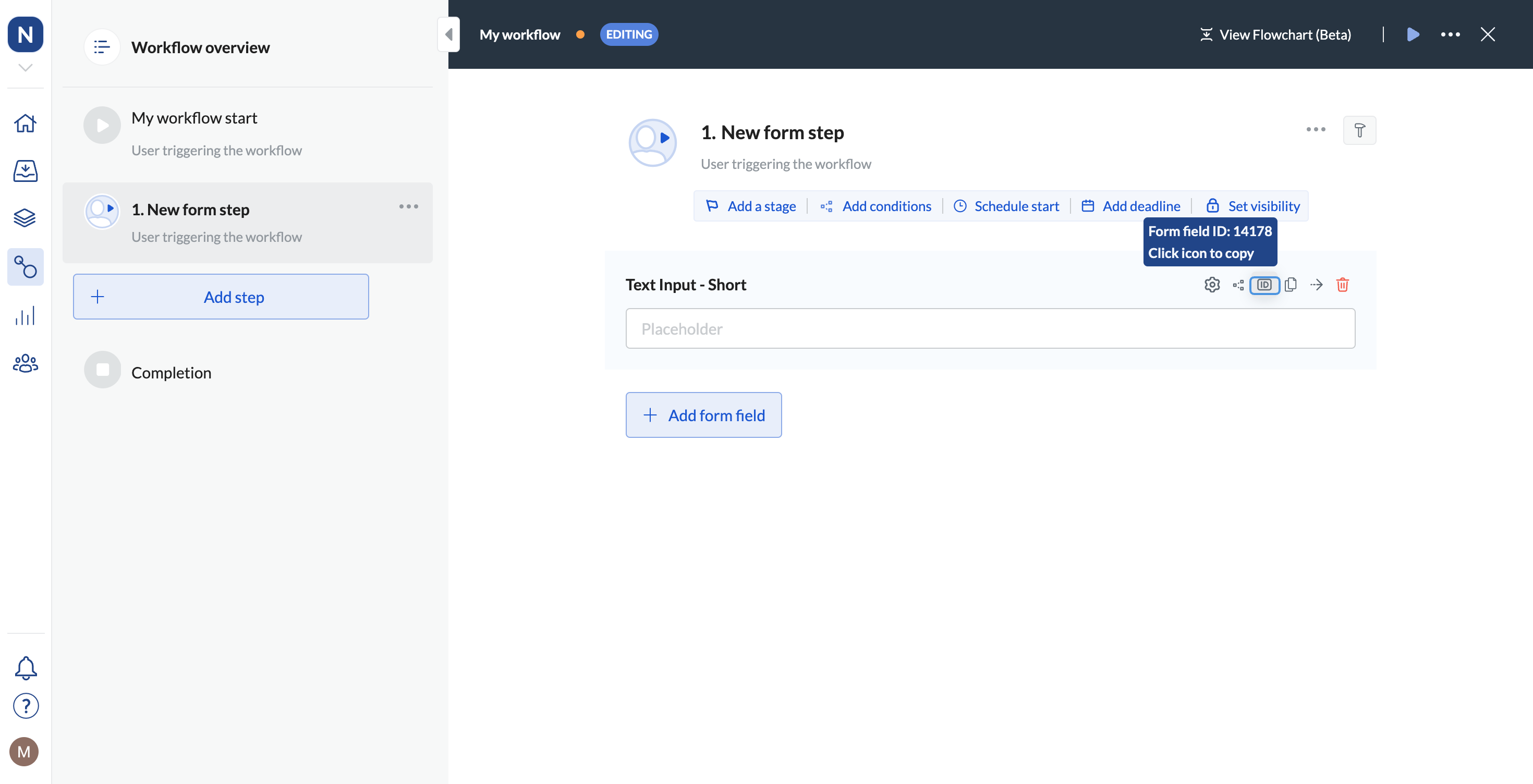
5. Click the ID icon for the field to which you want to copy data.
6. Copy **Form field ID**.
1. In your left-hand navigation, click the **Workflows** icon.
2. Hover over the follow-up workflow and click on the menu icon.
3. Click **Edit workflow**.
4. Click the step to which you'd like to send data.
5. Click the ID icon for the field to which you want to copy data.
6. Copy **Form field ID**.
 3. Save your changes.