> ## Documentation Index
> Fetch the complete documentation index at: https://help.nextmatter.com/llms.txt
> Use this file to discover all available pages before exploring further.
# Integrate with Google Forms
> You can connect to Google Forms to trigger r a new instance of a workflow when a Google Form is submitted and populate fields in the first active step of the new workflow instance with the Google Form data.
Check out our ready-made templates available when you add a step and select **Templates > 3rd party templates**. You can use the templates to create a set of pre-configured steps. Need a specific template? Click the **Contact us** button in the top right of the page and let us know.
## Before you begin
* You need to have a basic Javascript knowledge
* You must be familiar with [Google App Script documentation](https://developers.google.com/apps-script/reference/)
* Ensure you have created the form and have the form's ID. You can find the ID in the URL of the form page.
* Make sure you have the Next Matter API key. If you don't have it, contact your organization admin, or, if you're an admin, generate the key in Next Matter by going to **Company > Next Matter API keys**.
* Check the [required scopes](/docs/security-matrix) to learn more about which data is shared between the apps.
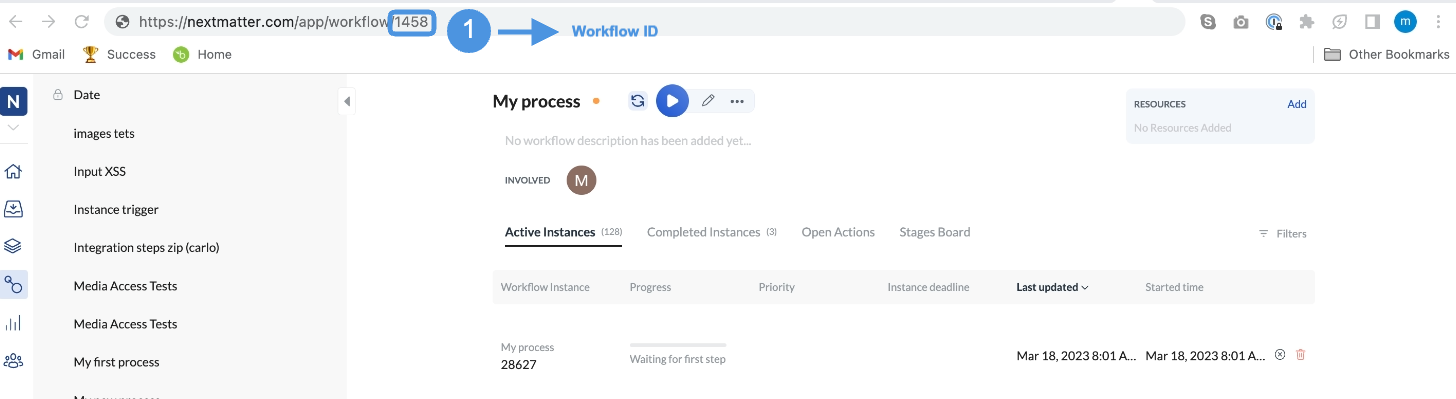
* You need the ID of the workflow that should be started from Google Forms. You can get the ID by clicking the process and copying the number from the URL in your browser.
 ## Connect with Next Matter
1. Create your Next Matter workflow.
2. Click the top right corner menu icon in your Google form, and click **More > Script editor**. Alternatively, navigate to [https://script.google.com/home/](https://script.google.com/home/) and click **New Project**. This will open the script editor with a pre-populated function template.
3. Create your app script for the form. Make sure the process and form field IDs, as well as the response item sequence, are those of your target workflow.
```javascript Google Script theme={null}
const API_KEY = "ADD_TARGET_ORG_API_KEY_HERE";
const FORM_ID = "ADD_SOURCE_GOOGLE_FORM_ID_HERE";
const PROCESS_ID = "ADD_NM_TARGET_PROCESS_ID_HERE";
const INSTANCES_URL = "https://core.nextmatter.com/api/instances/";
const fetchOptions = {
muteHttpExceptions: true,
method: "post",
contentType: "application/json",
headers: {
Authorization: `Api-Key ${API_KEY}`,
},
};
function submitForm(e) {
if (!e || !e.response) {
return;
}
let apiResponse = UrlFetchApp.fetch(INSTANCES_URL, {
...fetchOptions,
payload: JSON.stringify({
name: "Product form " + new Date().toUTCString(),
process: `https://core.nextmatter.com/api/processes/${PROCESS_ID}/`,
tags: [`form:${FORM_ID}`, `response:${e.response.getId()}`],
}),
});
let responseCode = apiResponse.getResponseCode();
if (!apiResponse || ![200, 201].includes(responseCode)) {
Logger.log("Next Matter API call failed");
if (apiResponse) {
Logger.log(apiResponse.getContentText());
}
return;
}
const instance = JSON.parse(apiResponse.getContentText());
const { id, active_step_ids } = instance;
Logger.log(`Instance ID: ${id}`);
const completeStepUrl = `${INSTANCES_URL}${id}/complete_step/`;
const responses = e.response.getItemResponses();
const responseCollectionItems = responses[5].getResponse();
const allCollectionItems = responses[5]
.getItem()
.asCheckboxItem()
.getChoices()
.map((choice) => ({
name: choice.getValue(),
checked: responseCollectionItems.includes(choice.getValue()),
}));
const actions = [
{
action_id: 19566,
input_object: {
inputValue: responses[0].getResponse(),
},
},
{
action_id: 19568,
input_object: {
inputValue: responses[1].getResponse(),
},
},
{
action_id: 19569,
input_object: {
date: new Date(responses[2].getResponse()).toISOString(),
},
},
{
action_id: 19572,
input_object: {
itemSelected: responses[3].getResponse(),
},
},
{
action_id: 19573,
input_object: {
radioItemSelected: responses[4].getResponse(),
},
},
{
action_id: 19574,
input_object: {
allItems: allCollectionItems,
itemsChecked: allCollectionItems
.filter((item) => item.checked == true)
.map((item) => item.name),
itemsNotChecked: allCollectionItems
.filter((item) => item.checked == false)
.map((item) => item.name),
numberOfItemsChecked: responseCollectionItems.length,
numberOfItemsNotChecked:
allCollectionItems.length - responseCollectionItems.length,
},
},
{
action_id: 19575,
input_object: {
inputValue: responses[6].getResponse(),
},
},
];
Logger.log(JSON.stringify(actions));
apiResponse = UrlFetchApp.fetch(completeStepUrl, {
...fetchOptions,
payload: JSON.stringify({
step_id: active_step_ids[0],
actions,
}),
});
responseCode = apiResponse.getResponseCode();
if (!apiResponse || ![200, 201].includes(responseCode)) {
Logger.log("Next Matter API call failed");
if (apiResponse) {
Logger.log(apiResponse.getContentText());
}
return;
}
Logger.log(apiResponse.getContentText());
```
4. In the Google Apps Script project, click **Triggers > Add trigger**.You can also call `ScriptApp.newTrigger(functionName)`, which returns a TriggerBuilder.
5. Configure the trigger for the "**On form submit**" event type, and click **Save**.
Your trigger might look like the following:
```javascript Google Script theme={null}
function setUpTrigger() {
ScriptApp.newTrigger('startProcess')
.forForm('')
.onFormSubmit()
.create();
}
function startProcess() {
const PROCESS_ID = "ADD__WORKFLOW_ID_HERE";
const INSTANCES_URL = "https://core.nextmatter.com/api/instances/";
}
```
Now, if you fill in your Google Forms sheet and click **Submit**, a new instance of the workflow will be created.
## Connect with Next Matter
1. Create your Next Matter workflow.
2. Click the top right corner menu icon in your Google form, and click **More > Script editor**. Alternatively, navigate to [https://script.google.com/home/](https://script.google.com/home/) and click **New Project**. This will open the script editor with a pre-populated function template.
3. Create your app script for the form. Make sure the process and form field IDs, as well as the response item sequence, are those of your target workflow.
```javascript Google Script theme={null}
const API_KEY = "ADD_TARGET_ORG_API_KEY_HERE";
const FORM_ID = "ADD_SOURCE_GOOGLE_FORM_ID_HERE";
const PROCESS_ID = "ADD_NM_TARGET_PROCESS_ID_HERE";
const INSTANCES_URL = "https://core.nextmatter.com/api/instances/";
const fetchOptions = {
muteHttpExceptions: true,
method: "post",
contentType: "application/json",
headers: {
Authorization: `Api-Key ${API_KEY}`,
},
};
function submitForm(e) {
if (!e || !e.response) {
return;
}
let apiResponse = UrlFetchApp.fetch(INSTANCES_URL, {
...fetchOptions,
payload: JSON.stringify({
name: "Product form " + new Date().toUTCString(),
process: `https://core.nextmatter.com/api/processes/${PROCESS_ID}/`,
tags: [`form:${FORM_ID}`, `response:${e.response.getId()}`],
}),
});
let responseCode = apiResponse.getResponseCode();
if (!apiResponse || ![200, 201].includes(responseCode)) {
Logger.log("Next Matter API call failed");
if (apiResponse) {
Logger.log(apiResponse.getContentText());
}
return;
}
const instance = JSON.parse(apiResponse.getContentText());
const { id, active_step_ids } = instance;
Logger.log(`Instance ID: ${id}`);
const completeStepUrl = `${INSTANCES_URL}${id}/complete_step/`;
const responses = e.response.getItemResponses();
const responseCollectionItems = responses[5].getResponse();
const allCollectionItems = responses[5]
.getItem()
.asCheckboxItem()
.getChoices()
.map((choice) => ({
name: choice.getValue(),
checked: responseCollectionItems.includes(choice.getValue()),
}));
const actions = [
{
action_id: 19566,
input_object: {
inputValue: responses[0].getResponse(),
},
},
{
action_id: 19568,
input_object: {
inputValue: responses[1].getResponse(),
},
},
{
action_id: 19569,
input_object: {
date: new Date(responses[2].getResponse()).toISOString(),
},
},
{
action_id: 19572,
input_object: {
itemSelected: responses[3].getResponse(),
},
},
{
action_id: 19573,
input_object: {
radioItemSelected: responses[4].getResponse(),
},
},
{
action_id: 19574,
input_object: {
allItems: allCollectionItems,
itemsChecked: allCollectionItems
.filter((item) => item.checked == true)
.map((item) => item.name),
itemsNotChecked: allCollectionItems
.filter((item) => item.checked == false)
.map((item) => item.name),
numberOfItemsChecked: responseCollectionItems.length,
numberOfItemsNotChecked:
allCollectionItems.length - responseCollectionItems.length,
},
},
{
action_id: 19575,
input_object: {
inputValue: responses[6].getResponse(),
},
},
];
Logger.log(JSON.stringify(actions));
apiResponse = UrlFetchApp.fetch(completeStepUrl, {
...fetchOptions,
payload: JSON.stringify({
step_id: active_step_ids[0],
actions,
}),
});
responseCode = apiResponse.getResponseCode();
if (!apiResponse || ![200, 201].includes(responseCode)) {
Logger.log("Next Matter API call failed");
if (apiResponse) {
Logger.log(apiResponse.getContentText());
}
return;
}
Logger.log(apiResponse.getContentText());
```
4. In the Google Apps Script project, click **Triggers > Add trigger**.You can also call `ScriptApp.newTrigger(functionName)`, which returns a TriggerBuilder.
5. Configure the trigger for the "**On form submit**" event type, and click **Save**.
Your trigger might look like the following:
```javascript Google Script theme={null}
function setUpTrigger() {
ScriptApp.newTrigger('startProcess')
.forForm('')
.onFormSubmit()
.create();
}
function startProcess() {
const PROCESS_ID = "ADD__WORKFLOW_ID_HERE";
const INSTANCES_URL = "https://core.nextmatter.com/api/instances/";
}
```
Now, if you fill in your Google Forms sheet and click **Submit**, a new instance of the workflow will be created.