> ## Documentation Index
> Fetch the complete documentation index at: https://help.nextmatter.com/llms.txt
> Use this file to discover all available pages before exploring further.
# Integrate with Freshdesk
> You can trigger a Next Matter workflow directly from Freshdesk or send Next Matter workflow data to a Freshdesk ticket.
## Before you begin
* You need the Next Matter API Key. If you don't have it, contact your organization admin, or, if you're an admin, generate the key in Next Matter by going to **Company > Next Matter API keys**.
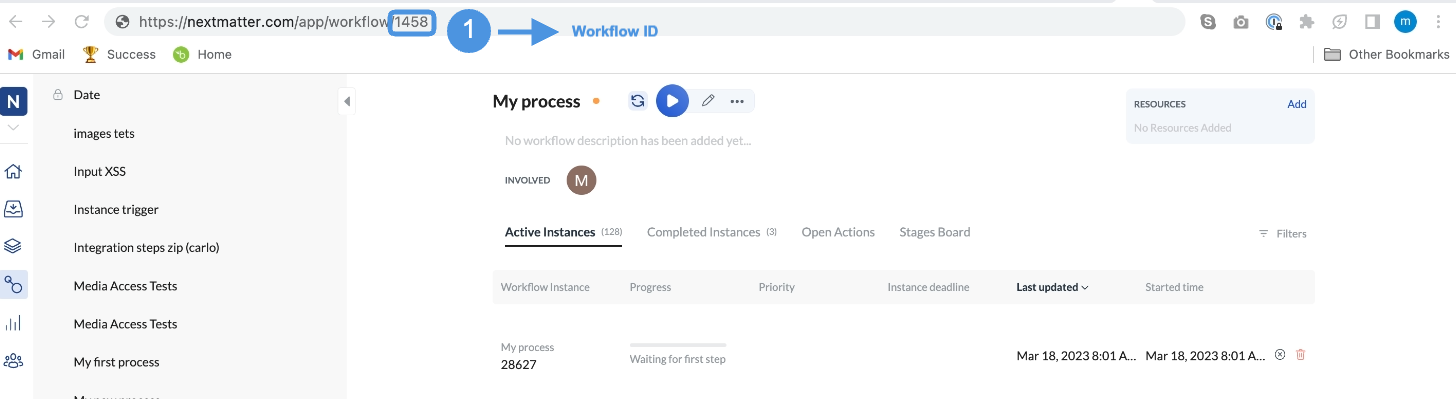
* You need the ID of the workflow that should be started from Freshdesk. You can get the ID by clicking the workflow and copying the number from the URL in your browser.
 ## Add workflow-related data to Freshdesk ticket
### Set up custom fields in Freshdesk
1. In Freshdesk, go to **Admin > General Settings > Ticket Fields**.
2. From the left side, drag a **Single-line text** field into the field list. Click on the new field and label it "Next Matter URL". This will create a custom field for Next Matter-related information and will help your agents identify tickets that have already been sent to Next Matter.
### Set up automation rule in Freshdesk
1. Create an automation rule in Freshdesk and decide when a Next Matter workflow should be launched. To create a rule, go to **Access Admin > Helpdesk Productivity > Automations**.
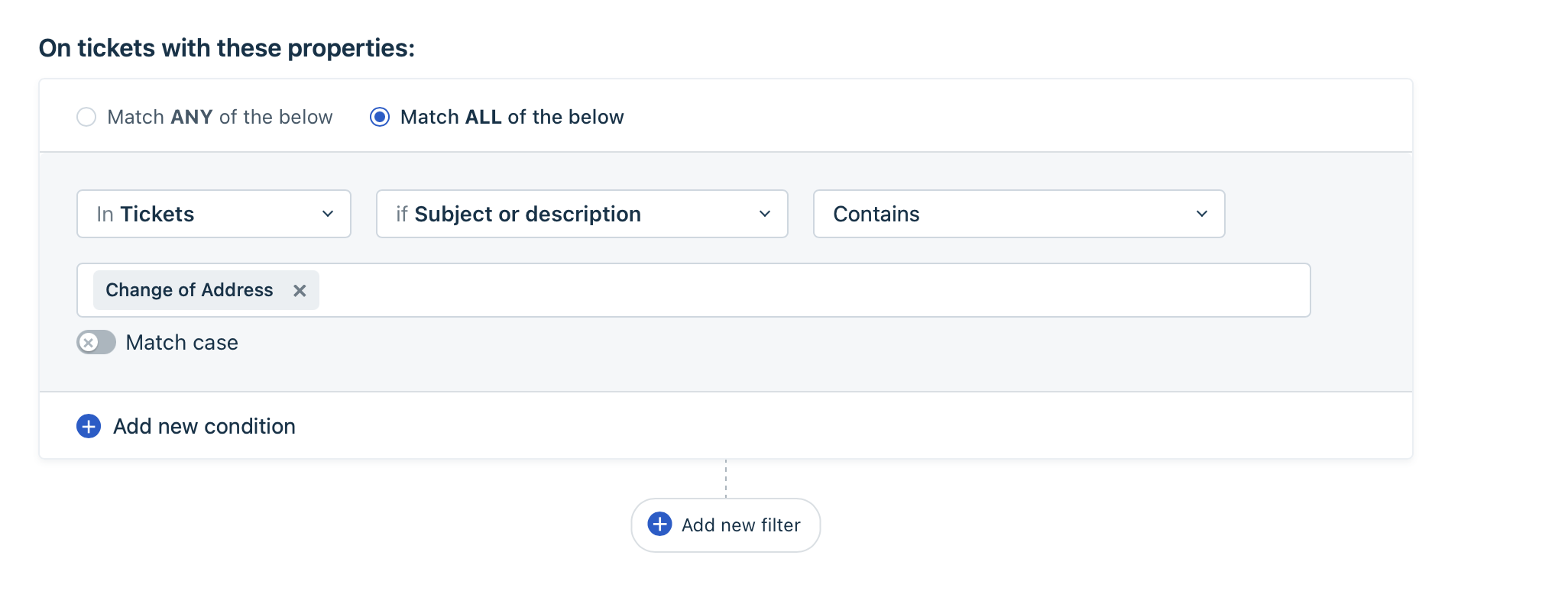
2. Go to the **Ticket Creation** tab and click **New Rule**. Set the conditions for triggering the workflow. They might look like the following:
## Add workflow-related data to Freshdesk ticket
### Set up custom fields in Freshdesk
1. In Freshdesk, go to **Admin > General Settings > Ticket Fields**.
2. From the left side, drag a **Single-line text** field into the field list. Click on the new field and label it "Next Matter URL". This will create a custom field for Next Matter-related information and will help your agents identify tickets that have already been sent to Next Matter.
### Set up automation rule in Freshdesk
1. Create an automation rule in Freshdesk and decide when a Next Matter workflow should be launched. To create a rule, go to **Access Admin > Helpdesk Productivity > Automations**.
2. Go to the **Ticket Creation** tab and click **New Rule**. Set the conditions for triggering the workflow. They might look like the following:
 3. In **Perform these actions** select **Trigger Webhook** and fill in the Form with the following data:
* **URL**: [`https://core.nextmatter.com/api/instances/`](https://core.nextmatter.com/api/instances/)
* **Request type**: POST
* **Enable custom headers**: (Authorization: `API-Key MY_NM_Key` and Encoding: `complete`)
* **Content**: Advanced, for example:
```json theme={null}
{
"process": "https://core.nextmatter.com/api/processes/NEXTMATTER_WORKFLOW_ID/",
"name": "{{ticket.id}}"
}
```
Now you can use Next Matter **no-code steps** to update the ticket, view its details, or reply to it. \
For details, see [Connect to Freshdesk no-code](/docs/connect-to-freshdesk)
3. In **Perform these actions** select **Trigger Webhook** and fill in the Form with the following data:
* **URL**: [`https://core.nextmatter.com/api/instances/`](https://core.nextmatter.com/api/instances/)
* **Request type**: POST
* **Enable custom headers**: (Authorization: `API-Key MY_NM_Key` and Encoding: `complete`)
* **Content**: Advanced, for example:
```json theme={null}
{
"process": "https://core.nextmatter.com/api/processes/NEXTMATTER_WORKFLOW_ID/",
"name": "{{ticket.id}}"
}
```
Now you can use Next Matter **no-code steps** to update the ticket, view its details, or reply to it. \
For details, see [Connect to Freshdesk no-code](/docs/connect-to-freshdesk)