> ## Documentation Index
> Fetch the complete documentation index at: https://help.nextmatter.com/llms.txt
> Use this file to discover all available pages before exploring further.
# Integrate across tools
> Next Matter is the common interface for all your team's tools. Explore our extensive integration capabilities.
## No-code integrations
No-code integrations only require you to [connect the app](https://app.nextmatter.com/app/workspace/integrations) and configure the step.
### Start with no-code integrations
1. Connect the app in Next Matter. You can do it in **Automations library**.
2. When creating a workflow, click **Add step**, and select the app you want to connect with.
3. Configure the step by providing the required values.
[Connect to Zendesk (Code-Free)](https://help.nextmatter.com/docs/connect-to-zendesk-code-free)
[Connect to Google Sheets](https://help.nextmatter.com/docs/connect-to-google-sheets)
[Create a No-Code Email](https://help.nextmatter.com/docs/create-a-no-code-email)
[No-Code Slack Notifications](https://help.nextmatter.com/docs/no-code-slack-notifications)
[Connect to Front (Code-Free)](https://help.nextmatter.com/docs/connect-to-front-code-free)
[Connect to Freshdesk](https://help.nextmatter.com/docs/connect-to-freshdesk)
[Analyze Text Code-Free with AI](https://help.nextmatter.com/docs/analyze-text-code-free-with-ai)
[Connect to Microsoft Outlook (Code-Free)](https://help.nextmatter.com/docs/connect-to-microsoft-outlook-code-free)
[Connect to SharePoint (No-Code)](https://help.nextmatter.com/docs/connect-to-sharepoint-no-code)
[Connect to Gmail (No-Code)](https://help.nextmatter.com/docs/connect-to-gmail-no-code)
## Advanced (templates)
These integrations require you to [connect the app](https://app.nextmatter.com/app/workspace/integrations), enter the API endpoint, and provide a JSON body with values.
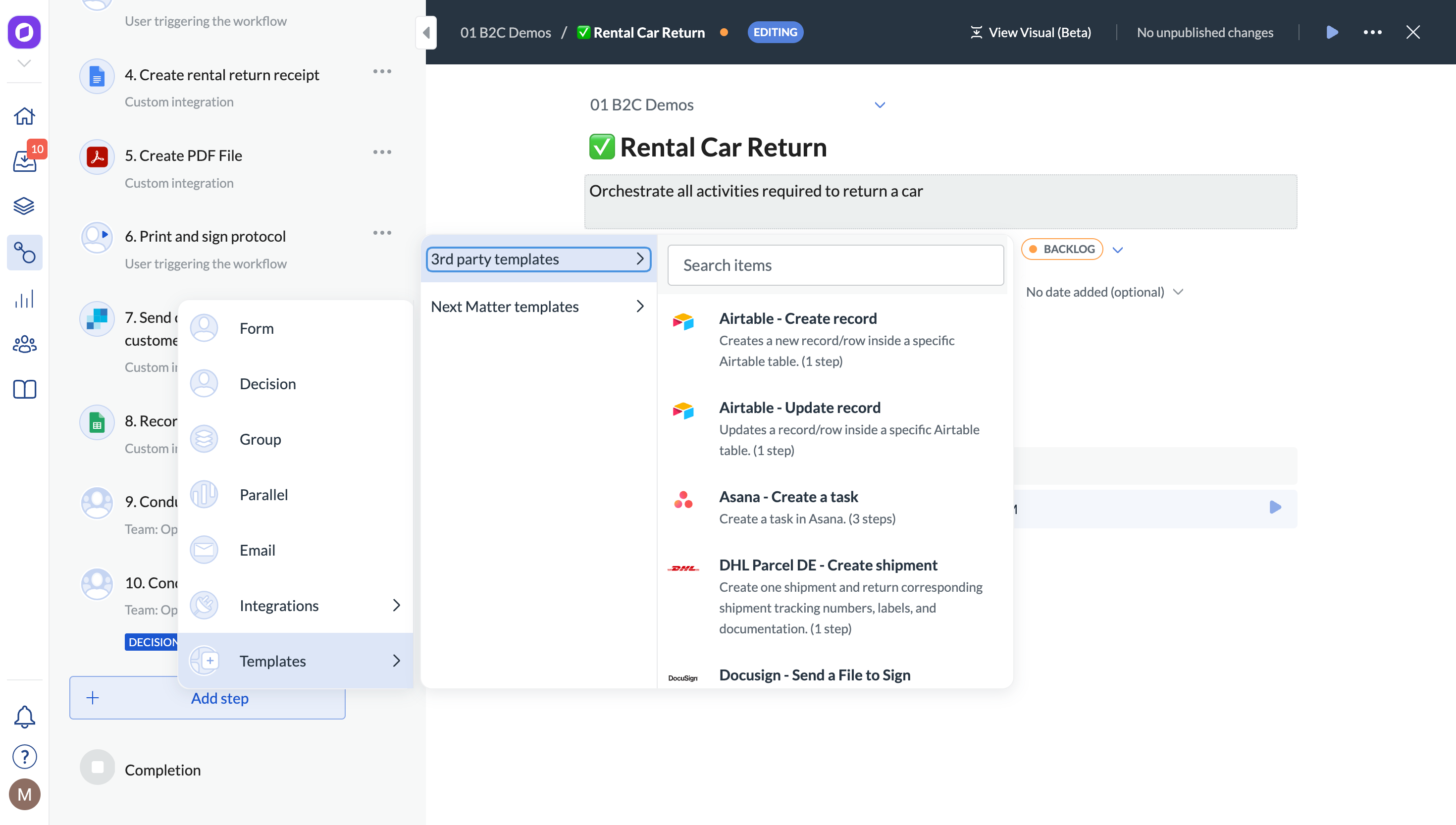
These integrations require technical setup, but we provide ready-made templates to get you started quickly. You can find them when you click **Add step > Templates > 3rd party templates**.
### Start with advanced integrations
1. Connect the app in Next Matter. Go to [**Automations library**](https://app.nextmatter.com/app/workspace/integrations).
2. When creating a workflow, click **Add step > Templates > 3rd party templates** or **Add step > Integrations**.
3. Select the template or integration to add to your workflow.
 ## Pro (API and HTTP integrations)
These integrations require you to authenticate with the 3rd party token, enter the API endpoint, and provide a JSON body with values.\
These integrations require technical setup, but we provide ready-made templates to get you started quickly.
### Start with API integrations
You can connect with any tool that supports REST API. Depending on the API, you will need to authenticate your call using Basic authentication, an API token, or an API key.
* When editing a workflow, add an **Integrations> Custom integration** step, and enter the API call details yourself.
**Tip**: Some integrations are available as ready-to-use templates. Click **Add step > Templates > 3rd party templates** and find out if there is a template available for your integration.
Need an integration that's not listed? Ask our Support for help (top-right corner)!
### Explore custom credentials
You can store credentials to use for 3rd party connections directly in Next Matter. This way, you don't need to add them every time you build a custom integration step. [Learn more...](/docs/api-keys)
## Pro (API and HTTP integrations)
These integrations require you to authenticate with the 3rd party token, enter the API endpoint, and provide a JSON body with values.\
These integrations require technical setup, but we provide ready-made templates to get you started quickly.
### Start with API integrations
You can connect with any tool that supports REST API. Depending on the API, you will need to authenticate your call using Basic authentication, an API token, or an API key.
* When editing a workflow, add an **Integrations> Custom integration** step, and enter the API call details yourself.
**Tip**: Some integrations are available as ready-to-use templates. Click **Add step > Templates > 3rd party templates** and find out if there is a template available for your integration.
Need an integration that's not listed? Ask our Support for help (top-right corner)!
### Explore custom credentials
You can store credentials to use for 3rd party connections directly in Next Matter. This way, you don't need to add them every time you build a custom integration step. [Learn more...](/docs/api-keys)