> ## Documentation Index
> Fetch the complete documentation index at: https://help.nextmatter.com/llms.txt
> Use this file to discover all available pages before exploring further.
# Get started: Build workflows
> As a builder, you'll be creating and managing workflows and integrations.
Let's get you started, nice and easy.
## Product overview
Start by getting to know the app. This tour gives you an overview of what you can find in each of the navigation items.
## Prepare to build
The best way to start with Next Matter is to build a workflow and see how it works in practice. Then you can move on to adding team members and trying out more complex integrations.
Watch this tour to learn how to:
* Add users
* Start integrating other tools
* Generate your key for any custom integration you might need
* Start building workflows
## Advanced configuration
When you feel confident building a basic workflow and adding users, it's a good idea to explore other features to help you become a Next Matter expert.
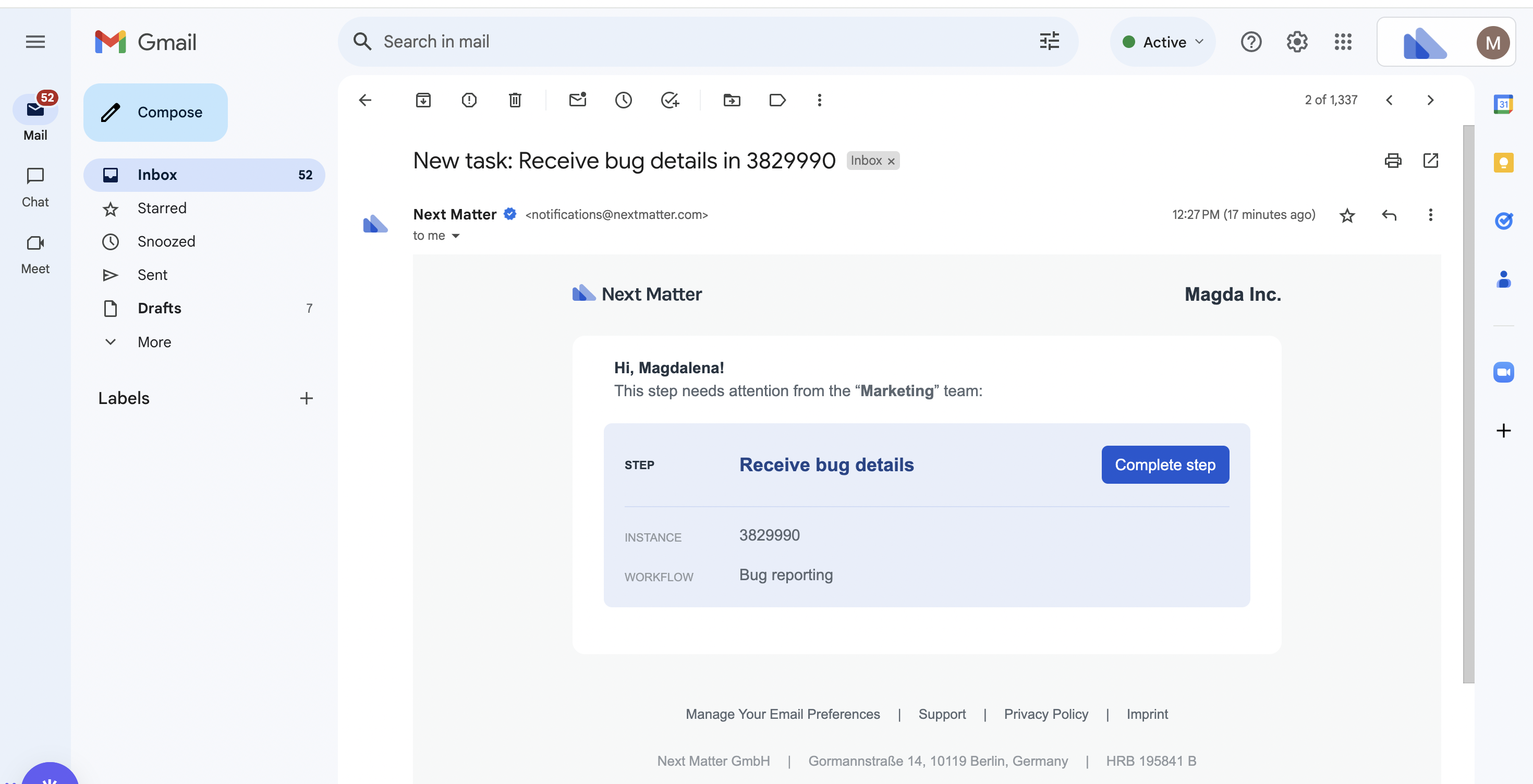
When a task is assigned, users get notified about it in their Next Matter inbox and by email.
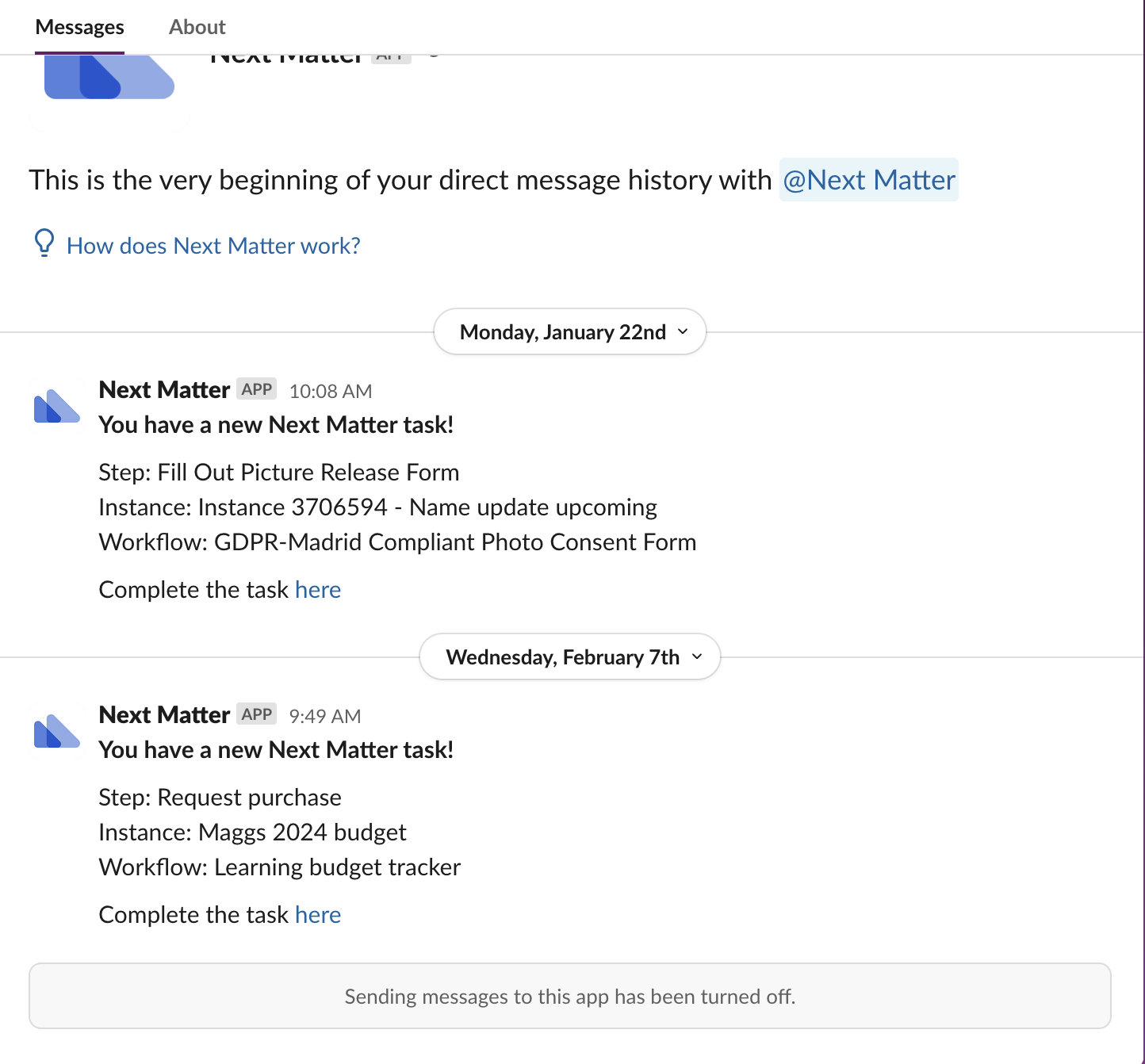
 However, you can also notify them by Slack.
 1. Start by connecting Slack in Next Matter. You can do it in **Automations library**.
2. Click the avatar in the bottom-left corner and open **User profile**.
3. In **Notifications**, select **Slack**.
Note that as an admin, you connect Slack, but each Next Matter user can decide on their own how they want to be notified.
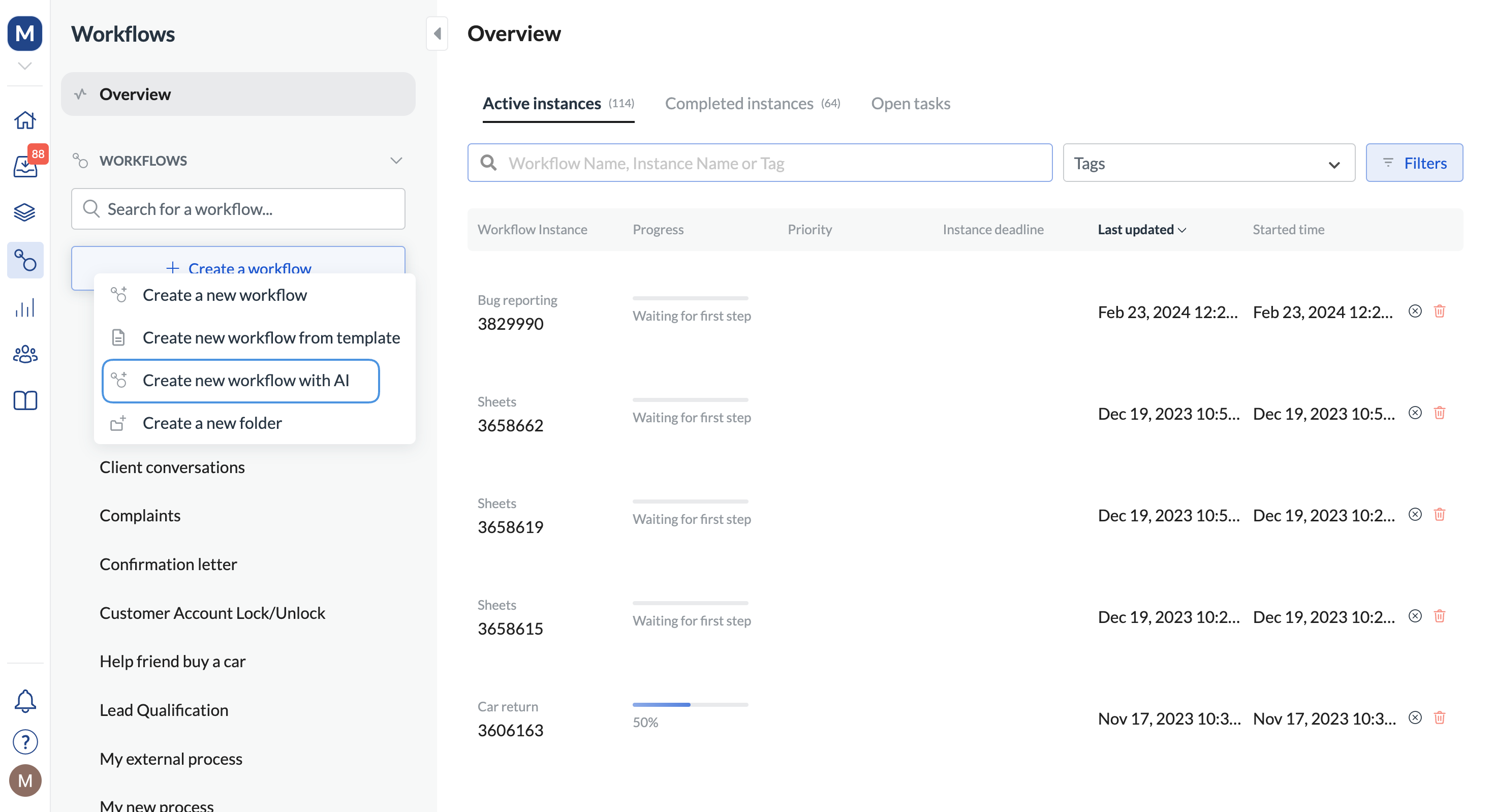
If you're looking for ideas on how to break your workflow into steps, our AI can help you out. Click **Create new workflow with AI** and describe your workflow in a few words. We'll give you some ideas of what your steps might be.
1. Start by connecting Slack in Next Matter. You can do it in **Automations library**.
2. Click the avatar in the bottom-left corner and open **User profile**.
3. In **Notifications**, select **Slack**.
Note that as an admin, you connect Slack, but each Next Matter user can decide on their own how they want to be notified.
If you're looking for ideas on how to break your workflow into steps, our AI can help you out. Click **Create new workflow with AI** and describe your workflow in a few words. We'll give you some ideas of what your steps might be.
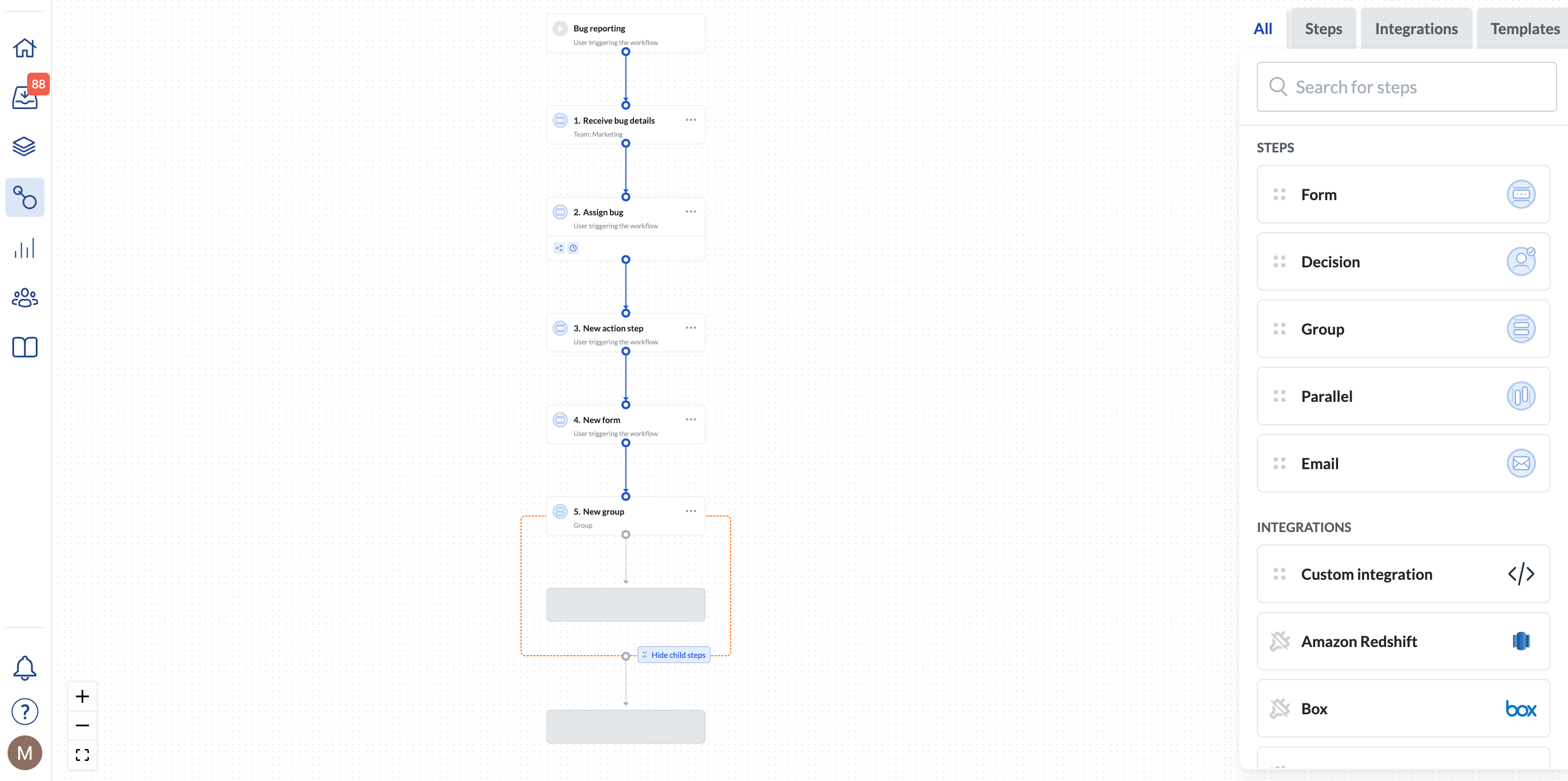
 When you start building your workflow, click **Show visual** in the top bar. Visual builder allows for drafting workflows in collaboration with Subject Matter Experts, where you can drag and drop steps together.
 In the case of tools such as Asana, you'll need to connect them using REST API.
To do that, you'll need the 3rd party app's API key. If you're not an admin, you can ask your IT department to generate those for you.
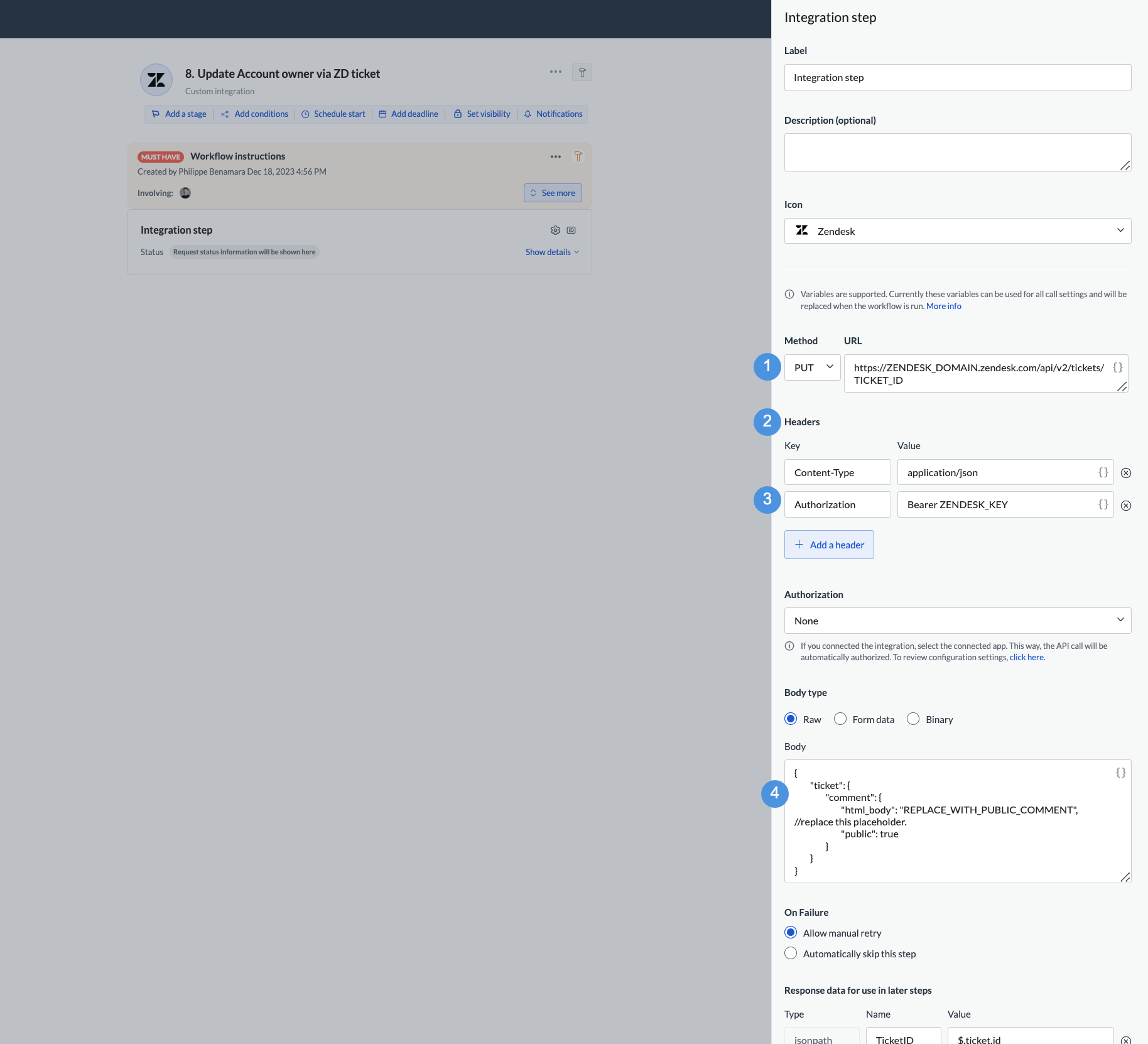
To use such an integration when building a workflow, you'll need a **Integrations > Custom integration** step.
You'll need to provide:
* the 3rd party key in **3** (as in the screenshot)
* REST API endpoint URL in **1** (screenshot)
* JSON request body in **4** (screenshot)
* any additional headers in **2** (screenshot)
In the case of tools such as Asana, you'll need to connect them using REST API.
To do that, you'll need the 3rd party app's API key. If you're not an admin, you can ask your IT department to generate those for you.
To use such an integration when building a workflow, you'll need a **Integrations > Custom integration** step.
You'll need to provide:
* the 3rd party key in **3** (as in the screenshot)
* REST API endpoint URL in **1** (screenshot)
* JSON request body in **4** (screenshot)
* any additional headers in **2** (screenshot)
 You will find the 3rd party calls in their developer documentation.
Actions such as completing a step can be easily achieved with Next Matter own REST API. You can find all the details [here](/reference/intro/getting-started).
You'll need to authenticate with the Next Matter API key, which you can generate in [**Company > Next Matter API keys**](https://app.nextmatter.com/app/workspace/nm-api-keys).
## Key features to explore as next steps
* **Data references**: When building workflows, you can re-use data from the workflow (metadata, user-entered data, and data obtained from integrations). Learn how to [use data references](/docs/use-data-references) and [variables](/docs/pull-variables-into-a-process)
* **Changelog**: You can build workflows, test draft versions, and revert changes. Learn more about [version control](/docs/workflow-versions)
* **Branching**: Base steps on conditions to account for multiple workflow paths. Learn more [about conditions](/docs/set-conditions-to-a-step)
* **Multiple ways to start a workflow**: Start workflows manually or when a trigger is received. Learn more about how to [start workflows](/docs/work-with-instances)
* **Portals**: You can share specific workflows as portals available to users. The users can start workflows from there and use this space as their quick resolution center. Learn more [about portals](/docs/share-workflows-in-portals)
You will find the 3rd party calls in their developer documentation.
Actions such as completing a step can be easily achieved with Next Matter own REST API. You can find all the details [here](/reference/intro/getting-started).
You'll need to authenticate with the Next Matter API key, which you can generate in [**Company > Next Matter API keys**](https://app.nextmatter.com/app/workspace/nm-api-keys).
## Key features to explore as next steps
* **Data references**: When building workflows, you can re-use data from the workflow (metadata, user-entered data, and data obtained from integrations). Learn how to [use data references](/docs/use-data-references) and [variables](/docs/pull-variables-into-a-process)
* **Changelog**: You can build workflows, test draft versions, and revert changes. Learn more about [version control](/docs/workflow-versions)
* **Branching**: Base steps on conditions to account for multiple workflow paths. Learn more [about conditions](/docs/set-conditions-to-a-step)
* **Multiple ways to start a workflow**: Start workflows manually or when a trigger is received. Learn more about how to [start workflows](/docs/work-with-instances)
* **Portals**: You can share specific workflows as portals available to users. The users can start workflows from there and use this space as their quick resolution center. Learn more [about portals](/docs/share-workflows-in-portals)