> ## Documentation Index
> Fetch the complete documentation index at: https://help.nextmatter.com/llms.txt
> Use this file to discover all available pages before exploring further.
# Complete steps
> Complete steps in the app or using the API
## Completing a form or routing step in the app
A form step is completed when you have finished all the form fields and click the **Complete** button under the form. That also applies to routing steps, where you select your decision and click **Complete**.
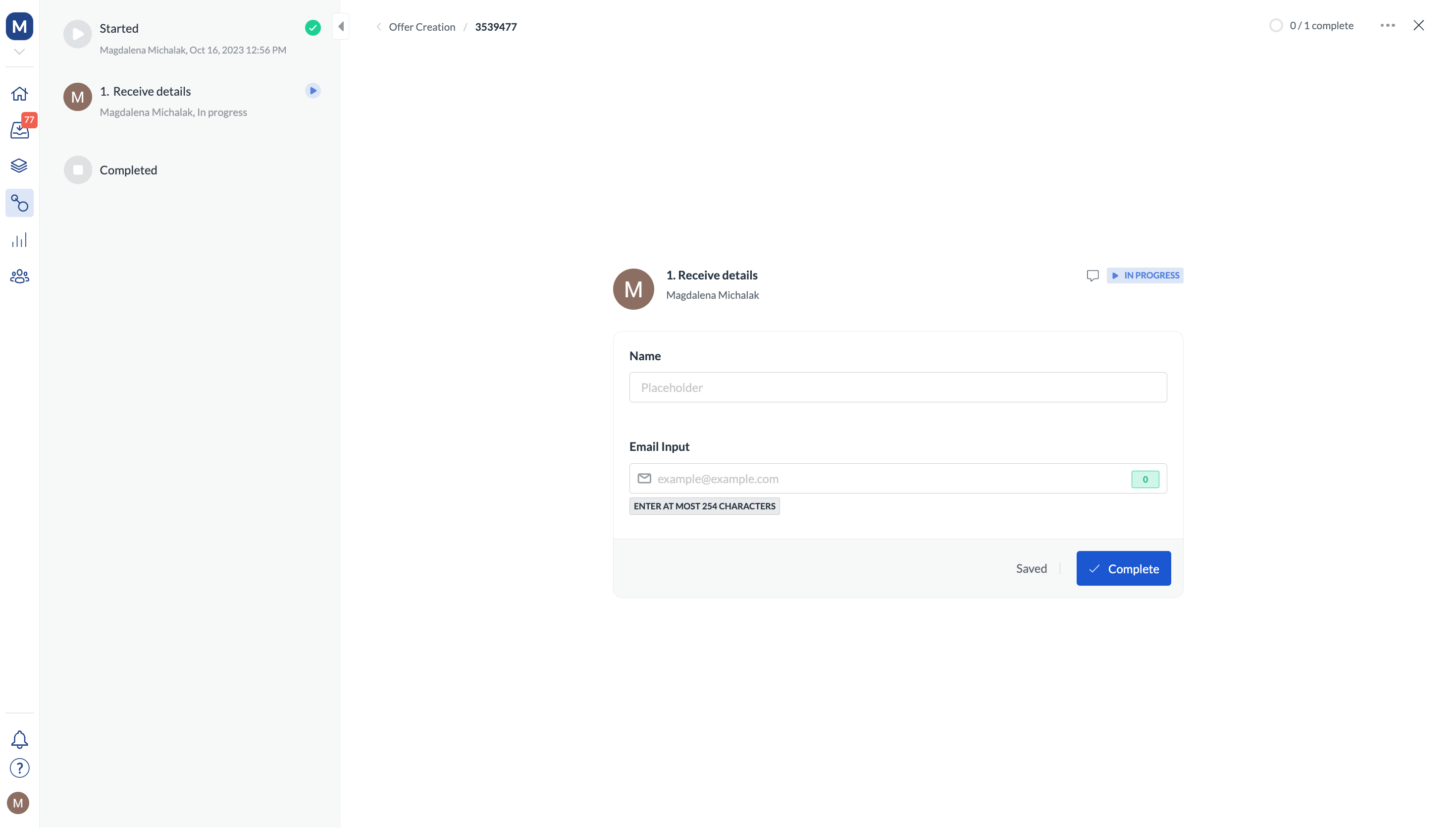 You can edit a completed step as long as the workflow instance is still in progress. However, if conditional steps follow, and they have already been completed, the updates to the form step **won't** affect the completed conditions.
## Completing an automated step
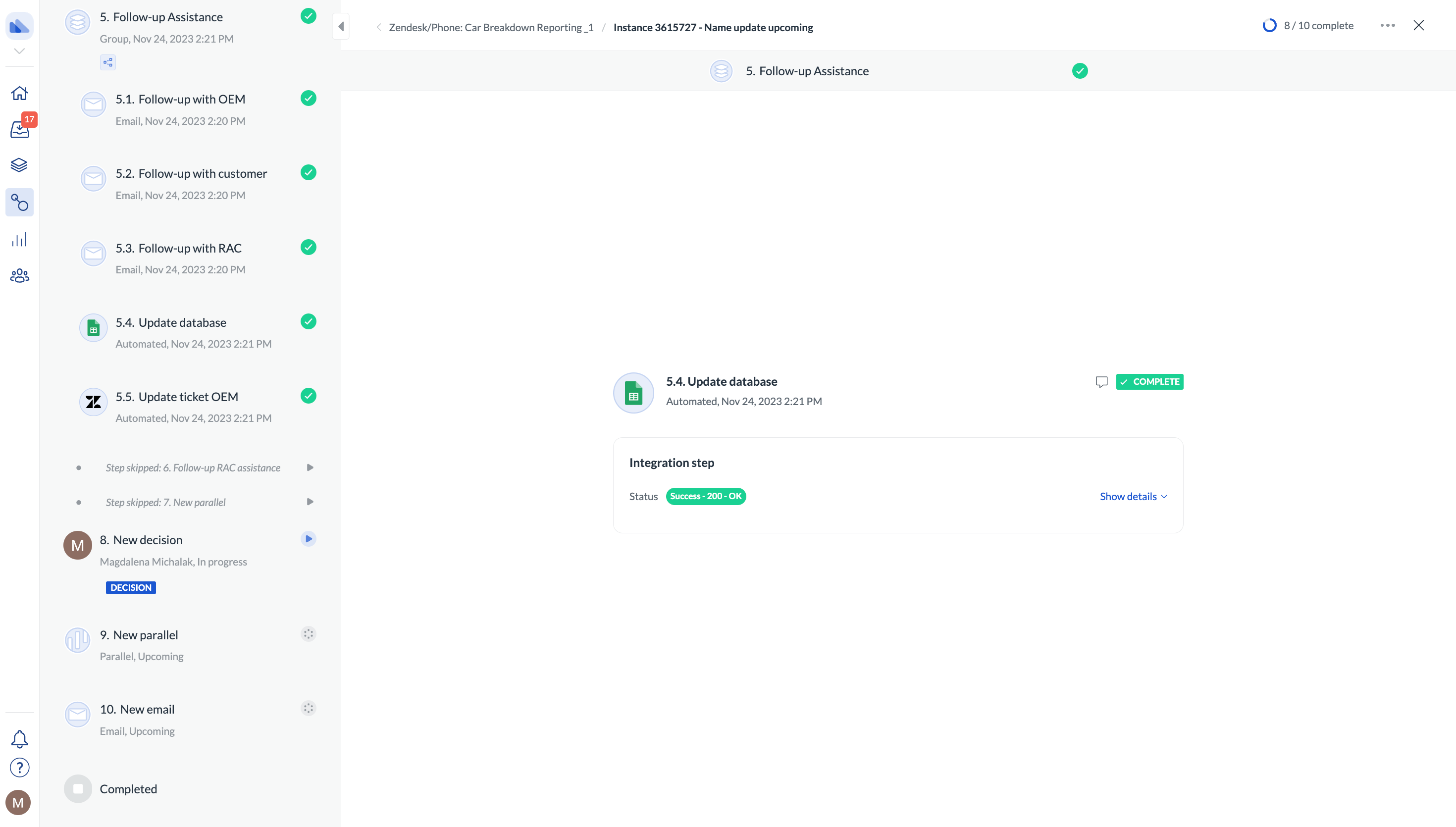
Those steps do not need your input and are completed automatically. If an automated step produces an error, the workflow technical lead is notified by email and can update and restart the step.
You can edit a completed step as long as the workflow instance is still in progress. However, if conditional steps follow, and they have already been completed, the updates to the form step **won't** affect the completed conditions.
## Completing an automated step
Those steps do not need your input and are completed automatically. If an automated step produces an error, the workflow technical lead is notified by email and can update and restart the step.
 ## Completing steps using API
You can also use our [API to complete steps](/reference/instances_complete_step).
Use the following information to structure your calls:
### Field with a simple input form field
```json JSON theme={null}
{
"step_id":"STEP_ID",
"actions":[
{
"action_id":"FORM_FIELD_ID",
"input_object":{
"inputValue":"STRING"
}
}
]
}
```
### Field with an address input
```json JSON theme={null}
{
"step_id":"STEP_ID",
"actions":[
{ "action_id":"FORM_FIELD_1_ID",
"input_object":{
"city":"city",
"street":"street",
"zipCode":"zipCode"
}
}
]
}
```
### Field with a date input
```json JSON theme={null}
{
"step_id":"STEP_ID",
"actions":[
{"action_id":"FORM_FIELD_ID",
"input_object":{
"date":"2021-06-16T10:00:00.000Z"
}
}
]
}
```
### Field with a number
```json JSON theme={null}
{
"step_id":"STEP_ID",
"actions":[
{"action_id":"FORM_FIELD_ID",
"input_object":{
"numberValue": 10000, //can also be 0 or null (empty field)
"formattedValue": "" //can be left empty. If formatting has been configured in the editor, it will be automatically applied to the value.
}
}
]
}
```
### Field with a checklist
```json JSON theme={null}
{
"step_id":"STEP_ID",
"actions":[
{"action_id":"FORM_FIELD_ID",
"input_object":{
"itemsChecked":[
"Option A",
"Option B"
]
}
}
]
}
```
### Field with radio button selection
```json JSON theme={null}
{
"step_id":"STEP_ID",
"actions":[
{"action_id":"FORM_FIELD_ID",
"input_object":{
"radioItemSelected":"Option A"
}
}
]
}
```
### Field with URL input
```json JSON theme={null}
{
"step_id":"STEP_ID",
"actions":[
{"action_id":"FORM_FIELD_ID",
"input_object":{
"url":{
"url":"http://nextmatter.com"
}
}
}
]
}
```
### Field with email input
```json theme={null}
{
"step_id": "STEP_ID",
"actions": [
{"action_id":"FORM_FIELD_ID",
"input_object": {
"emailValue": "[email protected]"
}
}
]
}
```
### Field with a drawing
```json theme={null}
{
"step_id": "STEP_ID",
"actions": [
{"action_id":"FORM_FIELD_ID",
"input_object": {
"url": "https://MY_IMAGE_URL.png"
}
}
]
}
```
### Field with image upload
```json theme={null}
{
"step_id": "STEP_ID",
"actions": [
{"action_id":"FORM_FIELD_ID",
"input_object": {
"images": "https://MY_IMAGE_URL.png"
}
}
]
}
```
### Field with file upload
```json theme={null}
{
"step_id": "STEP_ID",
"actions": [
{"action_id":"FORM_FIELD_ID",
"input_object": {
"files": "https://MY_FILE_URL.txt"
}
}
]
}
```
### Field with user selection dropdown
```json theme={null}
{
"step_id":"STEP_ID",
"actions":[
{"action_id":"FORM_FIELD_ID",
"input_object":{
"selection":{
"user_email":"[email protected]"
}
}
}
]
}
```
### Field with user selection dropdown (team as assignee)
```json theme={null}
{
"step_id": "STEP_ID",
"actions": [
{"action_id":"FORM_FIELD_ID",
"input_object": {
"selection": {
"team_id": 1234
}
}
}
]
}
```
### Instruction
```json theme={null}
{
"step_id":"STEP_ID",
"actions":[
{"action_id":"FORM_FIELD_ID",
"input_object":{
}
}
]
}
```
### Routing
#### Return to step
```json theme={null}
{
"step_id": "ACTIVE_STEP_ID",
"actions": [
{
"action_id": "FORM_FIELD_ID",
"input_object": {
"action": "return",
"comment": "comment_text",
"label": "UI_button_label", //leave as "" if there is no label change
"returnToStep": "STEP_TO_RETURN_TO_ID"
}
}
]
}
```
#### Skip forward (to step)
```json theme={null}
{
"step_id": "ACTIVE_STEP_ID",
"actions": [
{
"action_id": "FORM_FIELD_ID",
"input_object": {
"action": "skip_forward",
"comment": "comment_text",
"label": "UI_button_label", //leave as "" if there is no label change
"returnToStep": "STEP_TO_SKIP_TO_ID"
}
}
]
}
```
#### Stop instance
Note that when an instance is stopped using routing, the complete step endpoint response will contain `aborted_time` instead of `completed_time`.
```json theme={null}
{
"step_id": "ACTIVE_STEP_ID",
"actions": [
{
"action_id": "FORM_FIELD_ID",
"input_object": {
"action": "decline",
"comment": "comment_text",
"label": "UI_button_label", //leave as "" if there is no label change
"returnToStep": -2
}
}
]
}
```
#### Continue
```json theme={null}
{
"step_id": "ACTIVE_STEP_ID",
"actions": [
{
"action_id": "FORM_FIELD_ID",
"input_object": {
"action": "complete",
"comment": "comment_text",
"label": "UI_button_label", //leave as "" if there is no label change
"returnToStep": -1
}
}
]
}
```
#### Save a step with a routing button, without selecting any option
(Step is optional, or the goal is to only save)
```json theme={null}
{
"step_id":"ACTIVE_STEP_ID",
"mode":"save",
"actions":[
{
"action_id": "FORM_FIELD_ID",
"input_object": {
"label":"",
"action": "",
"comment": "",
"returnToStep": 0
}
}
]
}
```
### Single-select dropdown (with and without dataset as source)
```json theme={null}
{
"step_id": "ACTIVE_STEP_ID",
"actions": [
{
"input_object": {
"itemSelected": "NAME_OF_SELECTED_ITEM"
},
"action_id": "FORM_FIELD_ID"
}
]
}
```
### Multi-select dropdown
#### Minimal request
```json theme={null}
{
"step_id": ACTIVE_STEP_ID,
"actions": [
{
"input_object": {
"itemsSelected": ["NAME_OF_SELECTED_ITEM", "NAME_OF_SELECTED_ITEM"]
},
"action_id": "FORM_FIELD_ID"
}
]
}
```
#### Full request
```json theme={null}
{
"step_id": ACTIVE_STEP_ID,
"actions": [
{
"input_object": {
"allItems": [], //enter all available items or leave empty
"itemsSelected": ["NAME_OF_SELECTED_ITEM", "NAME_OF_SELECTED_ITEM"],
"itemsNotSelected": ["NAME_OF_NOT_SELECTED_ITEM"],
"numberOfItemsSelected": 2,
"numberOfItemsNotSelected": 1
},
"action_id": "FORM_FIELD_ID"
}
]
}
```
### Table
Ensure that the table content in `jsonResult` is a **JSON-encoded string representation** of the 2D array.
```json theme={null}
{
"step_id": "ACTIVE_STEP_ID",
"actions": [
{
"action_id": "FORM_FIELD_ID",
"input_object": {
"jsonResult": "[[\"HeaderRow1Column1Value\", \"HeaderRow1Column2Value\", \"HeaderRow1Column3Value\"], [\"Row2Column1Value\", \"Row2Column2Value\", \"Row2Column3Value\"], [\"Row3Column1Value\", \"Row3Column2Value\", \"Row3Column3Value\"]]"
}
}
]
}
```
Note that when the provided values are numbers (like the values in column 2 of the above examples), they don't need to be escaped (`\"\"`). For an empty field, escape it with no values provided.
**Real-life call example**
## Completing steps using API
You can also use our [API to complete steps](/reference/instances_complete_step).
Use the following information to structure your calls:
### Field with a simple input form field
```json JSON theme={null}
{
"step_id":"STEP_ID",
"actions":[
{
"action_id":"FORM_FIELD_ID",
"input_object":{
"inputValue":"STRING"
}
}
]
}
```
### Field with an address input
```json JSON theme={null}
{
"step_id":"STEP_ID",
"actions":[
{ "action_id":"FORM_FIELD_1_ID",
"input_object":{
"city":"city",
"street":"street",
"zipCode":"zipCode"
}
}
]
}
```
### Field with a date input
```json JSON theme={null}
{
"step_id":"STEP_ID",
"actions":[
{"action_id":"FORM_FIELD_ID",
"input_object":{
"date":"2021-06-16T10:00:00.000Z"
}
}
]
}
```
### Field with a number
```json JSON theme={null}
{
"step_id":"STEP_ID",
"actions":[
{"action_id":"FORM_FIELD_ID",
"input_object":{
"numberValue": 10000, //can also be 0 or null (empty field)
"formattedValue": "" //can be left empty. If formatting has been configured in the editor, it will be automatically applied to the value.
}
}
]
}
```
### Field with a checklist
```json JSON theme={null}
{
"step_id":"STEP_ID",
"actions":[
{"action_id":"FORM_FIELD_ID",
"input_object":{
"itemsChecked":[
"Option A",
"Option B"
]
}
}
]
}
```
### Field with radio button selection
```json JSON theme={null}
{
"step_id":"STEP_ID",
"actions":[
{"action_id":"FORM_FIELD_ID",
"input_object":{
"radioItemSelected":"Option A"
}
}
]
}
```
### Field with URL input
```json JSON theme={null}
{
"step_id":"STEP_ID",
"actions":[
{"action_id":"FORM_FIELD_ID",
"input_object":{
"url":{
"url":"http://nextmatter.com"
}
}
}
]
}
```
### Field with email input
```json theme={null}
{
"step_id": "STEP_ID",
"actions": [
{"action_id":"FORM_FIELD_ID",
"input_object": {
"emailValue": "[email protected]"
}
}
]
}
```
### Field with a drawing
```json theme={null}
{
"step_id": "STEP_ID",
"actions": [
{"action_id":"FORM_FIELD_ID",
"input_object": {
"url": "https://MY_IMAGE_URL.png"
}
}
]
}
```
### Field with image upload
```json theme={null}
{
"step_id": "STEP_ID",
"actions": [
{"action_id":"FORM_FIELD_ID",
"input_object": {
"images": "https://MY_IMAGE_URL.png"
}
}
]
}
```
### Field with file upload
```json theme={null}
{
"step_id": "STEP_ID",
"actions": [
{"action_id":"FORM_FIELD_ID",
"input_object": {
"files": "https://MY_FILE_URL.txt"
}
}
]
}
```
### Field with user selection dropdown
```json theme={null}
{
"step_id":"STEP_ID",
"actions":[
{"action_id":"FORM_FIELD_ID",
"input_object":{
"selection":{
"user_email":"[email protected]"
}
}
}
]
}
```
### Field with user selection dropdown (team as assignee)
```json theme={null}
{
"step_id": "STEP_ID",
"actions": [
{"action_id":"FORM_FIELD_ID",
"input_object": {
"selection": {
"team_id": 1234
}
}
}
]
}
```
### Instruction
```json theme={null}
{
"step_id":"STEP_ID",
"actions":[
{"action_id":"FORM_FIELD_ID",
"input_object":{
}
}
]
}
```
### Routing
#### Return to step
```json theme={null}
{
"step_id": "ACTIVE_STEP_ID",
"actions": [
{
"action_id": "FORM_FIELD_ID",
"input_object": {
"action": "return",
"comment": "comment_text",
"label": "UI_button_label", //leave as "" if there is no label change
"returnToStep": "STEP_TO_RETURN_TO_ID"
}
}
]
}
```
#### Skip forward (to step)
```json theme={null}
{
"step_id": "ACTIVE_STEP_ID",
"actions": [
{
"action_id": "FORM_FIELD_ID",
"input_object": {
"action": "skip_forward",
"comment": "comment_text",
"label": "UI_button_label", //leave as "" if there is no label change
"returnToStep": "STEP_TO_SKIP_TO_ID"
}
}
]
}
```
#### Stop instance
Note that when an instance is stopped using routing, the complete step endpoint response will contain `aborted_time` instead of `completed_time`.
```json theme={null}
{
"step_id": "ACTIVE_STEP_ID",
"actions": [
{
"action_id": "FORM_FIELD_ID",
"input_object": {
"action": "decline",
"comment": "comment_text",
"label": "UI_button_label", //leave as "" if there is no label change
"returnToStep": -2
}
}
]
}
```
#### Continue
```json theme={null}
{
"step_id": "ACTIVE_STEP_ID",
"actions": [
{
"action_id": "FORM_FIELD_ID",
"input_object": {
"action": "complete",
"comment": "comment_text",
"label": "UI_button_label", //leave as "" if there is no label change
"returnToStep": -1
}
}
]
}
```
#### Save a step with a routing button, without selecting any option
(Step is optional, or the goal is to only save)
```json theme={null}
{
"step_id":"ACTIVE_STEP_ID",
"mode":"save",
"actions":[
{
"action_id": "FORM_FIELD_ID",
"input_object": {
"label":"",
"action": "",
"comment": "",
"returnToStep": 0
}
}
]
}
```
### Single-select dropdown (with and without dataset as source)
```json theme={null}
{
"step_id": "ACTIVE_STEP_ID",
"actions": [
{
"input_object": {
"itemSelected": "NAME_OF_SELECTED_ITEM"
},
"action_id": "FORM_FIELD_ID"
}
]
}
```
### Multi-select dropdown
#### Minimal request
```json theme={null}
{
"step_id": ACTIVE_STEP_ID,
"actions": [
{
"input_object": {
"itemsSelected": ["NAME_OF_SELECTED_ITEM", "NAME_OF_SELECTED_ITEM"]
},
"action_id": "FORM_FIELD_ID"
}
]
}
```
#### Full request
```json theme={null}
{
"step_id": ACTIVE_STEP_ID,
"actions": [
{
"input_object": {
"allItems": [], //enter all available items or leave empty
"itemsSelected": ["NAME_OF_SELECTED_ITEM", "NAME_OF_SELECTED_ITEM"],
"itemsNotSelected": ["NAME_OF_NOT_SELECTED_ITEM"],
"numberOfItemsSelected": 2,
"numberOfItemsNotSelected": 1
},
"action_id": "FORM_FIELD_ID"
}
]
}
```
### Table
Ensure that the table content in `jsonResult` is a **JSON-encoded string representation** of the 2D array.
```json theme={null}
{
"step_id": "ACTIVE_STEP_ID",
"actions": [
{
"action_id": "FORM_FIELD_ID",
"input_object": {
"jsonResult": "[[\"HeaderRow1Column1Value\", \"HeaderRow1Column2Value\", \"HeaderRow1Column3Value\"], [\"Row2Column1Value\", \"Row2Column2Value\", \"Row2Column3Value\"], [\"Row3Column1Value\", \"Row3Column2Value\", \"Row3Column3Value\"]]"
}
}
]
}
```
Note that when the provided values are numbers (like the values in column 2 of the above examples), they don't need to be escaped (`\"\"`). For an empty field, escape it with no values provided.
**Real-life call example**
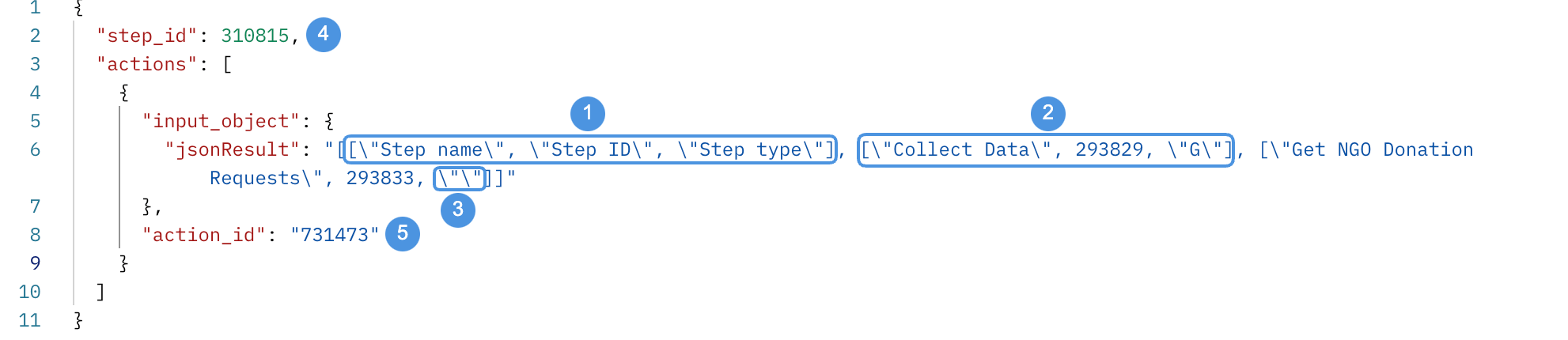 **1**: These will be header names for the 3 columns we're creating. This will be our first row. Note: If you don't want to create a header with specific names, go to the table configuration and clear the **Set first row as header** option. Then your header will get default names.
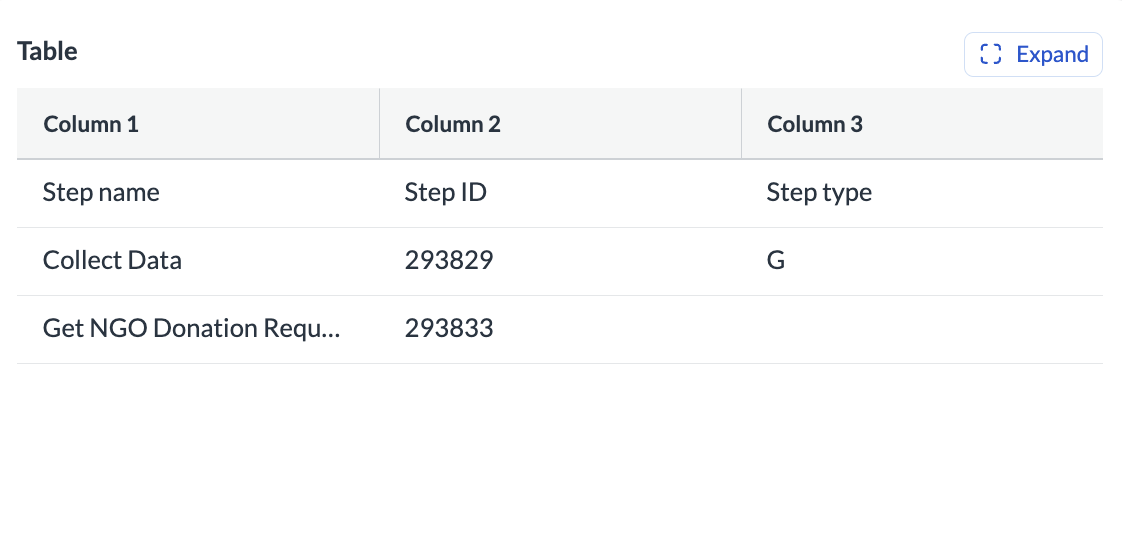 **2**: These values will appear in the 2nd row in the respective columns.
**3**: The 3rd column of the 3nd row will be empty.
**4**: This is my step ID
**5**: This is my form field ID.
### Completing conditional steps
To write a complete step request when some input [form fields are conditional](/docs/set-conditions-to-a-step#set-form-field-conditions), you need to include all the fields in the request body, regardless of whether they are conditional. For conditional fields, simply provide empty values.
For example:
```json theme={null}
{
"step_id": "STEP_ID",
"actions": [
{
"action_id": "FORM_FIELD_1_ID",
"input_object": {
"selection":{
"user_email":"[email protected]"
}
}
},
{
"action_id": "FORM_FIELD_2_ID",
"input_object": {
"images": []
}
}
]
}
```
**2**: These values will appear in the 2nd row in the respective columns.
**3**: The 3rd column of the 3nd row will be empty.
**4**: This is my step ID
**5**: This is my form field ID.
### Completing conditional steps
To write a complete step request when some input [form fields are conditional](/docs/set-conditions-to-a-step#set-form-field-conditions), you need to include all the fields in the request body, regardless of whether they are conditional. For conditional fields, simply provide empty values.
For example:
```json theme={null}
{
"step_id": "STEP_ID",
"actions": [
{
"action_id": "FORM_FIELD_1_ID",
"input_object": {
"selection":{
"user_email":"[email protected]"
}
}
},
{
"action_id": "FORM_FIELD_2_ID",
"input_object": {
"images": []
}
}
]
}
```