> ## Documentation Index
> Fetch the complete documentation index at: https://help.nextmatter.com/llms.txt
> Use this file to discover all available pages before exploring further.
# Notes in workflow
> Capture all back-and-forth messages around the design and building of a workflow and keep them as documentation in builder notes.
You and your team can leave multiple notes. They can be assigned to a step or collectively listed in a workflow overview. Builder notes can be used for idea exchange, but you can also make them required and assigned to a team member for completion.
## Add builder notes
1. Open **Workflows**.
2. Click a workflow to see its overview.
3. In the **Building notes** section, click **Create new**.
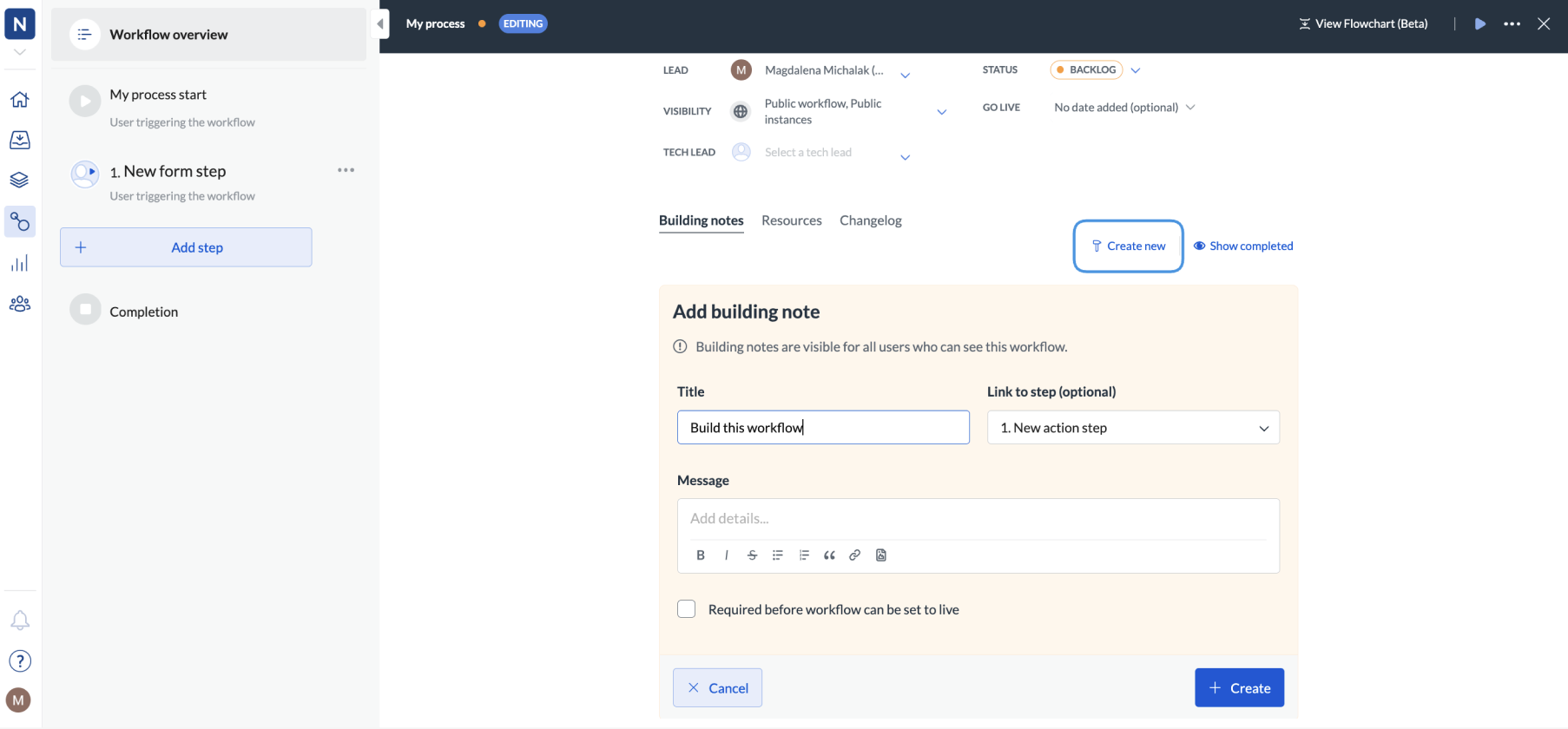 4. Enter the title of the note. You can also do one of the following:
* Tag a person or a team you want to get involved. To tag, just type @ and start typing the name. The person will be notified by email.
* Tie a note to a specific step.
* Make the note required before the workflow can be set to live so that the note displays as a **must-have** for the workflow. The note will only disappear if you mark the note as completed.
4. Enter the title of the note. You can also do one of the following:
* Tag a person or a team you want to get involved. To tag, just type @ and start typing the name. The person will be notified by email.
* Tie a note to a specific step.
* Make the note required before the workflow can be set to live so that the note displays as a **must-have** for the workflow. The note will only disappear if you mark the note as completed.
 5. Click **+ Create**.
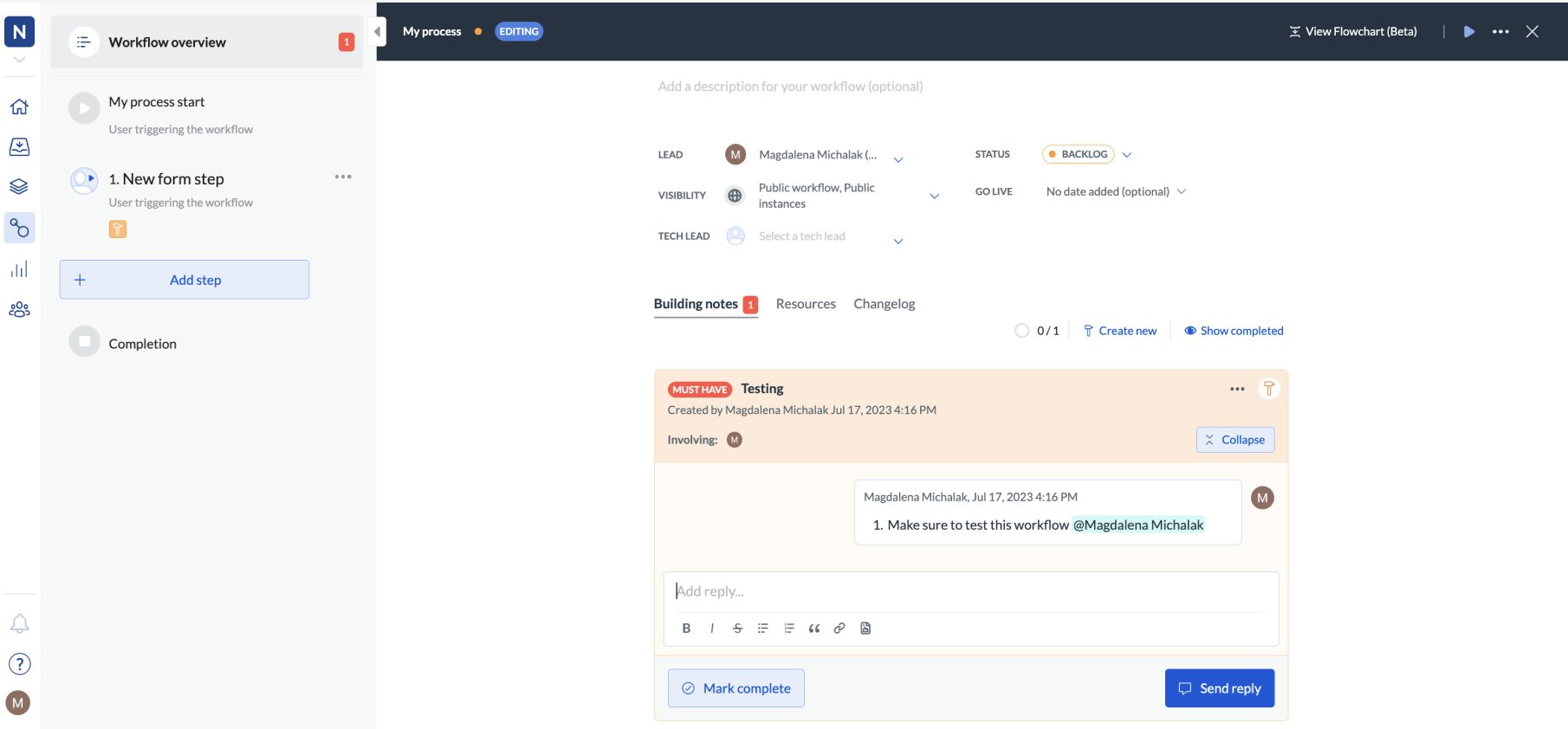
The notes will be added to the workflow. You can see all of them in the **Building notes** section of the **Workflow overview**. By default, we show the open notes. To see the open and the completed notes, click **Show completed**.
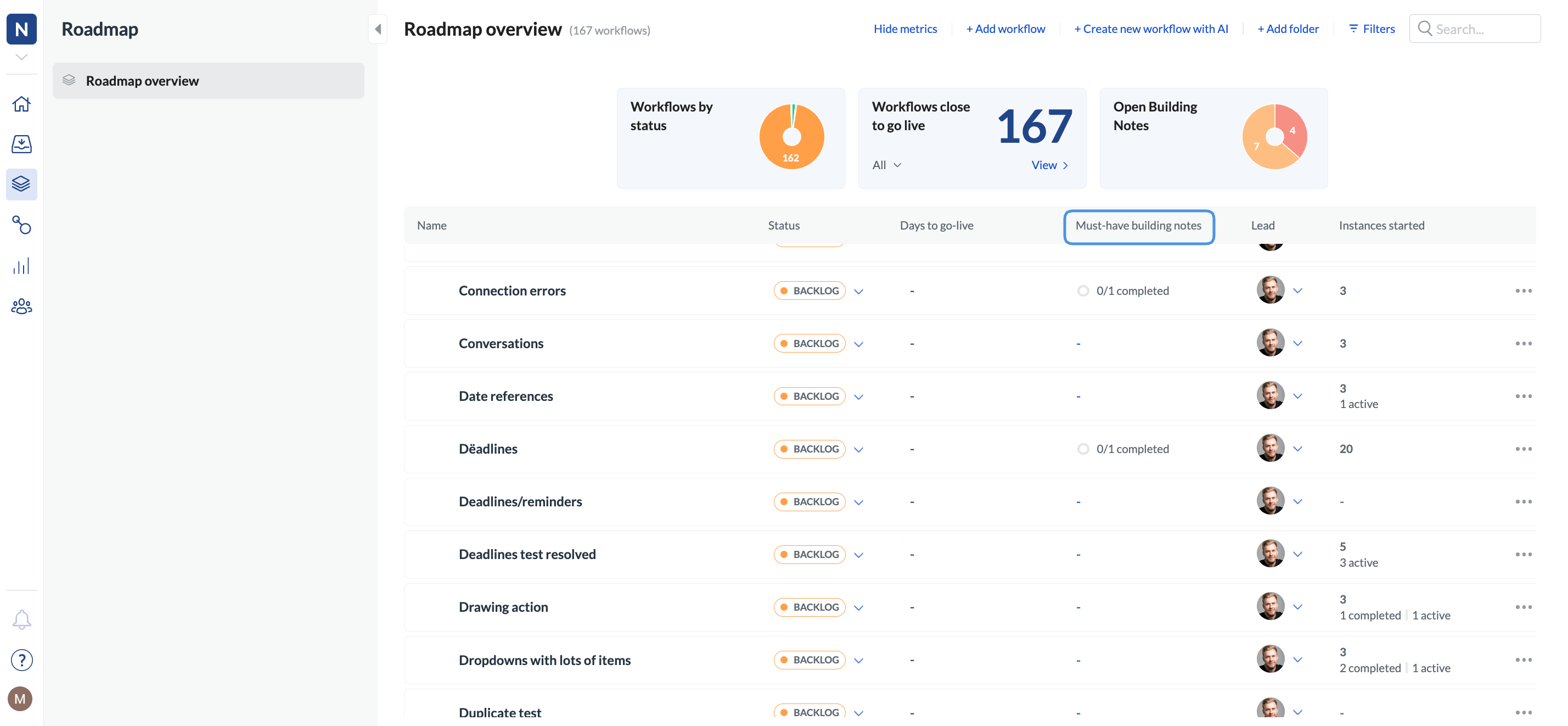
If you can't immediately see the building notes in the workflow overview, click the edit icon for the workflow. You can also see all workflows that have must-have notes in the **Roadmap** tab.
5. Click **+ Create**.
The notes will be added to the workflow. You can see all of them in the **Building notes** section of the **Workflow overview**. By default, we show the open notes. To see the open and the completed notes, click **Show completed**.
If you can't immediately see the building notes in the workflow overview, click the edit icon for the workflow. You can also see all workflows that have must-have notes in the **Roadmap** tab.
 ## Completed and open notes
Notes are displayed under the step they belong to. Open notes have an orange background, and the completed ones are green.
## Completed and open notes
Notes are displayed under the step they belong to. Open notes have an orange background, and the completed ones are green.
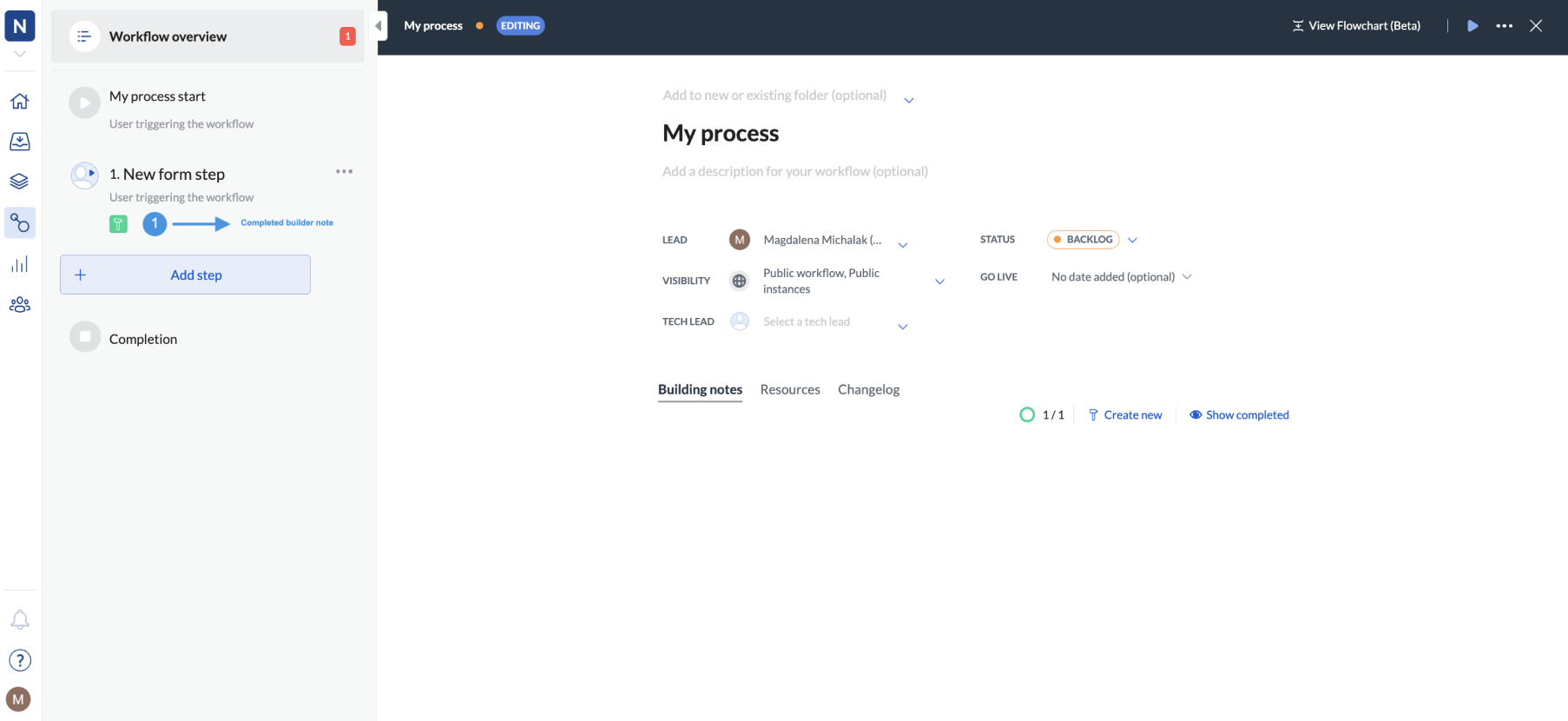 Even if a note has been completed, you can reopen it and resume the conversation.
To reopen a note:
1. In **Building notes**, click **Show completed**.
2. Click **Show more** on the note you want to reopen.
Even if a note has been completed, you can reopen it and resume the conversation.
To reopen a note:
1. In **Building notes**, click **Show completed**.
2. Click **Show more** on the note you want to reopen.
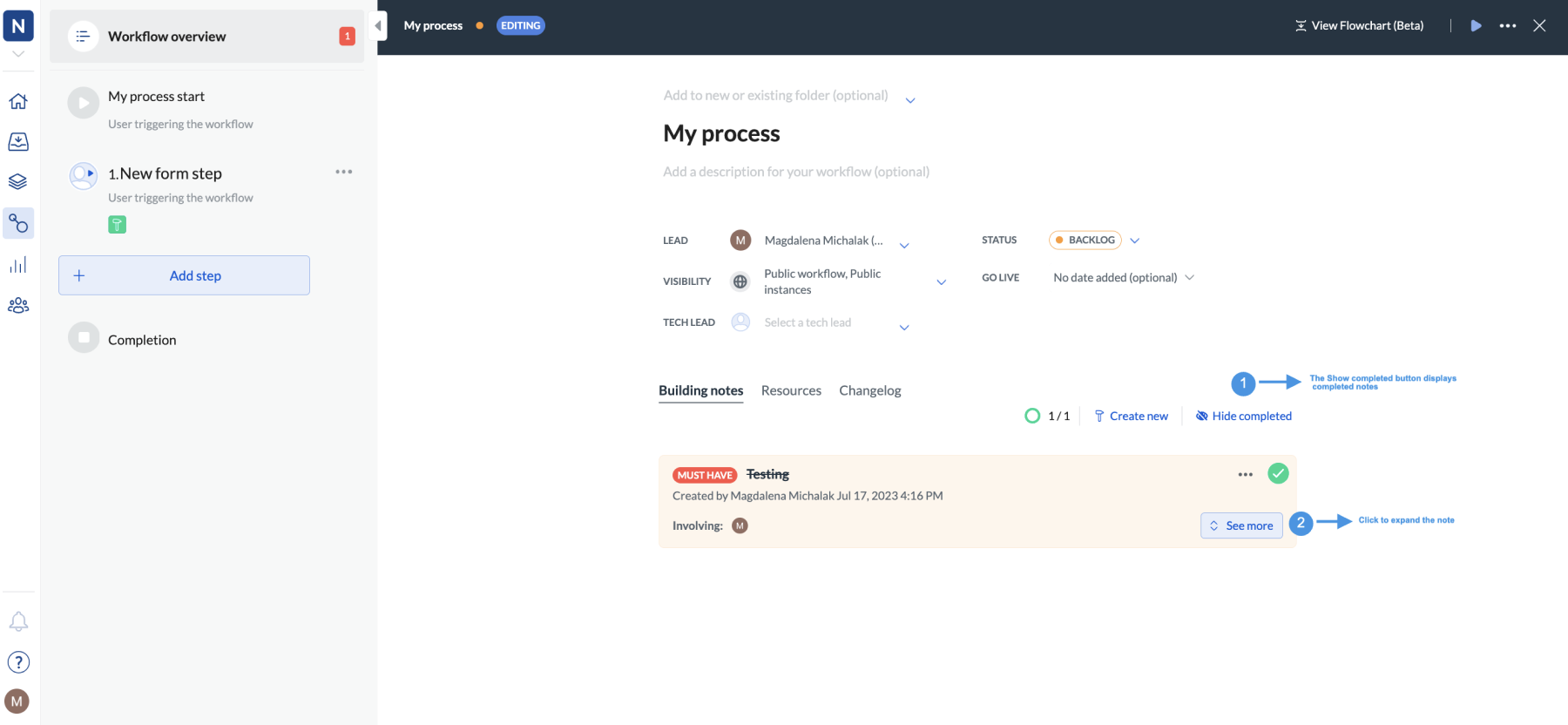 3. Click **Reopen building note**.
4. Type your message.
If your workflow goes live and you need users to comment on an instance, they can do it by starting a conversation.
3. Click **Reopen building note**.
4. Type your message.
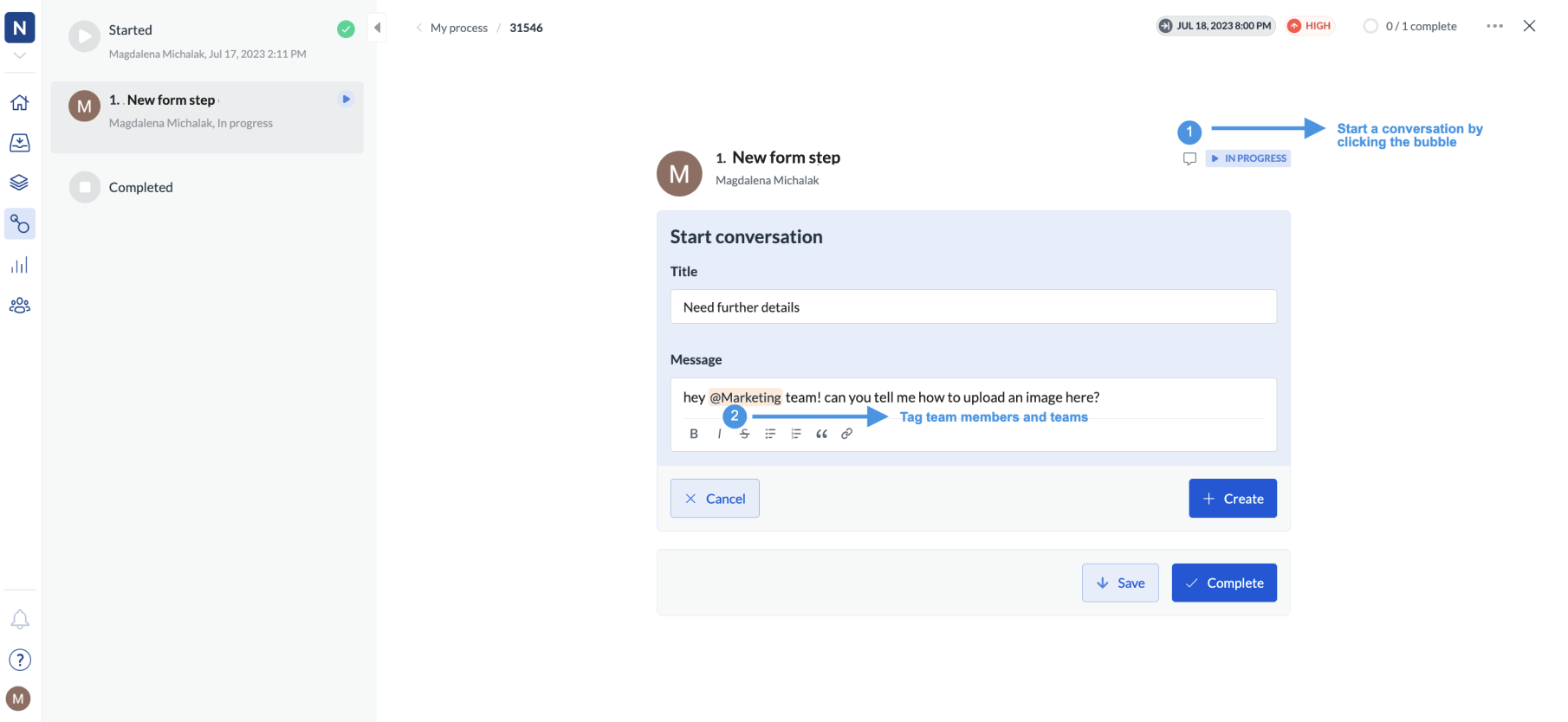
If your workflow goes live and you need users to comment on an instance, they can do it by starting a conversation.