> ## Documentation Index
> Fetch the complete documentation index at: https://help.nextmatter.com/llms.txt
> Use this file to discover all available pages before exploring further.
# Comments in steps
> You can create a step that allows workflow users to leave comments.
There are different ways in which you can get feedback on the workflow.
* If you're building a workflow, you can add [building notes](/docs/add-notes-to-process)
* If you want your internal workflow users to chime in, they can ask questions or add comments in [Conversations](/docs/learn-next-matter-as-process-participant).
However, you can also add a comment field as a separate and optional form field. This way, even if you assign the step to an external user, they'll be able to add notes or comment on a workflow.
1. Click **Workflows**.
2. Click **... > Edit workflow** for the workflow you want to edit.
3. Click the step to which you want to add the commenting option.
4. Click **+ Add form field** and select **Text Input**.
5. Click the **Settings** icon on the form field.
6. Rename the field to Comment or Note and make it **Optional**.
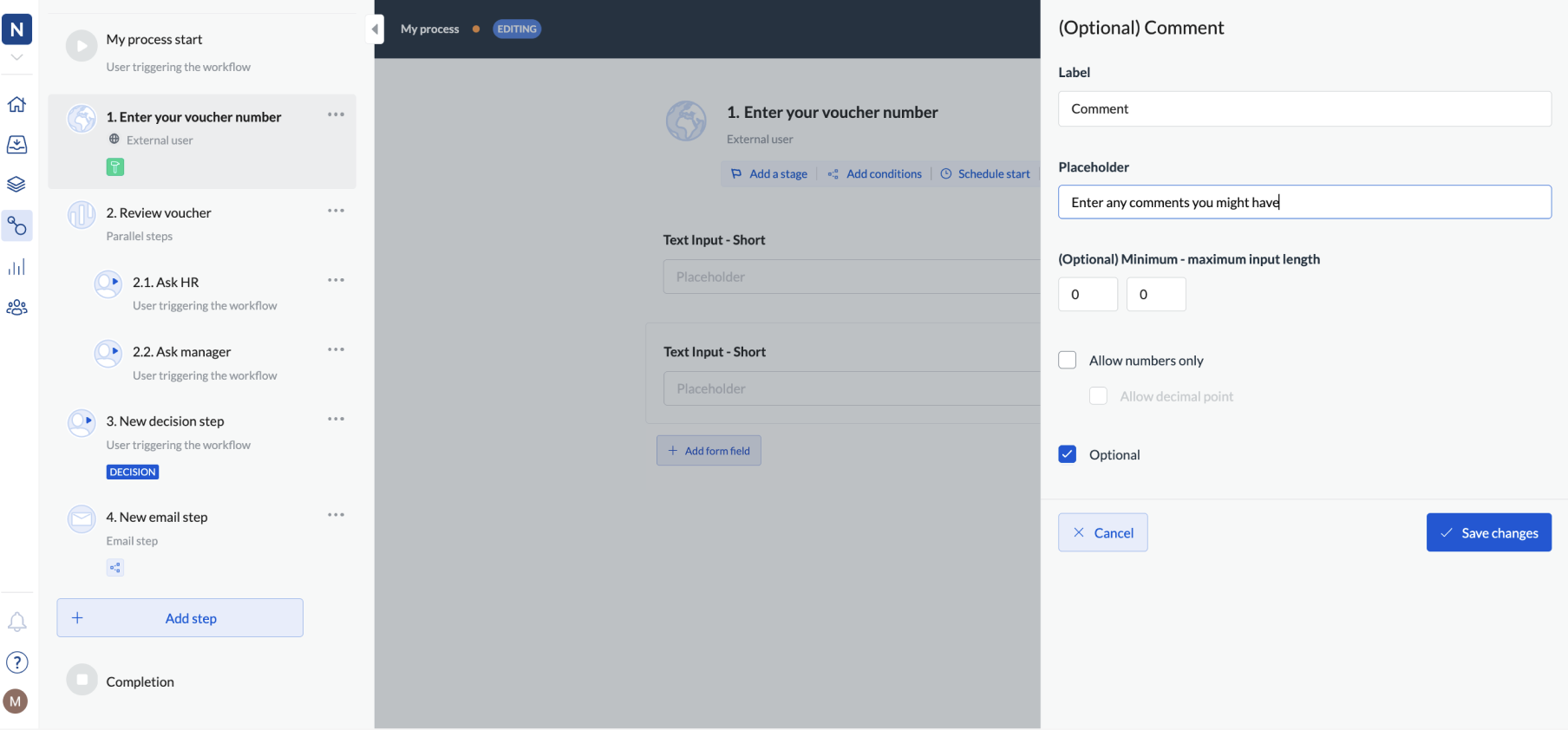 7. Click **Save changes**.
The added notes become part of the workflow and are visible to everyone even after workflow completion.
When you run an instance of the workflow and click **Save** instead of **Complete**, then the comment is saved and visible the next time you work with the workflow.
7. Click **Save changes**.
The added notes become part of the workflow and are visible to everyone even after workflow completion.
When you run an instance of the workflow and click **Save** instead of **Complete**, then the comment is saved and visible the next time you work with the workflow.