> ## Documentation Index
> Fetch the complete documentation index at: https://help.nextmatter.com/llms.txt
> Use this file to discover all available pages before exploring further.
# Workflow visibility
> Visibility and permission settings help you manage access to workflows. For example, the accounting team might not need to see the workflows of the sales team. Alternatively, you might want only yourself and a handful of people to be able to see certain workflows.
## Visibility hierarchy
The visibility settings are organized hierarchically in the following top-down structure: Folder > Workflow > Instance. This means that public workflows in a private folder can only be viewed by those who can access the folder.
Additionally, the organization admin has the whole permission set.
## Folder visibility
Folders are the best way for you to organize your workflows. By adjusting the visibility rules, you can make folders visible for teams or colleagues that you select. Folders can be either:
* **Public**: all colleagues can see this folder and the public workflows that the folder contains
* **Private**: only the admins, the folder owner, and the colleagues and teams who have access can see this folder and its public workflows
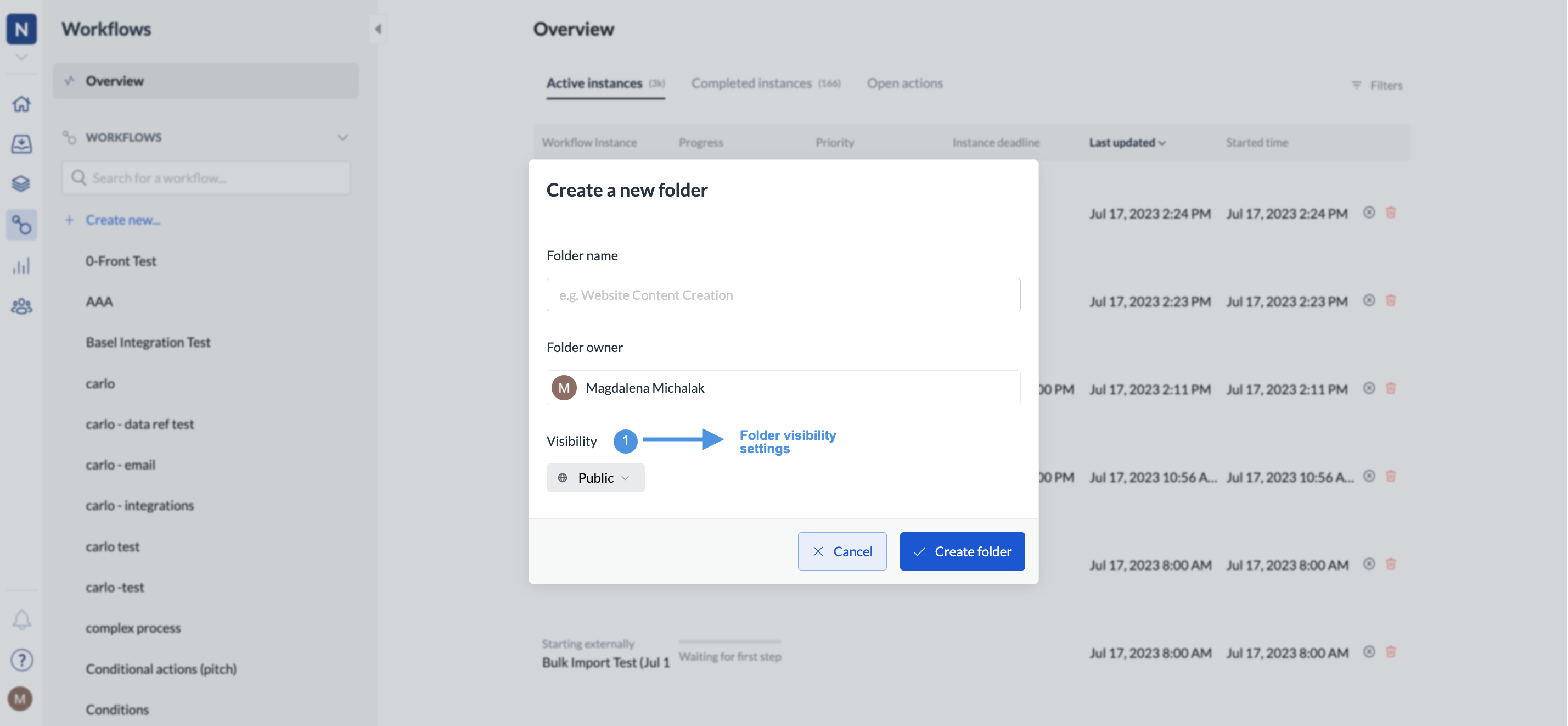 **Note:** After selecting **Private**, you can then select the people you specifically want to share this workflow with. Other colleagues, who are involved with workflows within a private folder, can only see the workflows in which they are involved.
Description: For sensitive workflows (e.g., HR), "public process, private instance" still gives admins permission to see private instances, even though they are not involved.
1. Can we make this clearer in our help center?
2. Is it possible to create a category of stricter visibility settings, wherein instances are even hidden from admins if they are not involved?
## Workflow visibility
Workflows can be one of the following:
* **Public with public instances**: all colleagues and invited external collaborators can start this workflow, see all its instances, and the information in the workflow
* **Public with private instances**: all colleagues and invited external collaborators can start this workflow, but its instances are only visible to those who are involved in them
* **Private**: only admins, the process lead, and colleagues involved with this workflow (by being assigned to one of the steps) can start it and create and view its instances. If you create a private workflow, only you and the admin can edit and delete it.
You can further restrict access by managing which teams have access to the folder the workflow is created in.
### Workflow permissions
You and all your colleagues can view and create workflows, regardless of which team you belong to.
However, only admins, workflow leads, or workflow editors can change or delete workflows. Workflow leads are normally the point of contact for escalations and questions. If the lead is only a business owner, the tech lead can be assigned. In this case, the tech lead will receive notifications when steps fail.
You can find the workflow lead when you open the workflow to view its details. For more on workflow and tech leads, see [here](/docs/workflow-lead-and-tech-lead).
**Note:** After selecting **Private**, you can then select the people you specifically want to share this workflow with. Other colleagues, who are involved with workflows within a private folder, can only see the workflows in which they are involved.
Description: For sensitive workflows (e.g., HR), "public process, private instance" still gives admins permission to see private instances, even though they are not involved.
1. Can we make this clearer in our help center?
2. Is it possible to create a category of stricter visibility settings, wherein instances are even hidden from admins if they are not involved?
## Workflow visibility
Workflows can be one of the following:
* **Public with public instances**: all colleagues and invited external collaborators can start this workflow, see all its instances, and the information in the workflow
* **Public with private instances**: all colleagues and invited external collaborators can start this workflow, but its instances are only visible to those who are involved in them
* **Private**: only admins, the process lead, and colleagues involved with this workflow (by being assigned to one of the steps) can start it and create and view its instances. If you create a private workflow, only you and the admin can edit and delete it.
You can further restrict access by managing which teams have access to the folder the workflow is created in.
### Workflow permissions
You and all your colleagues can view and create workflows, regardless of which team you belong to.
However, only admins, workflow leads, or workflow editors can change or delete workflows. Workflow leads are normally the point of contact for escalations and questions. If the lead is only a business owner, the tech lead can be assigned. In this case, the tech lead will receive notifications when steps fail.
You can find the workflow lead when you open the workflow to view its details. For more on workflow and tech leads, see [here](/docs/workflow-lead-and-tech-lead).
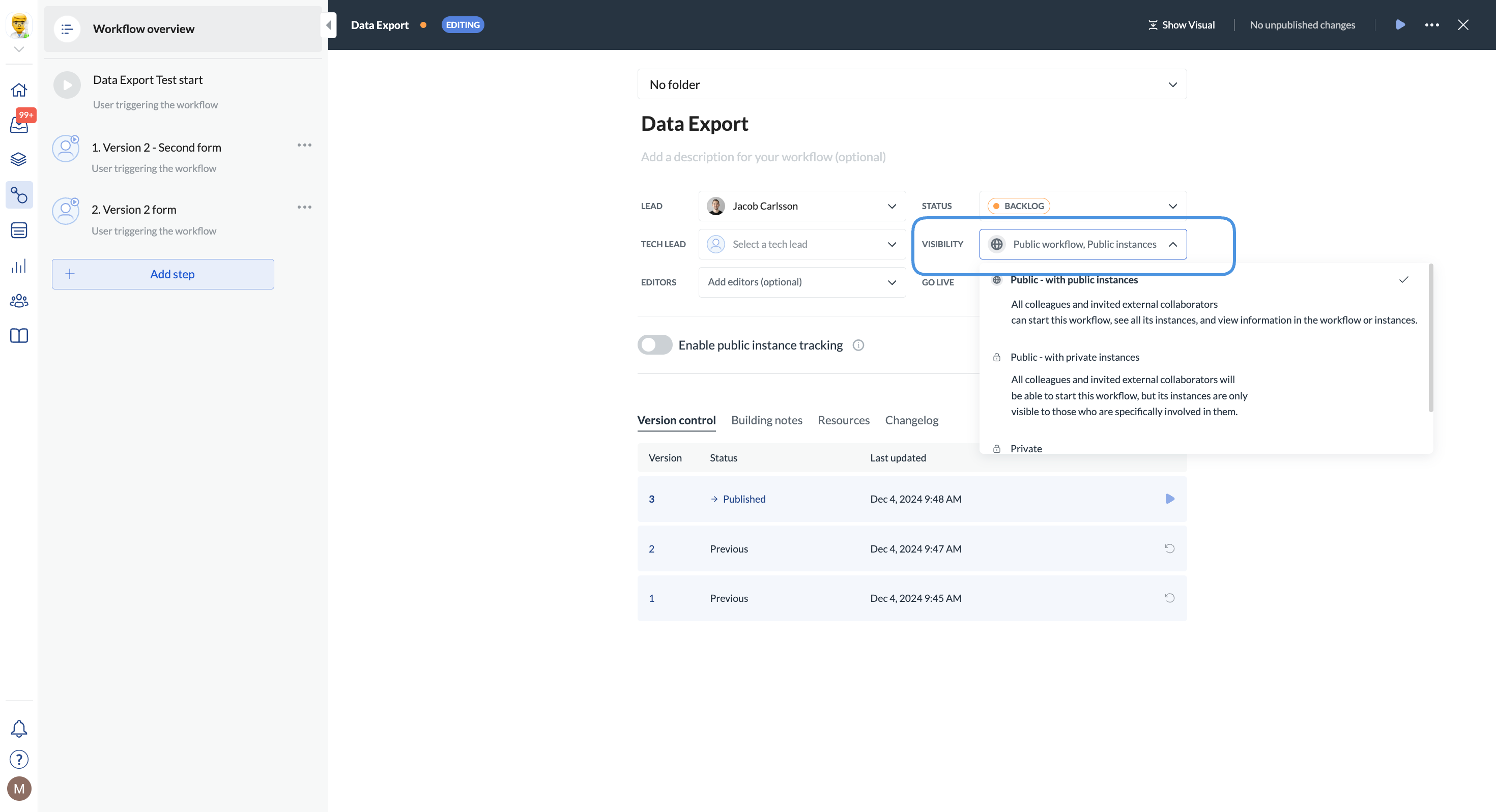 Only administrators can change workflow leads.
| Role | View private workflow | Create instances of private workflow | Change private workflow | Delete private workflow | Receive email escalations when a step fails | Start a workflow in a portal |
| :--------: | :-------------------: | :----------------------------------: | :---------------------: | :---------------------: | :-----------------------------------------: | :--------------------------: |
| Admin | ✅ | ✅ | ✅ | ✅ | | ✅ |
| Lead | ✅ | ✅ | ✅ | ✅ | ✅ (if tech lead isn't set) | |
| Colleague | ✅ | ✅ | | | | ✅ |
| Light user | | | | | | ✅ |
## Instance visibility
Instances can be one of the following:
* Private
* Public
To further restrict access to instances, you can do one of the following:
* Leave the workflow public, but make instances private. This way, anyone with access to the workflow can start an instance, but only colleagues specifically involved in the instance (having a step actively assigned to them or their team) will be able to view it.
* Set the workflow private. This way, only the workflow lead and colleagues involved in the workflow will be able to start and view the instance.
Note that when you have a public workflow and a private instance, the admin will still be able to see the instance even if they are not involved.
### Instance permissions
Instances of a workflow can be started by any colleague that can view the workflow.
When an instance has been started, it can be changed and deleted only by the process lead and workflow instance lead (the user that started the instance). Only the workflow lead can skip steps or delegate steps within the workflow.
| Role | View private instance | Start private instance | Change private instance | Delete private instance | Skip a step | Delegate step |
| :-----------: | :-------------------: | :-----------------------: | :---------------------: | :---------------------: | :---------: | :-----------: |
| Admin | ✅ | ✅ | ✅ | ✅ | ✅ | ✅ |
| Workflow lead | ✅ | ✅ | ✅ | ✅ | ✅ | ✅ |
| Instance lead | ✅ | ✅ | ✅ | ✅ | | |
| Colleague | ✅ | ✅ | | | | |
| Light user | | ✅ (if shared in a portal) | | | | |
## Step visibility
For your team and colleagues to see a step, you need to specifically give them permission to do so.
If you don't set the permissions, no one else will be able to see the step. Administrators won't have permission to see the step either.
Only administrators can change workflow leads.
| Role | View private workflow | Create instances of private workflow | Change private workflow | Delete private workflow | Receive email escalations when a step fails | Start a workflow in a portal |
| :--------: | :-------------------: | :----------------------------------: | :---------------------: | :---------------------: | :-----------------------------------------: | :--------------------------: |
| Admin | ✅ | ✅ | ✅ | ✅ | | ✅ |
| Lead | ✅ | ✅ | ✅ | ✅ | ✅ (if tech lead isn't set) | |
| Colleague | ✅ | ✅ | | | | ✅ |
| Light user | | | | | | ✅ |
## Instance visibility
Instances can be one of the following:
* Private
* Public
To further restrict access to instances, you can do one of the following:
* Leave the workflow public, but make instances private. This way, anyone with access to the workflow can start an instance, but only colleagues specifically involved in the instance (having a step actively assigned to them or their team) will be able to view it.
* Set the workflow private. This way, only the workflow lead and colleagues involved in the workflow will be able to start and view the instance.
Note that when you have a public workflow and a private instance, the admin will still be able to see the instance even if they are not involved.
### Instance permissions
Instances of a workflow can be started by any colleague that can view the workflow.
When an instance has been started, it can be changed and deleted only by the process lead and workflow instance lead (the user that started the instance). Only the workflow lead can skip steps or delegate steps within the workflow.
| Role | View private instance | Start private instance | Change private instance | Delete private instance | Skip a step | Delegate step |
| :-----------: | :-------------------: | :-----------------------: | :---------------------: | :---------------------: | :---------: | :-----------: |
| Admin | ✅ | ✅ | ✅ | ✅ | ✅ | ✅ |
| Workflow lead | ✅ | ✅ | ✅ | ✅ | ✅ | ✅ |
| Instance lead | ✅ | ✅ | ✅ | ✅ | | |
| Colleague | ✅ | ✅ | | | | |
| Light user | | ✅ (if shared in a portal) | | | | |
## Step visibility
For your team and colleagues to see a step, you need to specifically give them permission to do so.
If you don't set the permissions, no one else will be able to see the step. Administrators won't have permission to see the step either.
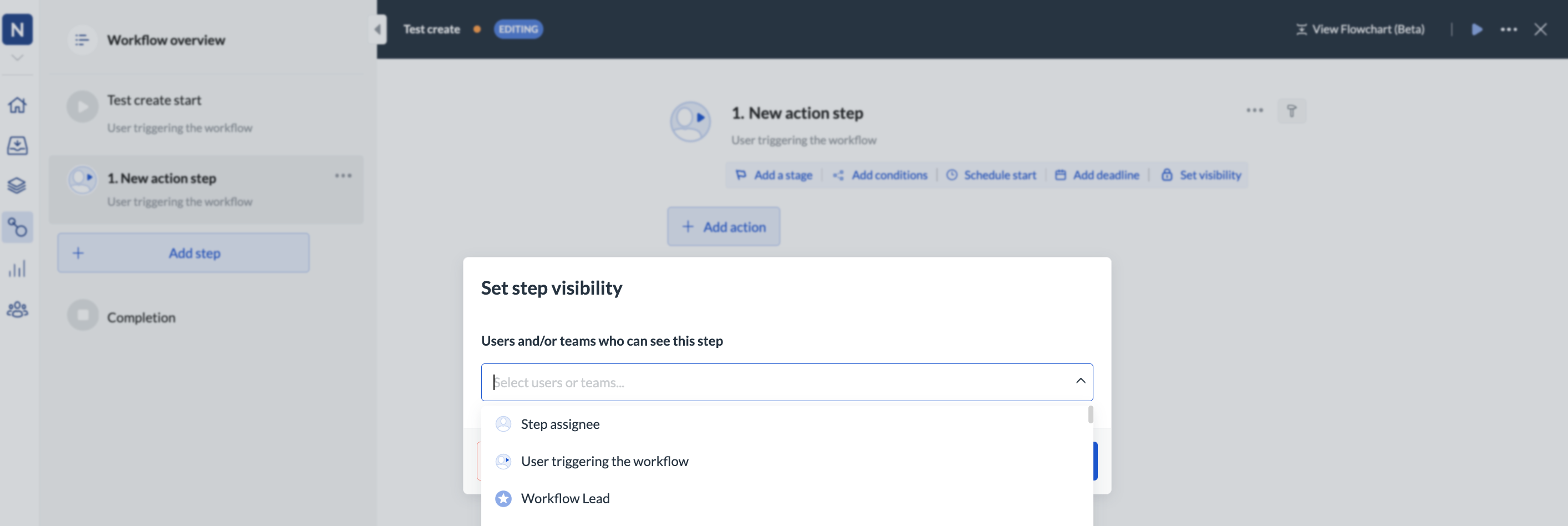 If you have a step assigned to you, you become this step's owner. You will see an overview of the steps that are assigned to you or your team in your Next Matter inbox. You can also receive email notifications reminding you about open steps.