> ## Documentation Index
> Fetch the complete documentation index at: https://help.nextmatter.com/llms.txt
> Use this file to discover all available pages before exploring further.
# Forms and form fields
> Forms are detailed tasks required to complete a step. The form field might be to enter customer address or select a meal type from a dropdown. Each step can consist of multiple mandatory or optional form fields.
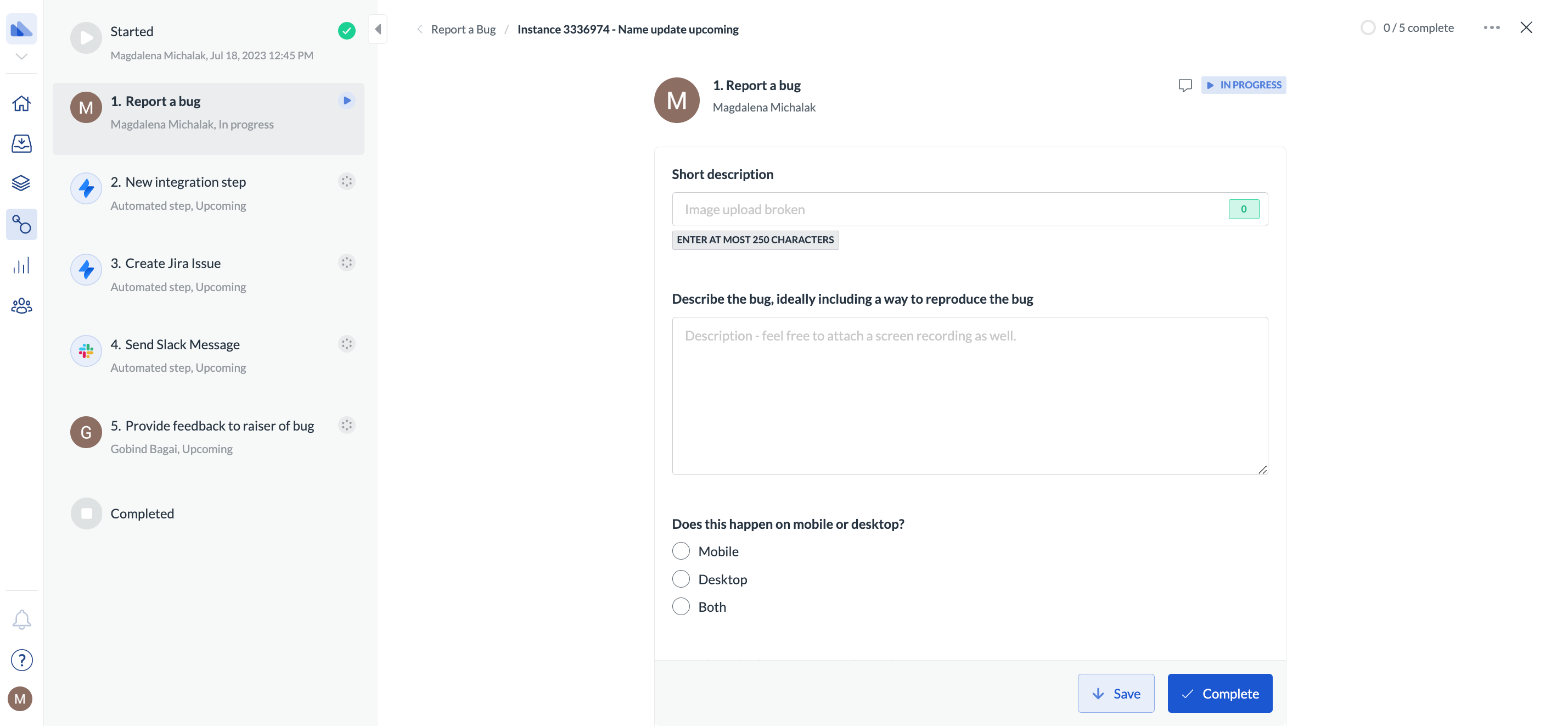
To cater to all types of data you might want to gather, there are multiple form types. For example, if you want to report a bug, You might want a user to enter a summary (short text input form field), describe a bug (long text input form field), select if the bug happened on mobile or desktop (radio form field), and possibly upload a screenshot (image upload form field).
This is what the user sees when they fill in such a workflow instance:
## Form configuration
You can work with form field configuration when you click on a step and add a form field.
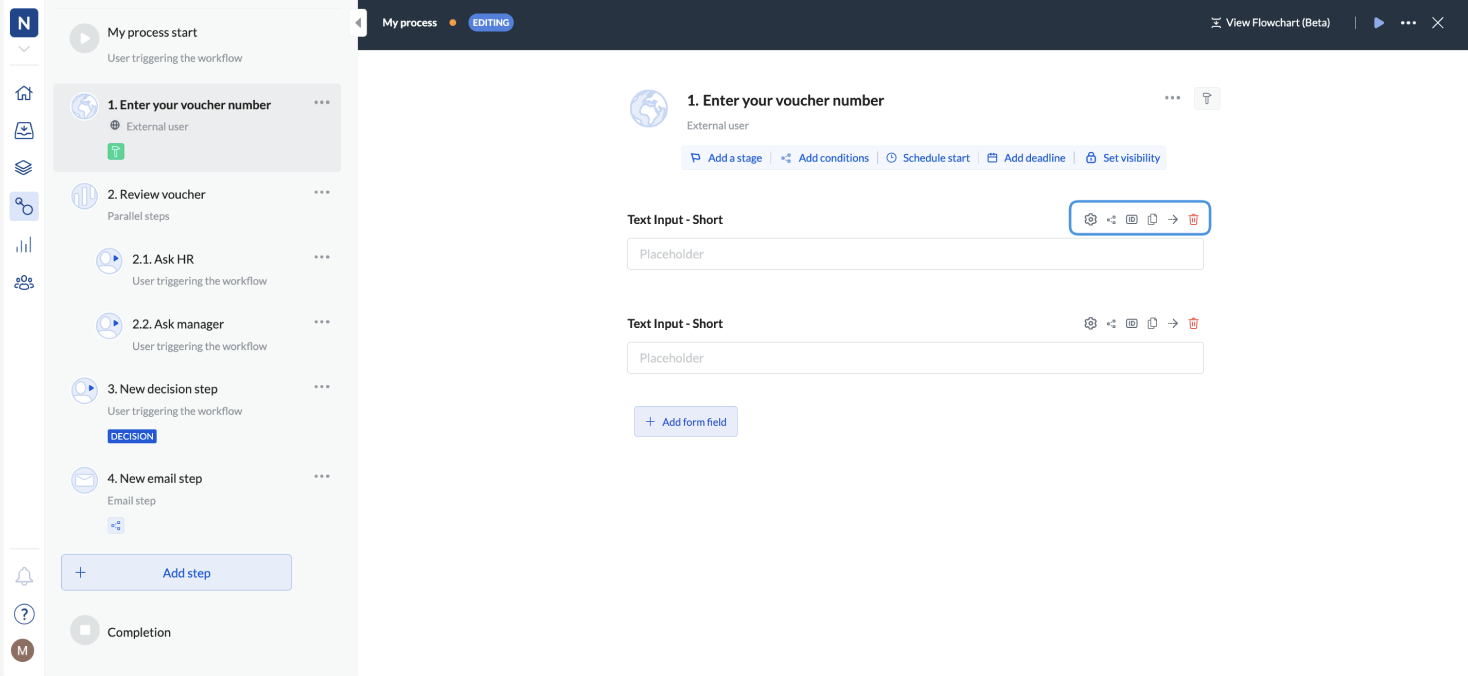 To configure form fields, do the following:
1. Go to **Workflows > Edit workflow**.
2. Click **Add step**.
3. Select **Form**.
4. Click **Add form field**.
5. Click the settings icon to add placeholders for fields or labels (step titles), and make the step optional.
By default, form fields are required. If you want a field to be optional, you need to select **Optional** in the **Settings**.
There are also options to copy the form field ID, copy the form, move it (for example to a different step), and delete it.
Setting form conditions works in the same way as step conditions. For details, see [Set conditions to a step](/docs/set-conditions-to-a-step).
## Edit a form field
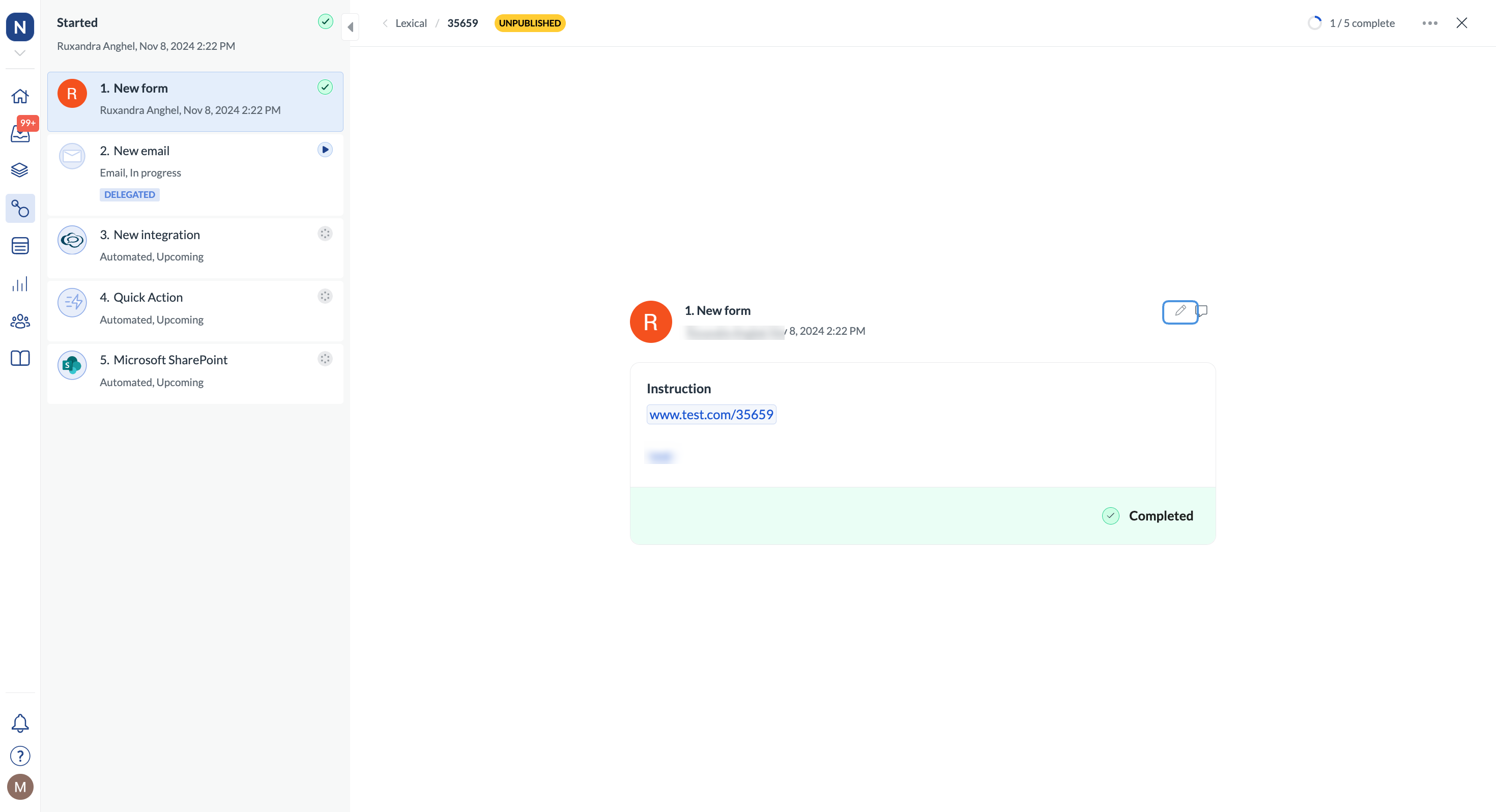
After you've completed a form, you can still edit the fields if you're an admin or a user assigned to the step or if the step has been delegated to you.
If you go to the step (by following a link in the email), you can click the pencil icon, update your field data, and save your changes.
Notes:
* You can edit the step if the workflow hasn't been completed.
* If there are conditions related to the step or any other dependencies that have already been completed, updating the field doesn't change them.
* You can't update the completed step using the API.
To configure form fields, do the following:
1. Go to **Workflows > Edit workflow**.
2. Click **Add step**.
3. Select **Form**.
4. Click **Add form field**.
5. Click the settings icon to add placeholders for fields or labels (step titles), and make the step optional.
By default, form fields are required. If you want a field to be optional, you need to select **Optional** in the **Settings**.
There are also options to copy the form field ID, copy the form, move it (for example to a different step), and delete it.
Setting form conditions works in the same way as step conditions. For details, see [Set conditions to a step](/docs/set-conditions-to-a-step).
## Edit a form field
After you've completed a form, you can still edit the fields if you're an admin or a user assigned to the step or if the step has been delegated to you.
If you go to the step (by following a link in the email), you can click the pencil icon, update your field data, and save your changes.
Notes:
* You can edit the step if the workflow hasn't been completed.
* If there are conditions related to the step or any other dependencies that have already been completed, updating the field doesn't change them.
* You can't update the completed step using the API.